
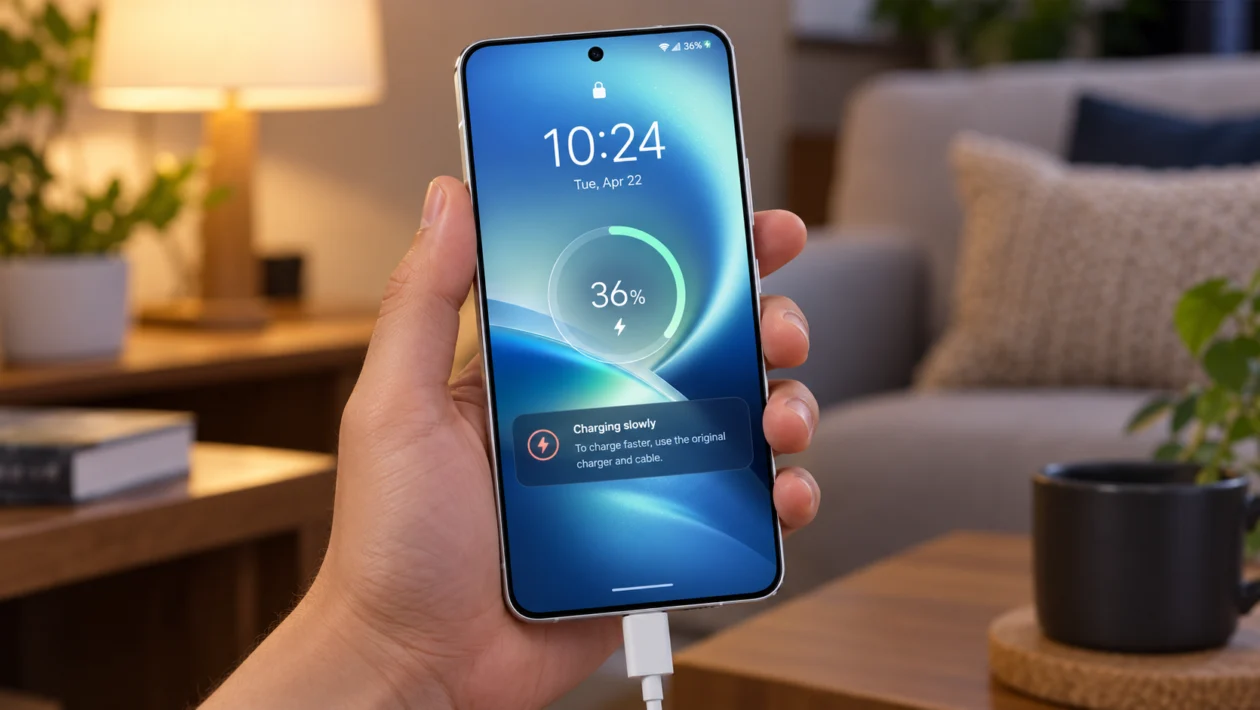
If your vivo X500 Pro is charging slower than expected, the problem is not always the battery. Slow charging can happen because of the charger, cable, charging port, phone temperature, background apps, power source, battery protection settings, or a software issue.
Start with the simple checks first. Use the original vivo charger and cable, inspect the charging port, let the phone cool down, then check whether apps or settings are slowing things down.
Quick answer
To fix a vivo X500 Pro with slow charging, first use the original vivo charger and USB cable. Then check the charging port for dust, restart the phone, close heavy apps, and avoid using the phone while charging.
If it still charges slowly, try another wall outlet, update the phone software, check battery settings, and test with another compatible charger. If the phone gets hot, shows charging warnings, or still charges slowly with official accessories, contact vivo support or visit a vivo service center.
vivo X500 Pro slow charging diagnostic table
| Symptom | Likely cause | What to check first |
|---|---|---|
| Charges slowly with any charger | Wrong adapter, bad cable, dirty port, or battery setting | Charger, cable, USB-C port |
| Charges slowly only sometimes | Heat, background apps, gaming, camera use | Phone temperature and active apps |
| Fast charging does not appear | Non-compatible charger or cable | Original vivo charger and cable |
| Charging stops and starts | Loose cable, dirty port, damaged connector | Charging port and USB cable |
| Phone gets warm while charging | Heavy app use, hot room, case trapping heat | Temperature and phone case |
| Battery percentage barely moves | Weak power source or power bank issue | Wall outlet and adapter |
| Slow charging after update | Software optimization or app issue | Restart, update apps, monitor usage |
| Charges slowly overnight | Battery protection or smart charging behavior | Battery settings |
| Charging is slow after water exposure | Moisture or corrosion in port | Stop charging and service check |
| Still slow after all fixes | Battery, charging board, or hardware issue | vivo service center |
Why is my vivo X500 Pro charging slowly?
Your vivo X500 Pro may charge slowly if it is not getting enough power from the charger or if the phone is limiting charging speed to protect the battery.
Common causes include:
Wrong charger
Damaged USB cable
Dust or debris in the USB-C port
Loose charging connection
Phone overheating
Heavy apps running while charging
Gaming, camera use, hotspot, or navigation while plugged in
Charging from a laptop, car USB port, or weak power bank
Battery protection settings
Software bugs
Battery wear or hardware damage
vivo’s own charging guidance recommends using a charger and USB cable compatible with the device. That matters because fast charging usually depends on the phone, adapter, cable, and charging protocol working together.
1. Use the original vivo charger and cable
Start here before changing settings.
The vivo X500 Pro may charge slowly if you are using a low-power adapter, a cheap USB-C cable, or a charger that does not support the phone’s fast charging standard.
Do this:
- Plug the phone into the original vivo power adapter.
- Use the original USB cable that came with the phone.
- Connect it directly to a wall outlet.
- Wait 1 to 2 minutes.
- Check whether fast charging appears on the lock screen or battery screen.
Avoid charging from a laptop USB port, monitor USB port, car USB port, or old 5W adapter if you want normal fast charging speed.
If the phone charges faster with the original charger, the issue is likely your third-party charger or cable.
2. Check the USB-C cable for damage
A damaged cable can still charge the phone, but much slower than normal.
Check the cable for:
Bent connector
Loose USB-C tip
Frayed wire
Burn marks
Exposed metal
Cable that only works at a certain angle
Cable that disconnects when moved
Try another compatible USB-C cable if you have one. Use a cable that supports fast charging, not just basic charging.
If the vivo X500 Pro charges normally with another cable, replace the old cable. Do not keep using a damaged charging cable, especially if it gets hot.
3. Clean the charging port carefully
Dust, lint, and debris inside the USB-C port can stop the cable from sitting properly. That can make charging slow, unstable, or intermittent.
Do this:
- Turn off your vivo X500 Pro.
- Remove the charging cable.
- Use a flashlight to inspect the USB-C port.
- Look for lint, dirt, or anything blocking the connector.
- Gently remove visible debris with a soft, dry brush.
- Plug the cable back in and check if charging improves.
Do not use metal pins, needles, liquid cleaners, or compressed air at close range. If the port looks wet, corroded, burned, or damaged, stop charging and visit a service center.
4. Let the phone cool down before charging
Fast charging may slow down when the phone is hot. This is normal battery protection behavior.
Your vivo X500 Pro can get warm if you are:
Gaming
Recording video
Using the camera for a long time
Using mobile data in weak signal areas
Charging in direct sunlight
Charging with a thick case
Using hotspot
Running navigation apps
Charging on a bed, pillow, or sofa
Try this:
- Unplug the charger.
- Remove the phone case.
- Close heavy apps.
- Place the phone on a cool, flat surface.
- Wait 10 to 15 minutes.
- Plug it back in.
Do not put the phone in a refrigerator or freezer. Sudden temperature changes can cause moisture problems.
5. Stop using the phone while charging
Using the phone while charging can make it look like the battery is charging slowly. The phone may be gaining power, but the screen, processor, camera, speakers, mobile data, and apps are using power at the same time.
For a proper charging test:
- Close all open apps.
- Turn off the screen.
- Leave the phone charging for 15 minutes.
- Check how much the battery percentage increased.
- Compare it with charging while using the phone.
If charging improves when the screen is off, your phone is probably fine. The issue is active power use while charging.
This is especially common when playing games, watching videos, using TikTok, recording video, or using mobile hotspot while plugged in.
6. Restart your vivo X500 Pro
A restart can fix temporary charging bugs, stuck background processes, and small system glitches.
Do this:
- Press and hold the Power button.
- Tap Restart.
- Wait for the phone to turn back on.
- Plug in the charger.
- Check if charging speed improves.
This will not delete your files.
Restarting is worth trying if slow charging started after installing an app, changing a setting, or leaving the phone on for several days without rebooting.
7. Close battery-draining apps before charging
Some apps keep using power even while the phone is plugged in. If an app is using too much battery, charging can feel painfully slow.
Check battery usage:
- Open Settings.
- Tap Battery.
- Check battery usage details.
- Look for apps using more power than expected.
- Close, update, restrict, or uninstall the app if needed.
Apps that often affect charging speed include:
Games
Video streaming apps
Navigation apps
Camera apps
Social media apps
Shopping apps
Cloud backup apps
VPN apps
File syncing apps
If one app is using a lot of battery in the background, update it first. If that does not help, limit background activity or uninstall it temporarily to test.
8. Try a different wall outlet or power source
Sometimes the phone is not the problem. The outlet, extension cord, power strip, or power bank may be weak.
Try this:
- Plug the charger into a different wall outlet.
- Avoid extension cords for testing.
- Avoid charging from a laptop or desktop USB port.
- If using a power bank, make sure it supports fast output.
- Test the charger with another phone if possible.
If your vivo X500 Pro charges normally from another outlet, the original power source may be unstable.
If it charges slowly from a power bank but normally from the wall charger, the power bank may not support the required fast charging output.
9. Update the phone software and apps
Software bugs can affect charging, battery reporting, background activity, and heat management. Updates can fix those issues.
To update your phone:
- Open Settings.
- Tap System update.
- Check for updates.
- Install any available update.
- Restart the phone after updating.
To update apps:
- Open Google Play Store or vivo app store.
- Tap your profile or app management section.
- Check for app updates.
- Update all important apps.
If slow charging started after a recent software update, give the phone a short adjustment period. Apps and system services may re-optimize after an update. If the issue continues after 24 to 48 hours, continue with the next fix.
10. Check battery settings and contact vivo support if needed
Your vivo X500 Pro may have battery protection or optimized charging features that slow charging under certain conditions. These settings are usually designed to reduce heat and protect long-term battery health.
Check this area:
- Open Settings.
- Tap Battery.
- Look for Battery health, Charging settings, Optimized charging, or similar options.
- Review any charging limit or smart charging feature.
- Temporarily disable battery protection only if you need to test charging speed.
Menu names may vary depending on your software version and region.
Contact vivo service center if:
The phone charges slowly with the original charger and cable
The charging port feels loose
The cable disconnects easily
The phone gets unusually hot
The battery percentage jumps or drops suddenly
The phone shows moisture or temperature warnings
The phone was dropped or exposed to water
Charging stops before reaching 100%
The charger or cable smells burnt
The issue continues after all 10 fixes
If you visit a service center, bring the phone, charger, cable, and proof of purchase. Charging issues can come from the phone, adapter, cable, or port, so it helps if the technician can test the full set.
Should you replace the battery?
Do not replace the battery right away.
Slow charging is more often caused by the charger, cable, port, heat, software, or background activity. Battery replacement should be considered only after the basic checks fail or a technician confirms a battery problem.
You should get the battery checked if the phone also:
Drains unusually fast
Shuts down before reaching 0%
Gets hot during light use
Swells or lifts the back cover
Charges slowly with multiple official chargers
Shows sudden battery percentage drops
Stop using the phone and get help immediately if the battery looks swollen.
FAQ
Why is my vivo X500 Pro not fast charging?
Your vivo X500 Pro may not fast charge if you are using the wrong charger, a damaged cable, a dirty USB-C port, or a weak power source. Heat and background apps can also reduce charging speed.
Can a bad cable cause slow charging?
Yes. A cable can still work but fail to deliver enough power for fast charging. Try another compatible fast-charging USB-C cable.
Is it bad to use the vivo X500 Pro while charging?
Light use is usually fine, but gaming, video recording, hotspot, or streaming can slow charging and increase heat. For the fastest charging, turn the screen off and leave the phone unused.
