
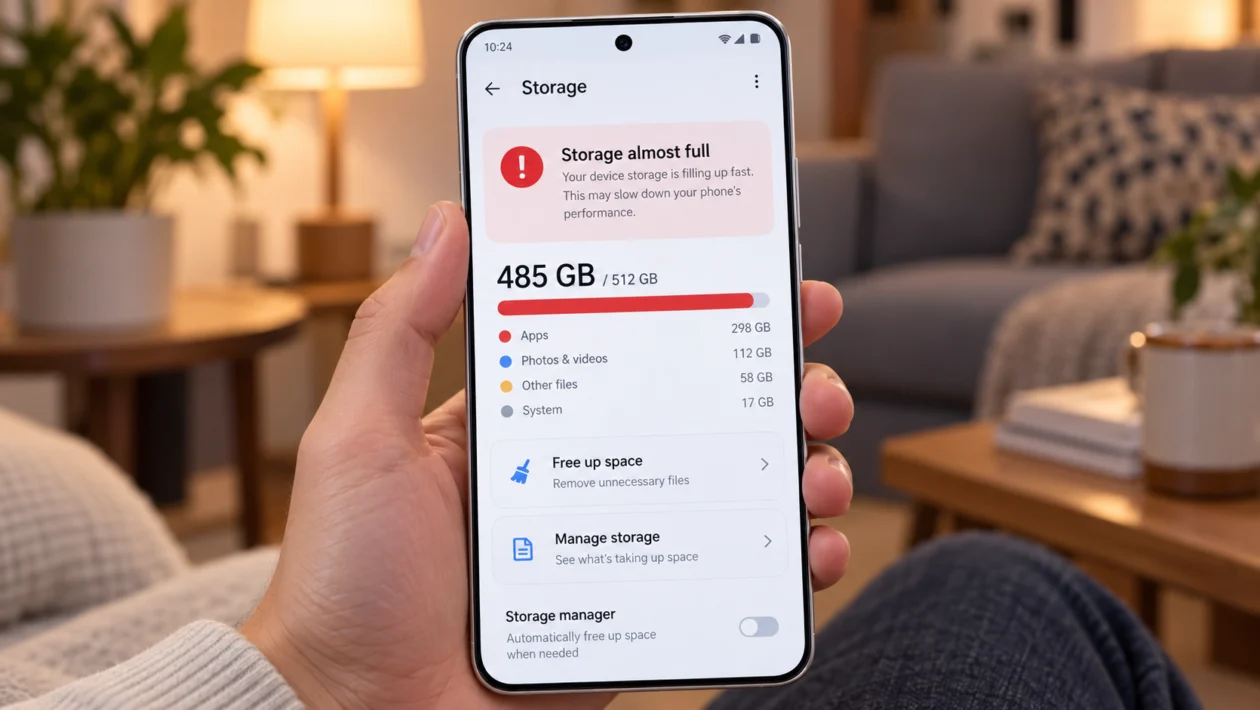
If your vivo X500 Pro storage is filling up quickly, the phone can start feeling harder to use. Apps may update slower, the camera may stop saving photos, downloads may fail, and the phone may keep warning you that storage space is low.
This does not always mean something is wrong with the phone. Storage can fill up because of camera files, app cache, WhatsApp or Messenger media, downloaded videos, duplicate photos, offline maps, system data, old APK files, or backup files you forgot about.
Start with the storage screen first. Then clean the biggest categories one by one.
Quick answer
To fix a vivo X500 Pro with storage quickly filling up, go to Settings > RAM & storage space > Phone storage and check what is using the most space. Then open iManager > Space cleanup to remove junk files, cache, duplicate files, and large unused items.
If storage keeps filling up again, check your camera videos, messaging apps, downloads folder, offline media, app cache, and cloud backup settings. Do not factory reset the phone until you have checked the common causes below.
vivo X500 Pro storage problem diagnostic table
| Symptom | Likely cause | What to check first |
|---|---|---|
| Storage drops every day | App cache, messaging media, downloads | Settings > RAM & storage space |
| Photos and videos take too much space | 4K video, burst shots, screenshots | Gallery and Camera folder |
| Storage fills after using WhatsApp or Messenger | Auto-downloaded media | App storage and media folders |
| “System” or “Other” looks too large | Cache, logs, app data, temporary files | iManager > Space cleanup |
| Phone storage full after updates | Update files, app cache, system leftovers | Software update files and cleanup tool |
| Downloads folder is huge | APKs, PDFs, videos, ZIP files | Files > Downloads |
| Apps take most storage | Games, social apps, video apps | App manager storage list |
| Storage fills again after cleaning | Auto backup, auto download, app sync | App settings and cloud sync |
Why is my vivo X500 Pro storage filling up so fast?
Your vivo X500 Pro storage may be filling up quickly because large files are being saved faster than you realize.
Common causes include:
Large photos and videos
4K or high-resolution camera recording
Screenshots and screen recordings
App cache
WhatsApp, Telegram, Messenger, or Viber media
Offline Netflix, YouTube, Spotify, or map downloads
Duplicate images and videos
Old APK files
Game data
System update files
Cloud backup copies
Files received through Bluetooth, Nearby Share, or file transfer apps
The vivo X500 Pro may also come in different storage versions, so users with a 256GB model will feel storage pressure sooner than users with 512GB or 1TB. The practical fix is not just deleting random files. You need to find the category that is growing the fastest.
1. Check what is using the most storage first
Do this before deleting anything. It shows whether the problem is apps, images, videos, downloads, system files, or another category.
- Open Settings.
- Tap RAM & storage space.
- Tap Phone storage.
- Check which category uses the most space.
- Tap the large category if your software version allows it.
- Review the files or apps inside that category.
Look closely at:
Apps
Images
Videos
Audio
Documents
Installation packages
Compressed files
System or Other
If videos are using the most space, go to your Gallery and camera folders. If apps are using the most space, go to App manager. If downloads are high, check the Downloads folder.
This step matters because many users clean photos when the real problem is WhatsApp, TikTok cache, game data, or downloaded videos.
2. Use iManager Space cleanup
vivo phones usually include iManager, which can help clean junk files and storage leftovers. This is the safest first cleanup because it targets temporary files instead of your personal photos and documents.
- Open iManager.
- Tap Space cleanup or Cleanup.
- Wait for the scan to finish.
- Review the suggested files.
- Tap Clean up.
- Check large files, duplicate files, and unused apps if shown.
You can also try this path:
- Open Settings.
- Tap RAM & storage space.
- Tap Manage storage space.
- Tap Clean up all if available.
Do not delete everything blindly. Review large videos, documents, and installation files first. Some cleanup tools may show files you still need.
3. Clear cache from apps using too much storage
App cache can grow quickly, especially from social media, shopping apps, browsers, video apps, maps, and messaging apps.
- Open Settings.
- Tap Apps.
- Tap App manager.
- Choose an app using too much storage.
- Tap Storage.
- Tap Clear cache.
Start with apps like:
TikTok
Facebook
Instagram
YouTube
Chrome
Shopee
Lazada
Google Maps
Spotify
Netflix
Telegram
Messenger
Use Clear cache first. Be careful with Clear data because it can sign you out, remove offline files, or reset app settings.
If one app keeps growing again after a few days, update it. If it still keeps filling your storage, uninstall and reinstall it. That often removes old app data that normal cache clearing does not touch.
4. Delete large videos, screen recordings, and burst photos
The vivo X500 Pro is a camera-focused phone, so photos and videos can quickly eat storage. High-resolution videos, long clips, screen recordings, and duplicate shots are usually the biggest files.
- Open Gallery.
- Go to Albums.
- Open Videos.
- Sort by size if available.
- Delete long videos you no longer need.
- Check Screen recordings.
- Check Recently deleted and empty it if you are sure.
Also review:
Camera videos
Slow-motion videos
Portrait photos
Screenshots
Screen recordings
Burst shots
Edited photo copies
Downloaded images
A few long videos can use more space than hundreds of normal photos. If you record in high resolution often, this is probably one of the main reasons your storage keeps filling up.
After deleting files, open the Recently deleted folder in Gallery. Files inside that folder may still use storage until they are permanently removed.
5. Stop messaging apps from auto-saving media
Messaging apps are one of the most common reasons phone storage fills up quickly. Group chats can save photos, videos, GIFs, stickers, voice notes, and documents without you noticing.
For WhatsApp:
- Open WhatsApp.
- Tap Settings.
- Tap Storage and data.
- Check Media auto-download.
- Turn off auto-download for mobile data, Wi-Fi, or roaming if needed.
- Go to Manage storage.
- Delete large forwarded videos or old chat media.
For Telegram:
- Open Telegram.
- Tap Settings.
- Tap Data and Storage.
- Review automatic media download.
- Open Storage usage.
- Clear Telegram cache.
For Messenger or Viber, open the app settings and check media, photos, downloads, and storage options.
This fix is important because deleting files once will not help if the app keeps downloading new media every day.
6. Remove downloaded movies, music, maps, and offline files
Offline files are easy to forget. They do not always appear in Gallery, but they still use phone storage.
Check these apps:
YouTube
Netflix
Disney+
Spotify
Apple Music
Google Maps
Waze
Podcast apps
File sharing apps
Browser downloads
For YouTube or Netflix, open the app and check Downloads. For Spotify or music apps, check downloaded playlists. For Google Maps, check Offline maps.
Delete anything you do not need offline anymore.
If you live in the Philippines or another area where mobile data can be expensive, keeping some offline files makes sense. Just avoid storing old episodes, playlists, or maps you no longer use.
7. Clean the Downloads folder and old APK files
The Downloads folder often collects files you only needed once. These can include PDFs, APKs, ZIP files, receipts, photos, videos, and work documents.
- Open Files or File Manager.
- Tap Downloads.
- Sort by size or date.
- Delete files you no longer need.
- Look for APK files.
- Delete old installation packages.
Common files to remove:
Old APK installers
Duplicate PDFs
ZIP and RAR files
Downloaded videos
Old receipts
Exported documents
Bluetooth transfer files
Screenshots saved from browsers
Be careful with work documents, bank files, school files, or ID scans. Back them up first before deleting.
8. Move photos and videos to cloud storage or a computer
If your vivo X500 Pro storage is full because of personal media, moving files is better than deleting everything.
You can use:
Google Photos
Google Drive
OneDrive
vivoCloud if available in your region
External storage through USB OTG
A laptop or desktop computer
Basic method:
- Back up photos and videos to your preferred cloud service or computer.
- Confirm the files are uploaded or copied.
- Open Gallery.
- Delete local copies you no longer need.
- Empty Recently deleted.
Do not delete original files until you have confirmed the backup works. Open a few photos or videos from the cloud or computer first.
For users who record many videos, a monthly backup routine is better than emergency cleaning. Once storage is almost full, the phone may slow down and apps may have trouble saving data.
9. Uninstall apps and games you no longer use
Some apps are small when installed but become huge after updates, cache, downloads, and saved data. Games can be even larger because they download extra files after installation.
- Open Settings.
- Tap Apps.
- Tap App manager.
- Sort by storage if available.
- Check the largest apps.
- Uninstall apps you no longer use.
Pay attention to:
Large games
Video editing apps
Photo editing apps
Shopping apps
Social apps
Browser apps
Duplicate apps with the same function
If you are unsure, uninstall apps you have not used in a month. You can reinstall most apps later from the Play Store or vivo app store.
Before removing games, check whether your progress is backed up. Some games save progress online, but others may lose local data if uninstalled.
10. Update the phone, then reset only if storage still behaves strangely
If your vivo X500 Pro storage keeps filling up even after cleaning apps, media, downloads, and cache, check for a software update. Storage bugs can sometimes be fixed through system or app updates.
To update your phone:
- Open Settings.
- Tap System update.
- Download and install any available update.
- Restart the phone.
- Check storage again after a few hours.
Also update your apps:
- Open Google Play Store.
- Tap your profile icon.
- Tap Manage apps and device.
- Tap Update all.
If the storage number still looks wrong, try restarting the phone again. Sometimes the storage calculation needs time to refresh after a large cleanup.
Only consider a reset if all of these are true:
You already backed up your files.
You deleted large files and cache.
You checked app storage.
You updated the phone and apps.
Storage still fills up without a clear reason.
To reset settings without deleting files, look for Reset all settings in your system settings if available. For a full factory reset, back up everything first because it will erase your personal data.
What not to delete
Do not delete random folders if you do not know what they are. Some folders are needed by apps, the system, or your backups.
Be careful with:
Android folder
DCIM folder
WhatsApp folder
Documents folder
Download folder with work files
Bank or government documents
Game folders
Backup folders
If you are not sure, move the file to a computer first instead of deleting it permanently.
How much free storage should you keep?
Try to keep at least 10% to 15% of your vivo X500 Pro storage free. If your phone has 256GB storage, keeping around 25GB to 40GB free gives apps and system updates more room to work.
Your phone may still run with less free space, but you may notice more issues with app updates, camera saving, downloads, and temporary files.
When should you contact vivo support?
Contact vivo support or visit a service center if:
Storage fills up again immediately after cleanup
The phone shows low storage even after deleting large files
The storage screen shows a very large unknown category
Apps keep crashing because storage is full
The phone cannot install updates
The phone cannot save photos or videos
You suspect a system storage bug
Before going to support, back up your important files and take screenshots of the storage screen. That makes the issue easier to explain.
FAQs
Why does my vivo X500 Pro storage fill up even after deleting files?
Deleted files may still be inside Recently deleted, app trash folders, cloud sync folders, or messaging app storage. Empty Recently deleted, check WhatsApp or Telegram storage, then run iManager Space cleanup.
Is it safe to clear app cache on vivo X500 Pro?
Yes, clearing cache is usually safe. It removes temporary files. Do not tap Clear data unless you understand what the app will remove, because it may reset the app or sign you out.
Why is WhatsApp using so much storage on my vivo X500 Pro?
WhatsApp can store photos, videos, voice notes, documents, stickers, and forwarded files from chats and groups. Open WhatsApp > Settings > Storage and data > Manage storage to delete large files and stop auto-download.
