
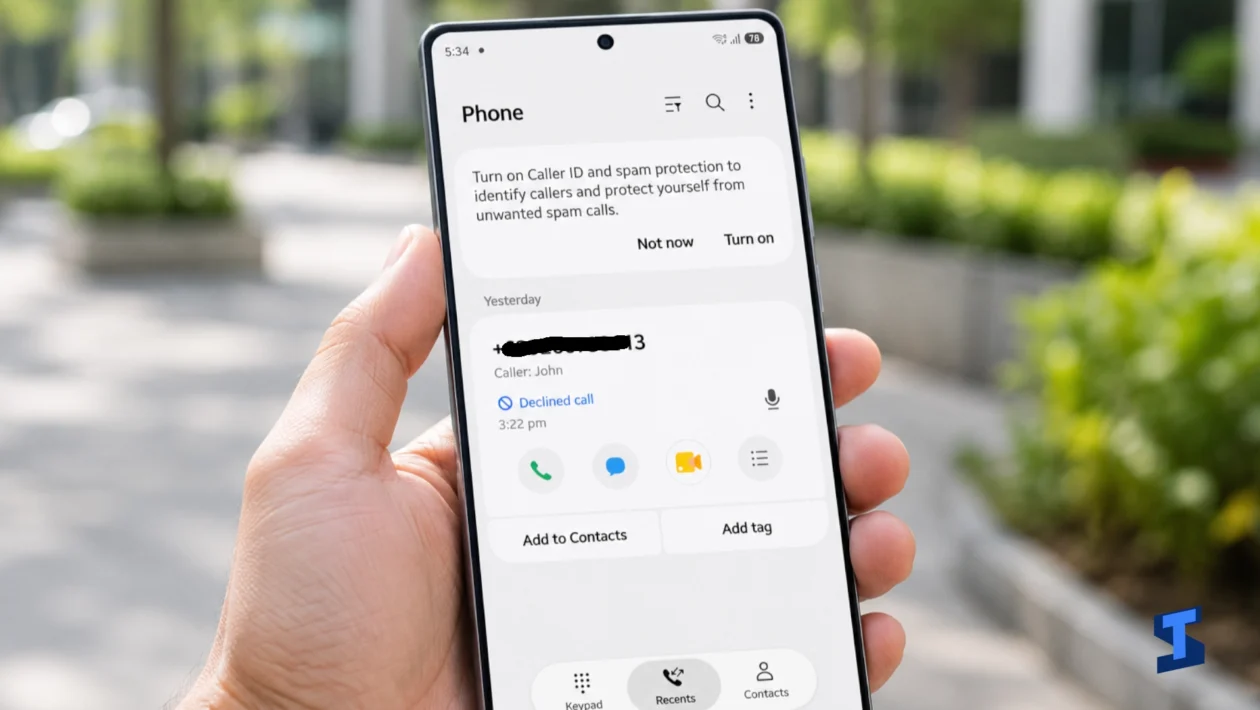
Calls on your Galaxy S26 Ultra may disconnect because of weak cellular coverage, an unstable Wi-Fi Calling connection, incorrect network selection, SIM or eSIM provisioning problems, or a temporary software fault.
Start by noting where and when the calls fail. A call that drops only at home points to a different cause than calls that disconnect everywhere.
First, identify the pattern
Do not reset the phone before checking the circumstances around the dropped calls. The pattern can quickly narrow down the cause.
| What happens | Most likely area to check |
|---|---|
| Calls drop in one building or neighbourhood | Weak coverage or network congestion |
| Calls fail while travelling | Handover between cellular towers |
| Calls drop only when Wi-Fi Calling is active | Wi-Fi quality or Wi-Fi Calling configuration |
| Calls drop everywhere | SIM, carrier provisioning, software, or hardware |
| Only one person’s calls disconnect | Their network, device, or carrier routing |
| Calls began dropping after an update | Software compatibility or network settings |
| One SIM works but the other does not | SIM, eSIM, or carrier account problem |
| Calls end after nearly the same amount of time | Carrier routing or account provisioning |
Write down the time, location, signal strength, and whether Wi-Fi Calling was active when a call failed. Your carrier may need these details if the problem continues.
1. Test the phone in another location
Signal bars are the first clue, but they do not tell the whole story. Your phone may show service while the connection is too unstable to maintain a voice call.
Make a test call:
- Near a window or outdoors
- In a different neighbourhood
- With Wi-Fi turned off
- From a location where another phone on the same carrier works
If calls work normally elsewhere, the Galaxy S26 Ultra may not be faulty. Your usual location may have weak indoor coverage, network congestion, or poor tower handover.
Do not judge the phone using only one short call. Make several calls lasting at least a few minutes under similar conditions.
2. Restart the phone and install updates
A restart can clear a temporary network process that is no longer responding correctly.
Open the Quick Settings panel, tap the power icon, and select Restart.
Next, check for software updates:
Settings > Software update > Download and install
Carrier and system updates may contain changes related to network compatibility, calling, and modem performance. Restart the phone again after installing an update.
If the problem started immediately after an update, note the software version and the time of the failed calls. This information will be useful when sending an error report through Samsung Members.
3. Check the SIM and preferred calling line
Open:
Settings > Connections > SIM manager
Confirm that your physical SIM or eSIM is recognised and switched on. If you use two lines, verify that the correct SIM is selected as the preferred line for calls.
For a physical SIM:
- Turn off the phone.
- Remove the SIM tray.
- Check that the card is properly seated.
- Look for visible dirt, cracks, or damage.
- Reinsert the tray and restart the phone.
Do not scrape the SIM contacts or insert a wet card.
A SIM can appear normal and still have a provisioning problem. If the same line also loses mobile data or displays “Emergency calls only,” contact your carrier and ask it to check the account and SIM status.
4. Let the phone select the network automatically
Manual network selection can leave the phone registered to the wrong or less suitable network.
Go to:
Settings > Connections > Mobile networks > Network operators
Turn on Select automatically.
The wording may vary by carrier, region, and software version. Some carrier-controlled options may not appear at all.
Avoid forcing the phone onto a particular network mode unless your carrier instructs you to do so. Modern voice calling may depend on carrier-managed services that do not have a visible switch on the phone.
Samsung’s network connectivity instructions provide the official paths for automatic network selection.
5. Test Wi-Fi Calling both ways
Wi-Fi Calling can improve calls where cellular coverage is weak, but an unstable Wi-Fi network can also cause calls to disconnect.
Depending on your carrier, you may find the option under:
Settings > Connections > Wi-Fi Calling
You may also find it in:
Phone app > More options > Settings > Wi-Fi Calling
Run two tests:
- Turn Wi-Fi Calling off and make a call using the cellular network.
- Turn it on, connect to reliable Wi-Fi, and repeat the call.
If calls drop only when Wi-Fi Calling is active, restart your router and test closer to it. Avoid testing on public Wi-Fi, a congested hotspot, or a network that frequently changes access points.
If cellular coverage is poor but calls remain stable over Wi-Fi, leave Wi-Fi Calling enabled where your carrier supports it. Review the official Wi-Fi Calling setup instructions because availability and menu options depend on the network provider.
6. Reset the mobile network settings
Resetting the mobile network settings can remove a corrupted network configuration without deleting your photos, apps, or documents.
Open:
Settings > General management > Reset > Reset mobile network settings
Review the warning, select the appropriate SIM if prompted, and confirm the reset. Restart the phone before testing another call.
This step may restore automatic network selections and other mobile connection settings to their defaults. Do not perform a full factory reset at this stage. A factory reset is far more disruptive and may not solve a carrier-side problem.
7. Test the phone in Safe Mode
A downloaded app can sometimes interfere with calls, network access, audio routing, or system performance. VPNs, call recorders, security tools, automation apps, custom launchers, and accessibility services are worth checking.
To enter Safe Mode:
- Open the power menu.
- Touch and hold Power off.
- Tap Safe mode.
- Make several test calls.
Safe Mode temporarily disables most downloaded apps. It does not delete them.
If calls stop dropping in Safe Mode, restart normally and remove recently installed or updated apps one at a time. Follow Samsung’s Safe Mode instructions if the option does not appear on your device.
8. Run Samsung Members diagnostics
Open the Samsung Members app and go to:
Support > Phone diagnostics
Run the tests for SIM card and Mobile network. The available tests may vary by region and app version.
If the problem occurs again, send an error report soon after the failed call. Include:
- The approximate time of the call
- Your location
- Whether you were moving
- Signal strength
- Whether Wi-Fi Calling was active
- Which SIM was used
- Whether mobile data also stopped working
Diagnostics may not detect a carrier outage, but they can help distinguish a phone or SIM problem from a location-specific network issue.
Should you contact Samsung or your carrier?
Contact your carrier first when:
- Calls fail only in certain locations
- Other users on the same network are affected
- Mobile data and calls stop together
- One SIM or eSIM is affected
- Calls end after a repeatable amount of time
- The problem involves roaming or Wi-Fi Calling
- Your account was recently activated, transferred, or upgraded
Ask the carrier to check local outages, coverage, account restrictions, SIM provisioning, and voice-service registration. It may also recommend replacing the SIM or downloading a new eSIM profile.
Contact Samsung support or an authorised service centre when:
- Multiple SIM cards from different carriers have the same problem
- Calls still drop in Safe Mode
- Samsung Members reports a hardware fault
- The phone has physical or liquid damage
- Signal repeatedly disappears while nearby phones remain connected
- The device restarts, freezes, or becomes unusually hot during calls
Back up important data before arranging a repair. Avoid performing a factory reset until the carrier and Samsung have ruled out network, account, and SIM problems.
