
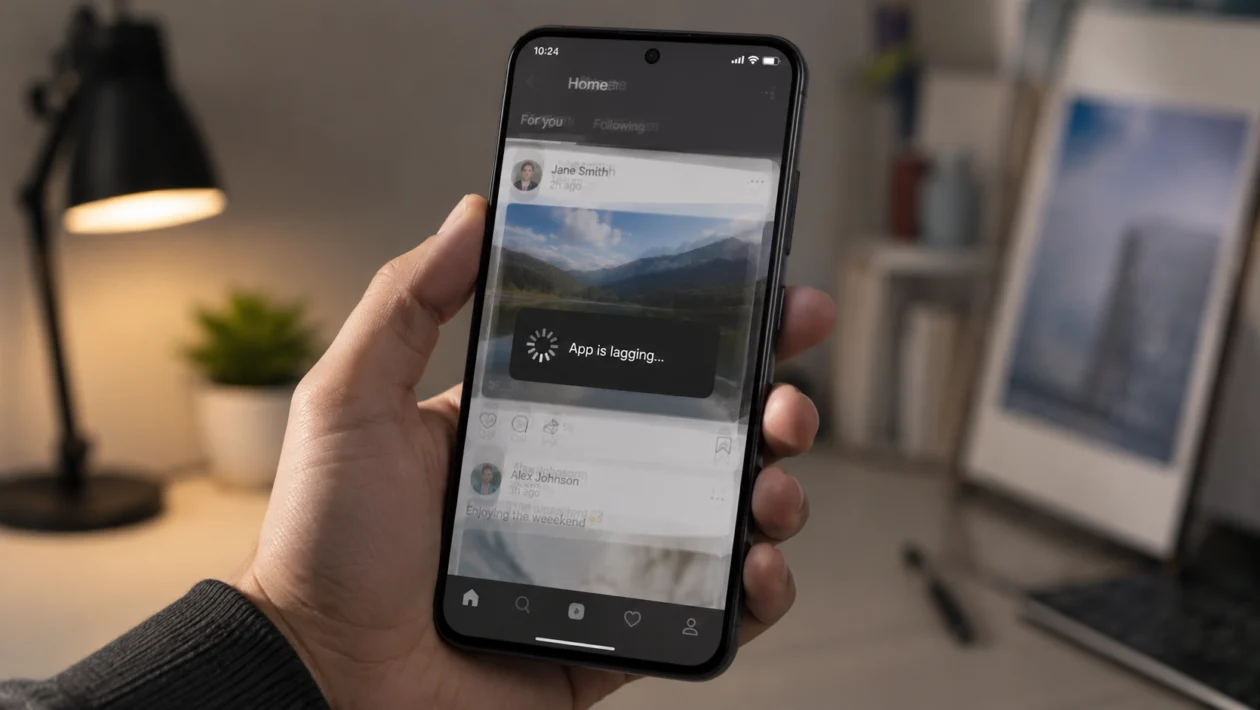
If apps on your Xiaomi 17T Pro are lagging, freezing, opening slowly, or stuttering when you switch between them, the problem is usually caused by background apps, low storage, app cache, battery restrictions, animation settings, overheating, or a recent HyperOS update.
Start with the simple fixes first. Restart the phone, check storage, update your apps, then adjust the settings that affect app performance.
Quick answer
To fix Xiaomi 17T Pro apps lagging, restart the phone, update HyperOS and your apps, clear the cache of the lagging app, free up storage, close background apps, and check Battery Saver settings. If only one app lags, clear that app’s cache or reinstall it. If all apps lag, check storage, heat, animations, system updates, and background processes.
For most users, the best first fix is:
- Open Settings.
- Tap Apps.
- Tap Manage apps.
- Select the lagging app.
- Tap Storage.
- Tap Clear cache.
- Restart the Xiaomi 17T Pro.
Xiaomi 17T Pro apps lagging diagnostic table
| Symptom | Likely cause | What to check first |
|---|---|---|
| One app lags or freezes | App cache, app bug, outdated version | Clear cache and update the app |
| All apps open slowly | Low storage or too many background apps | Storage and recent apps |
| Apps lag after update | HyperOS or app re-optimising | Restart and update apps |
| Apps lag while gaming | Heat, performance mode, graphics load | Temperature and Game Turbo |
| Apps reload when switching | Memory management or battery restriction | Battery settings and background activity |
| Touch feels delayed inside apps | Refresh rate, animations, or system lag | Display and animation settings |
| Apps lag on mobile data | Weak signal or network delay | Wi-Fi vs mobile data test |
| Apps lag with phone warm | Thermal throttling | Remove case and let phone cool |
| Social apps lag | Cache, media files, background sync | Clear cache and free storage |
| Problem continues after all fixes | System bug or hardware issue | Backup and factory reset |
Why are apps lagging on the Xiaomi 17T Pro?
Apps can lag on the Xiaomi 17T Pro when the phone is trying to manage too many tasks at once. Even a fast phone can slow down if storage is nearly full, apps are running heavily in the background, cache files are corrupted, or the system is limiting app activity too aggressively.
Common causes include:
Apps running in the background
Too little free storage
Corrupted app cache
Outdated apps
A recent HyperOS update
Battery Saver restricting app performance
Heavy social media or gaming apps
Overheating
Weak internet connection
Too many animations or widgets
A bug in the app itself
Xiaomi’s own support guidance for lag issues recommends clearing background apps, using the Security app’s speed tools, avoiding heavy dynamic wallpapers, clearing cache data, and checking whether third-party apps are causing the slowdown.
Use the fixes below in order.
1. Restart your Xiaomi 17T Pro
Start with a restart. It sounds basic, but it is one of the safest ways to clear temporary app glitches, stuck background activity, and small system issues.
To restart the phone:
- Press and hold the Power button.
- Tap Restart.
- Wait for the phone to turn back on.
- Open the lagging app again.
- Check if the lag is gone.
This will not delete your files, apps, photos, or messages.
Restarting is especially useful if the Xiaomi 17T Pro has been running for several days without being turned off. Apps can sometimes leave background processes active, and a restart gives the system a clean start.
2. Update the lagging app
If only one app is lagging, freezing, or taking too long to respond, check for an update before changing deeper phone settings.
To update apps from the Google Play Store:
- Open Google Play Store.
- Tap your profile icon.
- Tap Manage apps and device.
- Tap Updates available.
- Update the lagging app.
- Update other frequently used apps too.
Also check Xiaomi’s app store or system app updater if the lagging app is a Xiaomi system app.
App updates can fix bugs, memory leaks, crashes, scrolling stutter, login problems, and compatibility issues with HyperOS.
This matters after a major phone update. Sometimes HyperOS changes how apps handle memory, notifications, background activity, or permissions. If the app developer has already released a fix, updating the app may solve the lag without any extra steps.
3. Clear the lagging app’s cache
Cache files help apps load faster, but they can also cause lag when they become too large or corrupted. This is common with social media apps, browsers, shopping apps, messaging apps, video apps, and games.
To clear app cache on Xiaomi 17T Pro:
- Open Settings.
- Tap Apps.
- Tap Manage apps.
- Select the app that is lagging.
- Tap Storage.
- Tap Clear cache.
- Open the app again.
Do not tap Clear data unless you are prepared to sign in again or lose local app settings. Clear cache is the safer first option.
This fix works well for apps like TikTok, Facebook, Instagram, Chrome, Shopee, Lazada, YouTube, Messenger, Telegram, and mobile games that store a lot of temporary files.
If the app still lags after clearing cache, update it or reinstall it.
4. Free up storage space
Apps can lag when your Xiaomi 17T Pro is low on storage. Android needs free space for app cache, updates, temporary files, downloads, system processes, and background tasks.
Check your storage:
- Open Settings.
- Tap About phone.
- Tap Storage.
- Check how much free space is left.
Try to keep at least 10% to 15% of your storage free. If your phone is nearly full, apps may open slowly, freeze, or fail to load media properly.
To free up space:
Delete large videos you no longer need.
Remove duplicate photos.
Uninstall apps you rarely use.
Clear downloaded files.
Delete offline videos and music.
Move large files to cloud storage or a computer.
Clear app cache from heavy apps.
You can also use the Security app:
- Open Security.
- Tap Cleaner.
- Review the files it wants to remove.
- Tap Clean up.
Do not delete files blindly. Check what the cleaner is removing, especially if it includes downloads, APK files, or large media folders.
5. Close background apps and use Boost speed
Too many background apps can make active apps feel slow. This is more noticeable when switching between camera, games, social apps, maps, browsers, and messaging apps.
To close background apps:
- Swipe up from the bottom and hold, or tap the Recent apps button.
- Swipe away apps you are not using.
- Keep only the apps you need open.
You can also use Xiaomi’s built-in speed tool:
- Open Security.
- Tap Boost speed.
- Let the phone scan background activity.
- Tap Boost.
This helps free memory and stop background tasks that may be slowing down app performance.
Do not use third-party RAM booster apps. Many of them make performance worse because they keep running in the background, show ads, or interfere with HyperOS memory management. The built-in Xiaomi Security app is the better option.
6. Check Battery Saver and app battery settings
Battery Saver can reduce background activity to save power. That is useful when your battery is low, but it can also make some apps lag, delay notifications, or reload when you switch back to them.
First, turn off Battery Saver temporarily:
- Open Settings.
- Tap Battery.
- Turn off Battery Saver.
- Turn off Ultra Battery Saver if it is enabled.
- Test the lagging app again.
Then check the battery setting for the app:
- Open Settings.
- Tap Battery.
- Tap Additional settings or Battery usage.
- Select the lagging app.
- Look for battery saver options.
- Choose a less restrictive setting if the app needs to run smoothly.
For apps you rely on, such as navigation, messaging, banking, work apps, or fitness tracking, avoid overly strict background restrictions.
If a game or editing app lags, use Performance mode only when needed. It may improve responsiveness, but it can also increase heat and battery drain.
7. Lower animation speed
Sometimes apps do not truly lag. The phone only feels slow because system animations are too long or the launcher is stuttering.
You can make the Xiaomi 17T Pro feel faster by reducing animations.
First enable Developer options:
- Open Settings.
- Tap About phone.
- Tap Detailed info and specs.
- Tap OS version several times until Developer options are enabled.
Then reduce animations:
- Go back to Settings.
- Tap Additional settings.
- Tap Developer options.
- Find Window animation scale.
- Set it to 0.5x.
- Find Transition animation scale.
- Set it to 0.5x.
- Find Animator duration scale.
- Set it to 0.5x.
You can also turn animations off, but 0.5x usually feels smoother without making the phone feel abrupt.
This fix is useful if app opening, app switching, and recent apps feel delayed even when the app itself works fine.
8. Check if the phone is overheating
Apps can lag when the Xiaomi 17T Pro gets warm. When the phone heats up, the system may reduce performance to protect the battery and internal components. This is called thermal throttling.
This can happen when you:
Play heavy games
Record long videos
Use the camera outside in heat
Charge while gaming
Use mobile data in a weak signal area
Run hotspot
Use navigation for a long time
Keep the phone in a thick case
If the phone feels warm:
- Close heavy apps.
- Remove the case.
- Stop charging for a few minutes.
- Move the phone away from direct sunlight.
- Turn off hotspot if enabled.
- Let the phone cool before opening the app again.
Do not put the phone in a refrigerator or freezer. A sudden temperature change can create moisture risk.
If apps only lag when the phone is hot, the issue is probably heat-related, not a faulty app.
9. Reinstall the lagging app
If one app keeps lagging after clearing cache and updating it, reinstall the app. This gives the app a clean setup and removes broken local files.
Before uninstalling, make sure your account is synced. This is important for messaging apps, banking apps, games, note apps, and work apps.
To reinstall an app:
- Press and hold the app icon.
- Tap Uninstall.
- Restart the phone.
- Open Google Play Store.
- Install the app again.
- Sign in and test it.
For apps with large local files, check backup settings first. Some games and creative apps store data locally, and uninstalling may remove saved files if they are not synced.
If the app still lags after reinstalling, check recent reviews in the Play Store. If many Xiaomi, Android 16, or HyperOS users are reporting the same issue, the problem may be on the app developer’s side.
10. Reset settings or factory reset as a last resort
Only use this step if all apps lag, the phone freezes often, or the problem started after a major update and none of the earlier fixes worked.
Start with resetting settings before wiping the phone.
To reset app preferences:
- Open Settings.
- Tap Apps.
- Tap Manage apps.
- Tap the three-dot menu.
- Tap Reset app preferences.
- Confirm.
This can fix disabled apps, permission problems, notification issues, and default app problems. It does not delete your personal files, but it may reset app permissions and default app choices.
If the Xiaomi 17T Pro still lags badly, back up your data and perform a factory reset.
Before factory reset:
Back up photos and videos.
Back up contacts.
Back up WhatsApp, Telegram, and other chat apps.
Save authenticator recovery codes.
Remove or remember your Xiaomi and Google account passwords.
Charge the phone above 50%.
To factory reset:
- Open Settings.
- Tap About phone.
- Tap Factory reset.
- Choose Erase all data.
- Follow the on-screen instructions.
A factory reset should be the final fix, not the first one. It wipes the phone and gives HyperOS a clean start.
What to do if apps still lag after these fixes
If apps still lag after all 10 solutions, check whether the issue happens in every app or only certain apps.
If only one app lags, the app may need an update. Report the problem through the app’s support page or Play Store listing.
If all apps lag, the issue may be caused by a HyperOS bug, overheating, storage failure, or hardware problem. At that point, contact Xiaomi support or visit an authorized service center.
You should get the phone checked if:
Apps freeze even after factory reset
The phone gets hot during light use
The screen becomes unresponsive
Apps crash every few minutes
The phone restarts by itself
Lag started after a drop or liquid exposure
The phone is very slow even with no extra apps installed
FAQs
Why are apps lagging on my Xiaomi 17T Pro?
Apps may lag because of low storage, background apps, outdated apps, corrupted cache, overheating, Battery Saver restrictions, or a recent HyperOS update. If only one app lags, start by clearing that app’s cache and updating it.
How do I make apps open faster on Xiaomi 17T Pro?
Restart the phone, close background apps, clear the app cache, free up storage, reduce animation speed, and update HyperOS. You can also use Security > Boost speed to clear background processes.
Should I clear cache or clear data?
Clear cache first. It removes temporary files and is usually safe. Clear data is more aggressive and may remove app settings, downloads, logins, or local files.
