
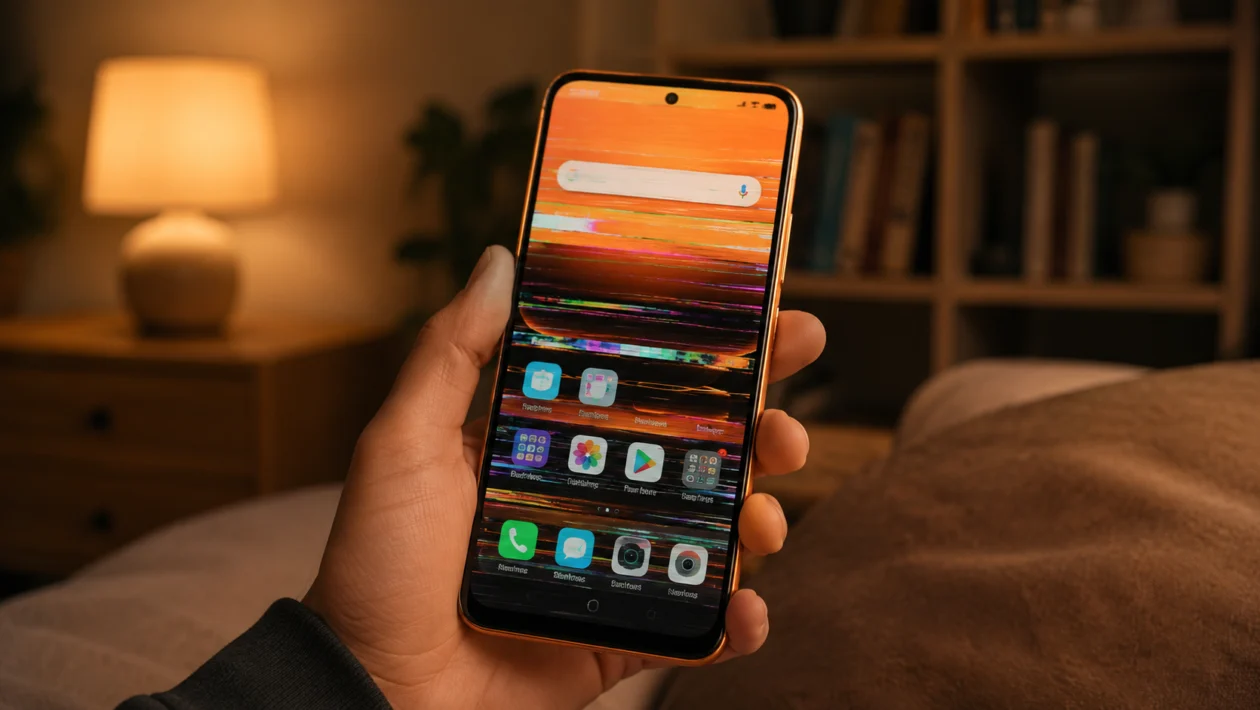
If your Infinix Smart 20 screen is flickering, flashing, blinking, or showing random brightness changes, the problem can come from a display setting, a buggy app, low brightness behavior, software issues, or a damaged screen.
Start with the simple fixes first. Restart the phone, check brightness settings, update your apps, then test whether the flickering happens in Safe Mode. If the screen still flickers after all software checks, the phone may need inspection by an authorized repair center.
Quick answer
To fix Infinix Smart 20 screen flickering, restart the phone first. Then turn off adaptive brightness, increase the brightness level, update the phone software, update your apps, and check if the flickering happens only inside one app.
If the screen flickers even on the lock screen, recovery screen, or while the phone is not running any apps, it may be a hardware issue. In that case, back up your files and contact Infinix or Carlcare support.
Infinix Smart 20 screen flickering diagnostic table
| Symptom | Likely cause | What to check first |
|---|---|---|
| Screen flickers at low brightness | Brightness control or display tuning | Turn off adaptive brightness |
| Screen flickers only in one app | App bug or compatibility issue | Update or reinstall the app |
| Screen flickers after an update | Software or app conflict | Restart, update apps, monitor |
| Screen flickers while charging | Charger, cable, or power issue | Try another charger and outlet |
| Screen flickers when gaming | Heat, graphics load, or app issue | Let the phone cool down |
| Screen flickers after a drop | Possible screen or flex cable damage | Get the phone inspected |
| Screen flickers with ghost touches | Screen damage or moisture | Turn off phone and seek repair |
| Screen flickers in Safe Mode | System or hardware issue | Back up files and contact support |
| Screen flickers only outdoors | Auto brightness or sunlight mode behavior | Adjust brightness manually |
| Screen flickers randomly all day | Software, display, or hardware issue | Try all fixes below |
Why is my Infinix Smart 20 screen flickering?
Your Infinix Smart 20 screen may flicker because the display brightness is changing too aggressively, an app is causing a display glitch, the phone is overheating, the software needs an update, or the display hardware is damaged.
Common causes include:
Adaptive brightness problems
Low brightness flicker
Buggy apps
Outdated software
Overheating
Charging cable or adapter issues
Display settings conflicts
Developer options changes
Moisture or drop damage
Faulty screen hardware
The best fix depends on when the flickering happens. Use the 10 solutions below in order.
1. Restart your Infinix Smart 20
Start with a restart before changing deeper settings. A restart can clear temporary display glitches, close stuck apps, and refresh the system.
- Press and hold the Power button.
- Tap Restart.
- Wait for the phone to turn back on.
- Use the phone normally for a few minutes.
- Check if the screen still flickers.
This will not delete your photos, apps, or personal files.
If the flickering disappears after restarting, the issue was likely a temporary software glitch.
2. Turn off adaptive brightness
Adaptive brightness automatically changes the screen brightness based on lighting conditions. If it reacts too quickly or misreads the environment, the screen may look like it is flickering.
- Open Settings.
- Tap Display and brightness.
- Look for Adaptive brightness or Auto brightness.
- Turn it off.
- Set the brightness manually.
After turning it off, keep the brightness around the middle level and check the screen again.
This fix is especially useful if your Infinix Smart 20 flickers when you move between bright and dark places.
3. Increase the brightness level
Some phones show visible flicker when the brightness is set very low. If your screen flickers more at night or when brightness is near minimum, test it at a higher level.
- Swipe down from the top of the screen.
- Increase the brightness slider.
- Keep it above 30% for testing.
- Use the phone for a few minutes.
- Check if the flickering stops.
If the flickering only happens at very low brightness, avoid using the lowest brightness setting for now. You can also turn off Eye Care or Night Light temporarily to test if those settings are involved.
4. Turn off Eye Care, Dark Mode, or color settings temporarily
Display comfort features can sometimes affect how the screen looks. Eye Care, Dark Mode, color temperature, and extra dim settings may change brightness or color output.
- Open Settings.
- Tap Display and brightness.
- Turn off Eye Care or Eye Comfort.
- Turn off Extra dim if available.
- Switch Dark Mode off temporarily.
- Set the color temperature back to default.
Now check whether the flickering continues.
You do not have to keep these features off forever. This step is only to find out whether one display setting is causing the problem.
5. Update your phone software
A software update can fix display bugs, app compatibility problems, and system stability issues. If the screen flickering started after a recent update, another patch may fix it.
- Open Settings.
- Scroll down and tap System.
- Tap System update or Software update.
- Download and install any available update.
- Restart the phone after the update.
Make sure your battery is charged before updating.
If no update is available, move to the next fix.
6. Update or remove problem apps
If the screen flickers only when using one app, that app may be the cause. This can happen with games, video apps, launchers, camera apps, social media apps, or apps that use overlays.
- Open the Google Play Store.
- Tap your profile icon.
- Tap Manage apps and device.
- Tap Update all.
- Restart the phone.
If the flickering happens only in one app:
- Press and hold the app icon.
- Tap App info.
- Tap Force stop.
- Clear the app cache if available.
- Reopen the app.
If it still flickers, uninstall the app and test the phone for a few hours.
This is one of the easiest ways to confirm whether the problem is caused by software or the display itself.
7. Boot the Infinix Smart 20 in Safe Mode
Safe Mode starts the phone with only the basic system apps. If the flickering stops in Safe Mode, a third-party app is likely causing the problem.
- Press and hold the Power button.
- Press and hold Power off on the screen.
- Tap Safe Mode when it appears.
- Wait for the phone to restart.
- Check if the screen still flickers.
If the screen does not flicker in Safe Mode, uninstall recently installed apps one by one. Start with apps installed shortly before the flickering began.
To exit Safe Mode, restart the phone normally.
If the screen still flickers in Safe Mode, the issue may be caused by the system software or hardware.
8. Check your charger, cable, and power source
If the screen flickers while charging, the charger or cable may be unstable. Cheap, damaged, or incompatible chargers can cause touch issues, brightness pulsing, or display flicker.
- Unplug the phone.
- Check if the flickering stops.
- Try another charging cable.
- Try another power adapter.
- Plug into a different wall outlet.
- Avoid charging from a weak USB port.
Use a reliable charger that matches the phone’s charging requirements. Also check if the phone gets unusually warm while charging.
If flickering only happens while plugged in, stop using that charger or cable.
9. Turn off Developer Options display settings
Developer Options can change how Android handles graphics, animations, overlays, and rendering. If someone enabled Developer Options on your phone, one of these settings may be affecting the screen.
- Open Settings.
- Tap System.
- Tap Developer options if available.
- Turn Developer options off.
- Restart the phone.
If you do not see Developer options, skip this step.
This fix is worth checking if the flickering started after changing performance, animation, or graphics settings.
10. Back up your files and get the screen checked
If none of the fixes work, the screen flickering may be caused by hardware. This is more likely if the phone was dropped, exposed to water, pressed inside a tight pocket, repaired before, or flickers even before opening any app.
Before repair:
- Back up your photos, videos, and files.
- Remove your screen lock only if the repair center asks.
- Check your warranty status.
- Visit an authorized Infinix or Carlcare service center.
- Do not open the phone yourself unless you are trained to repair phones.
You should get the phone inspected if:
The screen flickers in Safe Mode
The screen flickers on the lock screen
The display has lines, green tint, or black patches
The screen responds by itself
The phone was dropped or exposed to liquid
The flickering gets worse over time
At that point, more software fixes are unlikely to solve the problem.
What to do if screen flickering started after an update
If your Infinix Smart 20 started flickering right after a system update, do not factory reset immediately.
Try this order first:
- Restart the phone.
- Update all apps.
- Turn off adaptive brightness.
- Clear cache for affected apps.
- Test the phone in Safe Mode.
- Wait 24 to 48 hours if the phone is still optimizing after a major update.
If the flickering continues after two days, back up your files and contact support.
Should you factory reset your Infinix Smart 20?
A factory reset should be the last software fix. It erases your apps, accounts, settings, photos, and local files unless they are backed up.
Only try a factory reset if:
You already backed up your files
The flickering started after software changes
Safe Mode suggests a system issue
You have tried the other fixes first
You are not seeing signs of physical screen damage
To factory reset:
- Open Settings.
- Tap System.
- Tap Reset options.
- Tap Erase all data or Factory data reset.
- Follow the on-screen instructions.
If the screen still flickers after a factory reset, it is probably a hardware problem.
FAQ
Why does my Infinix Smart 20 screen flicker at low brightness?
The screen may flicker at low brightness because the display brightness control is struggling at the lowest level. Increase brightness, turn off adaptive brightness, and disable Eye Care temporarily to test it.
Why does my Infinix Smart 20 flicker when charging?
If the screen flickers while charging, the cable, adapter, or power source may be unstable. Try a different charger and wall outlet. Stop using the charger if the phone gets hot or the flickering happens only when plugged in.
Can an app cause screen flickering?
Yes. A buggy app, game, launcher, video app, or app with screen overlay permissions can cause flickering. Update your apps first, then uninstall recently installed apps if the issue continues.
