
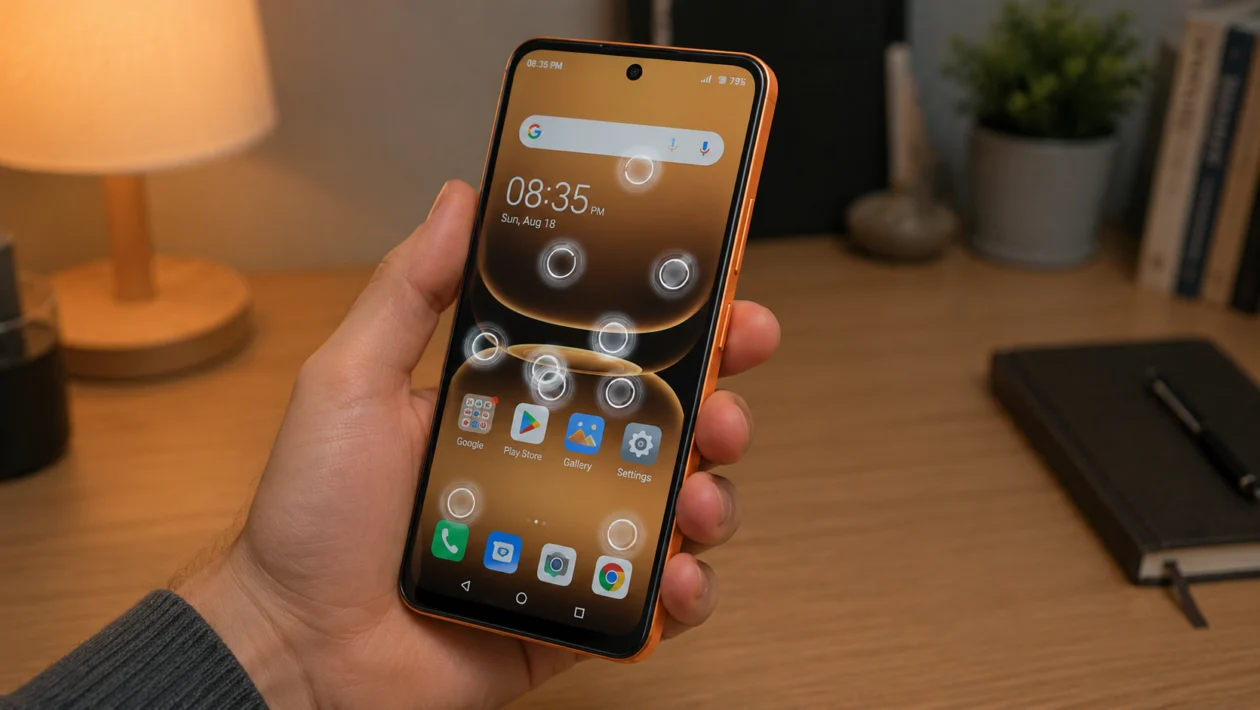
If your Infinix Smart 20 is touching the screen by itself, opening apps, typing random letters, swiping without your finger, or becoming hard to control, you are probably dealing with a ghost touch issue.
Ghost touch does not always mean the phone is broken. It can happen because of a dirty screen, wet fingers, a cheap screen protector, charging problems, software bugs, overheating, or a faulty display panel.
Start with the simple checks first. Clean the screen, remove the case or screen protector, restart the phone, then check whether the problem happens while charging or after using a specific app.
Quick answer
To fix Infinix Smart 20 ghost touch, clean and dry the screen first, then restart the phone. If the problem continues, remove the screen protector and case, unplug the charger, update the phone software, and check if one app is causing the issue.
If the screen only acts up while charging, use a different original-quality charger and cable. If ghost touch continues even after a reset, the display or touch panel may need service.
Infinix Smart 20 ghost touch diagnostic table
| Symptom | Likely cause | What to check first |
|---|---|---|
| Screen taps by itself | Dirty screen, moisture, screen protector | Clean the screen |
| Ghost touch while charging | Bad charger, cable, socket, or unstable power | Try another charger |
| Random touches after installing an app | App bug or overlay permission | Uninstall recent apps |
| Touch problem after update | Temporary software issue | Restart and update apps |
| Screen acts up when hot | Overheating or heavy app use | Let the phone cool down |
| Touch is bad near the edges | Case or screen protector pressure | Remove case and protector |
| Touch fails in one area only | Possible display damage | Test the screen |
| Ghost touch after drop or water exposure | Hardware damage | Visit a service center |
| Phone opens apps by itself | Touch panel or software issue | Use Safe Mode |
| Problem continues after reset | Faulty display or digitizer | Get professional repair |
Why does my Infinix Smart 20 have ghost touch?
Your Infinix Smart 20 may have ghost touch because the display is detecting false touches. This can happen when the screen has moisture, oil, dust, pressure from a case, a poor screen protector, unstable charging current, or a software issue.
Common causes include:
Dirty or wet screen
Low-quality screen protector
Tight phone case pressing on the screen
Faulty charger or USB cable
Overheating
Buggy app
Outdated software
Touch sensitivity issue
Water exposure
Damaged display or digitizer
Use the fixes below in order. Do not start with a factory reset unless you have already tried the safer steps.
1. Clean and dry the screen
Start here because ghost touch often comes from simple screen contamination.
Oil, sweat, water, dust, or lotion can confuse the touchscreen. This is common if you use the phone after washing your hands, while eating, while sweating, or in humid weather.
To clean the screen:
- Turn off your Infinix Smart 20.
- Unplug the charger.
- Remove the phone case.
- Wipe the screen with a clean microfiber cloth.
- Dry the edges of the screen.
- Turn the phone back on.
- Test the touchscreen again.
Do not use sharp objects, alcohol-heavy cleaners, or too much liquid on the screen. A slightly damp cloth is enough if the screen is very dirty.
If the ghost touch stops after cleaning, the problem was probably moisture or dirt on the display.
2. Remove the screen protector and case
A damaged, cheap, or badly installed screen protector can cause Infinix Smart 20 screen ghost touch. This is more likely if there are bubbles, dust, cracks, lifted corners, or adhesive marks under the protector.
A tight case can also press against the screen edges and trigger random touches.
Try this:
- Remove the phone case.
- Check if the case is pressing on the screen or buttons.
- Remove the screen protector if it is cracked, lifted, or bubbling.
- Clean the display again.
- Use the phone for a few minutes without the protector and case.
If the phone works normally after removing them, replace the screen protector with a better-quality one. Make sure it is made for the exact Infinix Smart 20 model.
3. Restart your Infinix Smart 20
A restart can clear temporary software glitches that affect the touchscreen.
This is worth trying before changing settings or deleting apps.
To restart the phone:
- Press and hold the Power button.
- Tap Restart.
- Wait for the phone to turn back on.
- Unlock the phone.
- Test the screen again.
If the touchscreen is too hard to control, hold the Power button for several seconds until the phone turns off or restarts.
A restart will not delete your photos, apps, files, or messages.
4. Check if ghost touch happens while charging
If ghost touch only happens while the phone is plugged in, the problem may be the charger, cable, adapter, extension cord, or wall socket.
This is one of the most common causes of ghost touch on budget Android phones.
Test it this way:
- Unplug the charger.
- Use the phone for a few minutes.
- If ghost touch stops, plug it in again.
- Try another cable.
- Try another charger.
- Try another wall socket.
- Avoid using the phone while charging for a test period.
Use a good-quality charger and cable. Avoid very cheap chargers, damaged cables, loose USB connectors, and shared power strips with unstable current.
If the screen only misbehaves with one charger, stop using that charger.
5. Let the phone cool down
Overheating can make the touchscreen unstable. If your Infinix Smart 20 becomes warm while gaming, watching videos, using mobile data, charging, or running many apps, the screen may start responding badly.
To cool it down:
- Close heavy apps.
- Stop gaming or video recording.
- Unplug the charger.
- Remove the case.
- Turn off mobile hotspot.
- Place the phone in a cool, dry area.
- Wait 10 to 15 minutes before using it again.
Do not put the phone in a freezer or near ice. Sudden temperature changes can cause moisture inside the device.
If ghost touch only happens when the phone is hot, focus on reducing heat. Keep brightness lower, avoid gaming while charging, and close apps running in the background.
6. Update the phone software and apps
Software bugs can affect touch response. App updates and system updates may fix problems with performance, gestures, display behavior, and background processes.
To update your Infinix Smart 20:
- Open Settings.
- Scroll to System.
- Tap System update.
- Check for updates.
- Install any available update.
The wording may vary depending on the XOS version.
To update your apps:
- Open Google Play Store.
- Tap your profile icon.
- Tap Manage apps and device.
- Tap Update all.
Also update apps from the Infinix app store or other official app sources if you use them.
After updating, restart the phone and test the touchscreen again.
7. Uninstall recently installed apps
If ghost touch started after installing an app, that app may be causing screen overlays, pop-ups, ads, or touch problems.
This is more likely with cleaner apps, battery saver apps, screen filter apps, game boosters, floating button apps, third-party launchers, and apps installed outside the Play Store.
To check:
- Open Settings.
- Tap Apps or App management.
- Look for recently installed apps.
- Uninstall suspicious apps.
- Restart the phone.
- Test the screen again.
Also check apps with overlay permission:
- Open Settings.
- Go to Apps.
- Look for Special app access.
- Tap Display over other apps.
- Turn off overlay permission for apps you do not trust.
If the random touches stop after removing an app, avoid reinstalling it.
8. Use Safe Mode to check for app problems
Safe Mode starts the phone with only essential system apps. This helps you find out whether a downloaded app is causing the ghost touch issue.
To enter Safe Mode:
- Press and hold the Power button.
- Press and hold Power off on the screen.
- Tap Safe Mode if the option appears.
- Wait for the phone to restart.
- Test the touchscreen.
If ghost touch stops in Safe Mode, one of your downloaded apps is probably the problem. Restart the phone normally, then uninstall recently installed or suspicious apps one by one.
If ghost touch continues even in Safe Mode, the problem may be system-level or hardware-related.
Safe Mode will not delete your files. It only helps you test the phone without third-party apps running.
9. Reset touch-related settings and system settings
If the issue continues, reset settings before doing a full factory reset. This can fix problems caused by display settings, gestures, accessibility features, or system configuration changes.
Before resetting anything, check these settings first:
- Open Settings.
- Go to Display.
- Turn off features that change touch or display behavior.
- Go to Accessibility.
- Turn off unfamiliar touch, gesture, or floating shortcut features.
- Restart the phone.
If that does not help, reset system settings:
- Open Settings.
- Go to System.
- Tap Reset options.
- Choose Reset all settings or a similar option.
- Confirm the reset.
The exact wording may vary by software version.
This should not erase your personal files, but it may reset Wi-Fi, Bluetooth, display, and permission settings. Read the warning on the screen before confirming.
10. Factory reset the phone or visit a service center
Use factory reset only after trying the earlier fixes. It erases your phone and returns it to default settings.
Back up your photos, contacts, messages, files, WhatsApp data, and important accounts before continuing.
To factory reset your Infinix Smart 20:
- Open Settings.
- Tap System.
- Tap Reset options.
- Tap Erase all data or Factory data reset.
- Follow the on-screen instructions.
After the reset, test the phone before installing all your apps again. If ghost touch comes back immediately, the problem is likely hardware.
Visit an Infinix service center if:
The phone was dropped
The screen is cracked
The phone got wet
Ghost touch happens even after factory reset
One part of the screen does not respond
The phone opens apps by itself all the time
The problem gets worse while charging
The screen has lines, flickering, or dead spots
A faulty touchscreen, display connector, digitizer, or replacement screen may need professional repair.
Should you keep using an Infinix Smart 20 with ghost touch?
You can keep using it temporarily if the issue is mild and stops after cleaning, restarting, removing the screen protector, or changing the charger.
Do not ignore it if the phone opens apps, sends messages, enters wrong passwords, or taps buttons by itself. Ghost touch can cause accidental calls, wrong payments, deleted files, or account lockouts.
If the problem is frequent, back up your data and get the phone checked.
FAQ
Why is my Infinix Smart 20 touching by itself?
Your Infinix Smart 20 may be touching by itself because of moisture, dust, a bad screen protector, charging problems, overheating, a buggy app, or a damaged touchscreen.
Can a screen protector cause ghost touch on Infinix Smart 20?
Yes. A cracked, dirty, thick, or badly installed screen protector can cause ghost touch. Remove it and test the phone without it.
Why does ghost touch happen only while charging?
If ghost touch happens only while charging, the charger, cable, socket, or power supply may be unstable. Try another good-quality charger and avoid using cheap or damaged charging accessories.
