
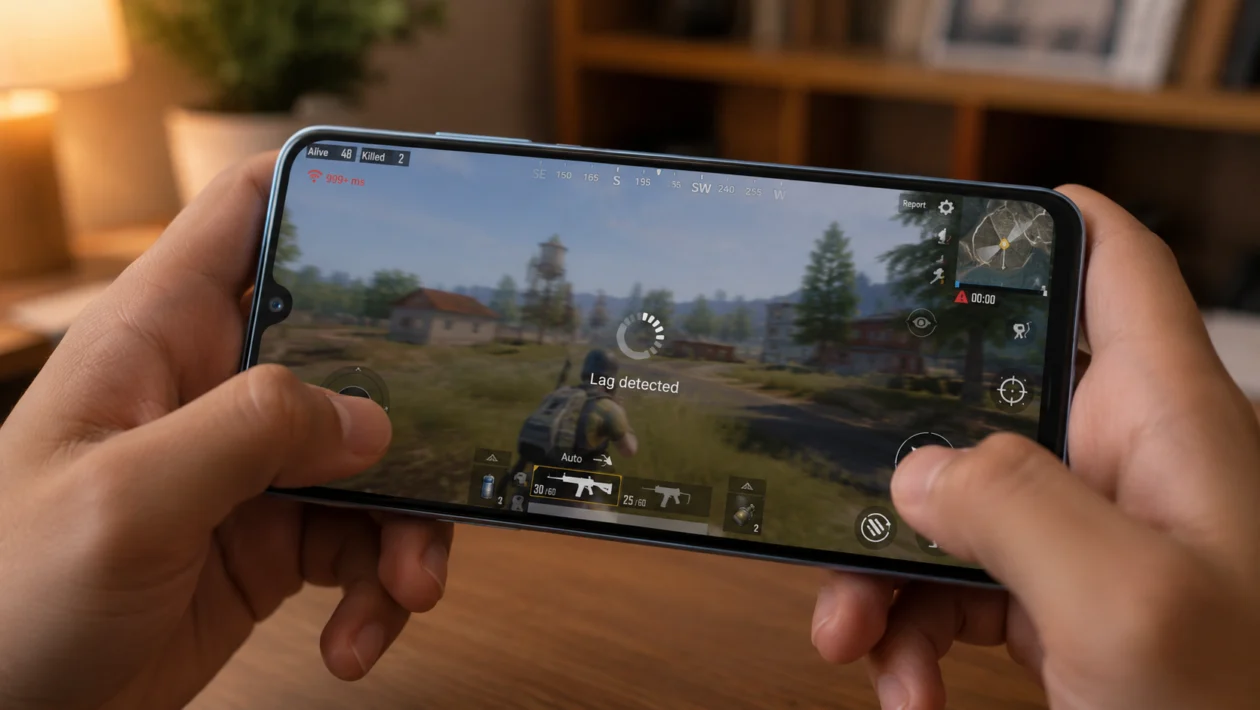
If your Realme Note 80 starts lagging while gaming, the phone is probably under too much load. You may notice frame drops, delayed touch response, freezing, overheating, or games taking longer to load.
This does not always mean the phone is broken. The Realme Note 80 is an entry-level phone, so heavy games can push its chipset, RAM, storage, and display harder than normal. Background apps, high graphics settings, low storage, poor network signal, heat, and outdated software can all make gaming feel choppy.
Start with the simple fixes first. Close unused apps, lower the game graphics, check storage, update the phone, then adjust performance and battery settings.
Quick answer
To fix Realme Note 80 lagging while gaming, close background apps, restart the phone, lower the game’s graphics settings, free up storage, update the game and realme UI, and play with a stable Wi-Fi connection. If the phone gets hot, remove the case and let it cool before playing again.
The Realme Note 80 has a 90Hz display, Dynamic RAM support, and an octa-core chipset, but demanding games may still lag if the settings are too high or the phone is overheating.
Realme Note 80 gaming lag diagnostic table
| Symptom | Likely cause | What to check first |
|---|---|---|
| Game stutters after a few minutes | Heat or high graphics settings | Lower graphics and remove the case |
| Touch feels delayed | Low FPS, network lag, or screen load | Game FPS setting and internet speed |
| Game freezes when opening | Low storage or too many apps running | Storage and recent apps |
| Lag happens only online | Weak Wi-Fi or mobile data | Switch networks or move closer to router |
| Phone gets hot while gaming | Heavy game, charging while gaming, or poor airflow | Stop charging and let phone cool |
| Lag started after update | App or system bug | Update the game and restart the phone |
| Game loads slowly | Storage nearly full or eMMC storage limit | Free up storage |
| FPS drops during fights | Graphics settings too high | Lower resolution, shadows, and effects |
Why your Realme Note 80 lags while gaming
Your Realme Note 80 may lag during gaming because the game is using more resources than the phone can comfortably handle.
Common causes include:
High graphics settings
Too many apps running in the background
Low internal storage
Phone overheating
Weak Wi-Fi or mobile signal
Outdated game version
Outdated realme UI software
Battery saver limiting performance
Game cache problems
Heavy games that need stronger hardware
The Realme Note 80 is built for everyday use, light gaming, streaming, and multitasking. It can run games, but you should not expect the same performance as a mid-range or flagship gaming phone.
1. Restart your Realme Note 80
Start with a restart. It clears temporary app issues and closes processes that may be stuck in the background.
- Press and hold the Power button.
- Tap Restart.
- Wait for the phone to turn back on.
- Open the game again.
- Check if the lag improves.
This is the easiest fix if the lag started suddenly.
2. Close background apps before gaming
Games need available memory. If social media apps, browsers, video apps, or shopping apps are still running, they can make the game stutter.
- Open the Recent Apps screen.
- Close apps you are not using.
- Keep only the game open.
- Launch the game again.
The Realme Note 80 supports Dynamic RAM, but Dynamic RAM is not the same as real physical RAM. It can help with app switching, but it does not magically turn the phone into a gaming phone.
For best results, close background apps manually before playing.
3. Lower the game graphics settings
If the game allows custom graphics settings, lower them. This is usually the biggest fix for lag.
Open the game settings and reduce:
Graphics quality
Resolution
Shadows
Anti-aliasing
Texture quality
Effects quality
Frame rate setting
For games like Mobile Legends, Call of Duty Mobile, Roblox, Free Fire, or similar titles, use Smooth or Low graphics first. Then raise one setting at a time if performance feels stable.
A good starting setup is:
Graphics: Low or Smooth
Frame rate: Medium or High if stable
Shadows: Off
Effects: Low
HD resources: Off if storage is tight
If the game still lags, prioritize stable FPS over visual quality.
4. Turn on performance or game mode settings
Realme phones usually include gaming tools or performance options depending on the realme UI version.
Try this:
- Open the game.
- Swipe from the side to open the game assistant or gaming tools, if available.
- Choose a performance-focused mode.
- Turn off unnecessary notifications while gaming.
- Restart the game.
You can also check:
Settings > Battery
Settings > Apps
Settings > Special features
Settings > Game-related tools, if available
The exact menu name may vary by region and software version.
Performance mode may use more battery and produce more heat, so use it only when gaming.
5. Free up storage space
Low storage can make games lag, freeze, or load slowly. The Realme Note 80 uses eMMC storage, so keeping enough free space matters.
Try to keep at least 10GB free if possible.
- Open Settings.
- Tap Storage.
- Delete large videos, duplicate photos, and unused downloads.
- Uninstall games or apps you no longer use.
- Clear old files from messaging apps.
Also check the game itself. Some games download extra maps, skins, voice packs, HD textures, and event files. If you do not need them, remove them inside the game settings.
6. Update the game and realme UI
Game updates often fix performance bugs. System updates can also improve stability, security, and compatibility.
To update the game:
- Open Google Play Store.
- Search for the game.
- Tap Update if available.
To update your Realme Note 80:
- Open Settings.
- Tap About device.
- Tap realme UI or Software update.
- Install any available update.
- Restart the phone after updating.
If the lag started after a recent update, give the phone some time to settle. Apps may still be updating or rebuilding background data.
7. Stop playing while charging
Gaming while charging can make the phone heat up faster. When the phone gets hot, performance may drop to protect the hardware.
Do this instead:
- Charge the phone before gaming.
- Unplug it before starting a heavy game.
- Remove the case if the phone feels warm.
- Avoid playing under direct sunlight.
- Take a short break if the phone gets hot.
Heat is one of the most common causes of gaming lag. If the game runs smoothly at first but lags after 10 to 20 minutes, temperature is probably part of the problem.
8. Use stable Wi-Fi for online games
Not all lag is phone performance lag. Sometimes it is network lag.
If your character teleports, shots register late, ping spikes, or the game says reconnecting, your internet connection may be the issue.
Try this:
- Move closer to the Wi-Fi router.
- Switch from mobile data to Wi-Fi.
- Restart your router.
- Turn off VPN while gaming.
- Ask other users to stop heavy downloads temporarily.
- Test another network if possible.
If the game only lags online but offline games run fine, the Realme Note 80 may not be the main problem.
9. Clear the game cache
A corrupted or overloaded game cache can cause freezing, slow loading, or random stutters.
- Open Settings.
- Tap Apps.
- Select the game.
- Tap Storage usage.
- Tap Clear cache.
- Restart the game.
Do not tap Clear data unless you know your game progress is backed up. Clearing data can remove local settings, downloaded files, or guest progress.
For online games, make sure your account is linked before making bigger changes.
10. Reinstall the game if nothing works
If only one game keeps lagging, reinstalling it may help. This gives the app a clean setup.
Before uninstalling:
- Open the game.
- Check that your account is linked to Google, Facebook, realme, or the game’s own login system.
- Save or sync your progress.
- Uninstall the game.
- Restart your phone.
- Install the game again from Google Play Store.
- Test it before downloading optional HD files.
If all games lag, the issue is more likely storage, heat, background apps, or the phone’s hardware limits.
Best settings to reduce lag on Realme Note 80
Use these settings if you want smoother gameplay:
| Setting | Recommended option |
| Game graphics | Low or Smooth |
| Shadows | Off |
| Frame rate | Medium or High, depending on stability |
| Battery saver | Off while gaming |
| Background apps | Closed |
| Storage | Keep at least 10GB free |
| Network | Stable Wi-Fi |
| Phone case | Remove during long gaming sessions |
| Charging while gaming | Avoid |
Can Realme Note 80 run heavy games smoothly?
The Realme Note 80 can run many popular games, but it is still an entry-level phone. Lighter games should be fine. Heavier games may need low graphics settings to stay smooth.
If you play demanding games, do not max out the graphics. Use lower visuals, keep the phone cool, and avoid running other apps in the background.
When should you get the phone checked?
Get the phone checked if:
The Realme Note 80 lags even on light games
The phone overheats quickly with normal use
Games crash every time you open them
The phone freezes outside games too
The screen becomes unresponsive often
The phone shuts down while gaming
Lag continues after updates, storage cleanup, and reinstalling the game
If the phone is still under warranty, contact realme support or visit an authorized service center.
FAQ
Why is my Realme Note 80 lagging while gaming?
Your Realme Note 80 may lag while gaming because of high graphics settings, background apps, low storage, overheating, weak internet, outdated software, or the game being too demanding for the phone.
Does Realme Note 80 have a 90Hz screen?
Yes. The Realme Note 80 has a display with up to 90Hz refresh rate. A smoother screen can help with scrolling and supported apps, but game performance still depends on the chipset, graphics load, heat, RAM, and game optimization.
Should I turn on Dynamic RAM for gaming?
Dynamic RAM may help with multitasking and app retention, but it is not a full replacement for physical RAM. You can keep it on, but closing background apps and lowering game graphics will usually help more.
