
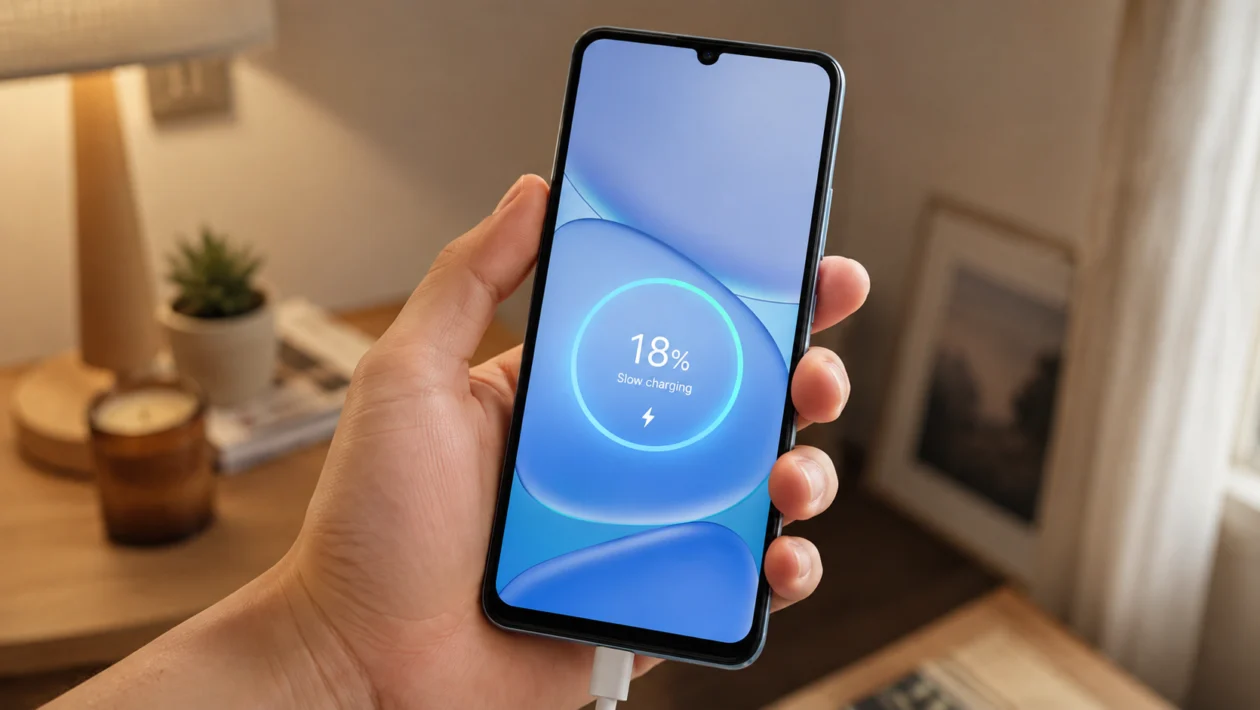
If your Realme Note 80 is charging slower than usual, the first thing to know is this: the phone is not designed to charge like a high-wattage flagship. The Realme Note 80 has a large 6300mAh battery and supports up to 15W charging, so a full charge can naturally take longer than phones with faster charging systems.
That said, slow charging can still happen because of the charger, cable, charging port, heat, background apps, battery settings, or software issues.
Start with the simple checks first. Use the correct charger and cable, clean the charging port, restart the phone, and avoid using the phone heavily while charging.
Quick answer
To fix a Realme Note 80 with slow charging, use the original or compatible 15W charger, try another USB-C cable, clean the charging port, restart the phone, and charge from a wall outlet instead of a laptop or power bank.
Also check if the phone is hot, if apps are running heavily in the background, or if battery protection settings are slowing down charging near 80%. If the phone still charges very slowly with another charger and cable, the charging port or battery may need service.
Realme Note 80 slow charging diagnostic table
| Symptom | Likely cause | What to check first |
|---|---|---|
| Charging is slow from 0% to 100% | Large battery and 15W charging limit | Charger rating and cable |
| Charging starts and stops | Loose cable, dirty port, damaged charger | USB-C port and cable |
| Charging slows after 80% | Battery protection or optimized charging | Battery settings |
| Phone gets hot while charging | Gaming, video, hotspot, heat, case | Temperature and background apps |
| Charging is slow only with one charger | Weak or incompatible charger | Try another wall charger |
| Charging is slow from laptop or power bank | Low output source | Use a wall outlet |
| Battery drops while charging | Heavy app usage | Close apps and turn off screen |
| Phone does not show charging properly | Software bug or temporary system issue | Restart and update software |
| Cable only works at one angle | Damaged cable or port | Try another cable |
| Still slow after all checks | Port, battery, or board issue | Realme service center |
Why is my Realme Note 80 charging slowly?
Your Realme Note 80 may be charging slowly because the charger is not supplying enough power, the USB-C cable is damaged, the charging port is dirty, or the phone is limiting charging because of heat.
It can also happen if you are using the phone while charging. Games, TikTok, YouTube, hotspot, GPS, and mobile data can make the phone consume power while it is trying to charge.
Another reason is expectation. Since the Realme Note 80 has a 6300mAh battery and 15W maximum charging, it may take longer to fill than phones with 33W, 45W, or 67W charging. If you are coming from a faster-charging Realme phone, the Note 80 may feel slower even when it is working normally.
1. Use the correct charger
Start with the charger. The Realme Note 80 supports up to 15W charging, so using a weak 5W charger can make charging feel painfully slow.
Check the power rating printed on the charger. A basic old charger may only output 5V/1A, which is around 5W. That is not ideal for a phone with a large 6300mAh battery.
Use the charger that came with the phone, or use a reliable charger that can safely deliver the phone’s supported charging speed.
Do not assume every charger is the same. Some chargers may fit the USB-C cable but still charge slowly because they do not support the right output.
2. Try another USB-C cable
A damaged or low-quality cable is one of the easiest things to miss.
Your Realme Note 80 may still show the charging icon even if the cable is not delivering enough power. This can happen if the cable is old, bent, loose, frayed, or not made for stable charging.
Try this:
- Unplug the cable.
- Check both ends for dirt, looseness, or bent connectors.
- Try another USB-C cable.
- Plug the phone into a wall charger.
- Leave it for 10 to 15 minutes and check if the charging speed improves.
If the phone charges faster with another cable, the old cable is the problem.
3. Clean the charging port carefully
Dust, lint, and small debris inside the USB-C port can stop the cable from sitting properly. This can cause slow charging, loose charging, or charging that keeps connecting and disconnecting.
Before cleaning, turn off the phone.
Use a flashlight to check the charging port. If you see dust or lint, gently clean it with a soft, dry brush or a clean wooden toothpick. Do not use metal tools, liquid cleaners, or sharp objects.
After cleaning, plug the cable back in. If the connector now fits more firmly, charge the phone again and check if the speed improves.
4. Charge from a wall outlet, not a laptop
If you are charging your Realme Note 80 from a laptop, desktop USB port, car USB port, or cheap power bank, charging may be much slower.
A wall outlet with a proper charger usually gives more stable power. Computer USB ports are better for data transfer and emergency charging, not full-speed charging.
Try this:
- Plug the charger directly into a wall outlet.
- Avoid extension cords if possible.
- Use a known working adapter and cable.
- Leave the phone charging with the screen off for 15 minutes.
- Check whether the battery percentage rises faster.
If charging improves from the wall outlet, the old power source was the issue.
5. Stop using the phone while charging
If you play games, watch videos, use mobile data, record videos, or run hotspot while charging, the phone may charge slowly because it is using power at the same time.
This is common with large-battery phones. The charger is adding power, but the screen, processor, network, and apps are using power too.
For a faster charge:
- Close games and video apps.
- Turn off hotspot.
- Turn off the screen.
- Put the phone down while charging.
- Use Airplane mode if you do not need calls or mobile data.
If the phone charges faster when idle, the battery and charger may be fine. The problem is usage while charging.
6. Let the phone cool down
Heat can slow charging. Realme phones can reduce charging speed when the device is too warm to protect the battery.
This can happen if you charge while gaming, use the phone under direct sunlight, leave it inside a hot car, or use a thick case that traps heat.
Do this:
- Unplug the charger.
- Remove the phone case.
- Close heavy apps.
- Let the phone cool for 10 to 20 minutes.
- Charge again in a cooler place.
Do not put the phone in a freezer or in front of wet air. Just let it cool naturally.
If slow charging happens mostly when the phone is warm, heat is likely the main cause.
7. Restart your Realme Note 80
A restart can fix temporary charging detection problems, stuck background processes, or small system bugs.
Restarting is safe and will not delete your files.
To restart your Realme Note 80:
- Press and hold the power button.
- Tap Restart.
- Wait for the phone to turn back on.
- Plug in the charger again.
- Check if charging speed improves.
This is worth doing before changing deeper settings or assuming there is a hardware problem.
8. Check battery settings and optimized charging
Some Realme phones include battery protection or optimized charging features that slow charging at certain times, especially overnight or near 80%.
This is not always a fault. The feature is designed to reduce battery wear by changing charging behavior based on your routine.
Check your battery settings:
- Open Settings.
- Tap Battery.
- Look for charging or battery health options.
- Check if optimized night charging or battery protection is enabled.
- Turn it off temporarily if you need faster charging right now.
If charging becomes slow only after reaching around 80%, a battery protection feature may be involved.
Turn it back on later if you care more about long-term battery health than charging speed.
9. Update your phone software
Software bugs can affect charging behavior, battery reporting, background activity, and thermal control.
To check for updates:
- Open Settings.
- Tap About device.
- Tap realme UI or Software update.
- Install any available update.
- Restart the phone after updating.
You should also update apps from the Play Store. A badly behaving app can keep the phone active while charging, which makes the battery fill more slowly.
After an update, charge the phone normally for one or two cycles before judging the result.
10. Check for charging port or battery damage
If your Realme Note 80 still charges slowly after trying another charger, another cable, a wall outlet, a restart, and software updates, the issue may be hardware-related.
Watch for these signs:
- The cable feels loose in the port
- Charging stops when you move the phone
- The phone gets unusually hot while charging
- The battery percentage does not increase after 30 minutes
- The phone only charges at a certain cable angle
- The charging port looks bent, rusty, or damaged
- The phone was dropped or exposed to water
At this point, avoid forcing the cable into the port. Take the phone, charger, cable, proof of purchase, and warranty details to a Realme service center or authorized repair provider.
How long should the Realme Note 80 take to charge?
The Realme Note 80 has a large 6300mAh battery and supports up to 15W charging, so it is normal for a full charge to take longer than phones with faster charging.
Charging time can also change depending on the charger, cable, temperature, background apps, battery percentage, and whether you are using the phone while charging.
If your phone takes much longer than usual, or barely increases after 30 minutes with a proper charger and cable, treat it as a charging issue.
Should you replace the charger or the battery?
Replace the charger or cable first if slow charging only happens with one charger, one cable, or one power outlet.
Do not replace the battery immediately. Battery replacement makes more sense if the phone drains quickly, shuts down unexpectedly, heats up badly, or still charges slowly after every charger and cable test.
If the phone is still under warranty, let Realme support check it before paying for a battery replacement.
FAQs
Why does my Realme Note 80 charge slowly after 80%?
It may be due to optimized charging or battery protection. Some phones slow charging near higher battery levels to reduce heat and battery wear. Check Settings > Battery and look for charging protection options.
Can I use a fast charger with the Realme Note 80?
You can use a safe, compatible charger, but the phone will only charge within its supported limit. The Realme Note 80 supports up to 15W charging, so a 33W or 67W charger will not make it charge at those higher speeds.
Why is my Realme Note 80 charging slowly and heating up?
The phone may be charging slowly because heat is limiting charging speed. Stop gaming, remove the case, close heavy apps, and charge in a cooler place.
