
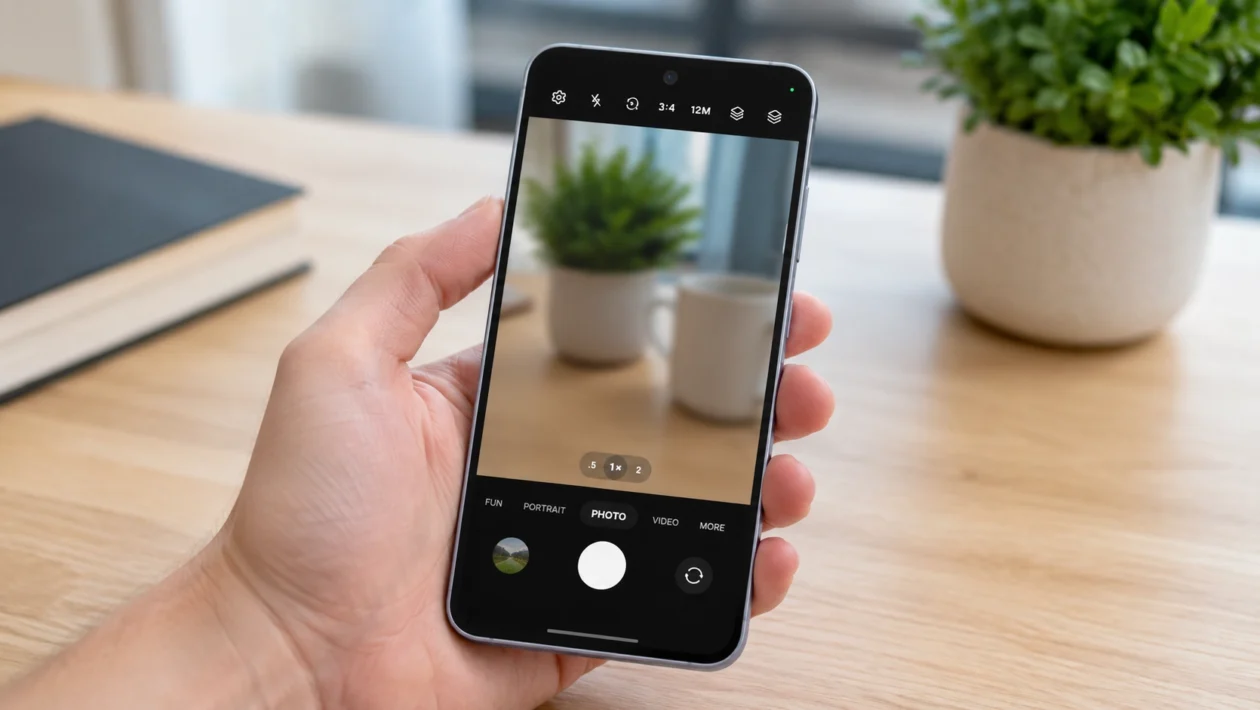
You pull out your Galaxy A57, take what looks like a great photo, then open it and notice the problem. It’s blurry.
Before you assume something is wrong with the camera, try a few simple fixes. A dirty lens, poor focus, low light, or the wrong camera mode can ruin an otherwise good shot.
Start with the easy fixes first. You may not need to go any further.
1. Clean the Camera Lenses
Start here because fingerprints can make your photos look soft or hazy.
Use a clean, soft, lint-free cloth and gently wipe each rear camera lens. Do the same for the front camera if your selfies are blurry.
Also check your case or camera lens protector. If it covers part of a lens or has collected dust underneath, remove it and take another photo.
If the picture is sharp again, you’ve found the problem.
2. Tap the Subject Before Taking the Photo
Don’t always let the camera decide where to focus.
Open Camera, frame your shot, then tap the person or object you want sharp. Wait for the focus indicator to appear before pressing the shutter button.
This is especially helpful when your subject is close to the camera or there are several objects in the frame.
3. Stop Zooming In Too Far
The Galaxy A57 supports digital zoom, but pushing the zoom too far can cost you detail.
If your zoomed photos look blurry, move closer to the subject instead and return the camera closer to 1x.
You’ll usually get a cleaner image than taking a heavily zoomed photo and hoping it stays sharp.
4. Use Night Mode in Low Light
Photos often get blurry indoors or at night because the camera needs more time to collect light.
Open Camera > More > Night and hold your phone steady while the photo is captured.
Brace your hands against a table, wall, or another solid surface if you can.
The less your phone moves, the sharper the result should be.
5. Use Macro Mode for Very Close Photos
Trying to photograph something only a few centimeters away with the regular camera can leave it out of focus.
For close-ups, open Camera > More > Macro.
Then move the phone slightly forward or backward until the subject looks sharp before taking the picture.
This is much easier than fighting with autofocus at the wrong distance.
6. Turn Off Tracking Auto-Focus
If the camera keeps locking onto the wrong object, Tracking auto-focus may be getting in your way.
Open Camera > Settings and look for Tracking auto-focus. If the option is available, turn it off and test the camera again.
Now tap exactly where you want the camera to focus.
7. Update Your Galaxy A57
If blurry photos started suddenly, especially after your phone had been working normally, check for a software update.
Go to Settings > Software update > Download and install.
Install any available update, restart your phone, then take a few test photos.
You’re checking whether the problem is software-related before changing more settings.
8. Reset the Camera Settings
Changed several camera options and can’t remember what you touched?
Resetting the Camera app is quicker than checking every setting individually.
Open Camera > Settings > Reset settings, then confirm the reset.
This restores the camera settings without deleting the photos already saved on your phone.
9. Test the Camera in Safe Mode
Still getting blurry photos?
A recently installed app may be interfering with the camera.
Open the power menu, touch and hold Power off, then tap Safe mode. Once the phone restarts, open the Camera app and take a few photos.
If the pictures suddenly look normal, one of your downloaded apps may be causing the problem.
If your Galaxy A57 still takes blurry photos in every camera mode after trying these fixes, especially in bright daylight at 1x, the problem may need more than a settings change. At that point, having the camera hardware checked makes more sense than endlessly changing options.
