
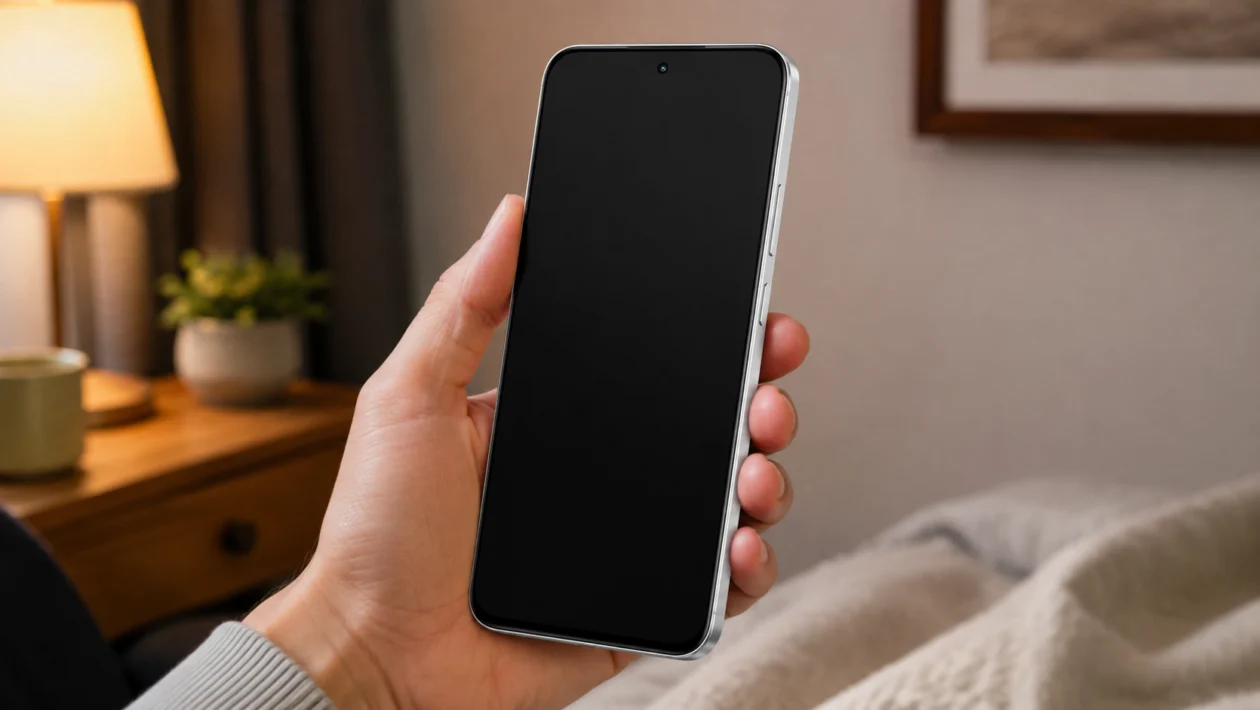
If your Realme P4R screen keeps dimming randomly, the phone can feel annoying to use. You may be watching a video, scrolling outside, playing a game, or reading a message when the display suddenly becomes too dark.
Random screen dimming does not always mean the display is broken. In many cases, it happens because of auto brightness, power saving mode, Eye Comfort, sleep settings, overheating, an app overlay, or a blocked light sensor.
Start with the simple settings first. Most Realme screen dimming problems can be fixed without resetting the phone.
Quick answer
If your Realme P4R screen is dimming by itself, go to Settings > Display & brightness and turn off auto brightness. Then manually set the brightness level and check whether the screen still dims.
If it continues, check Power saving mode, Eye Comfort & sleep, screen timeout, app overlays, overheating, and software updates. Also make sure your case or screen protector is not covering the ambient light sensor near the top of the phone.
Realme P4R random screen dimming diagnostic table
| Symptom | Likely cause | What to check first |
|---|---|---|
| Screen dims when moving between rooms | Auto brightness | Settings > Display & brightness |
| Screen dims outdoors | Adaptive brightness or heat control | Brightness slider, phone temperature |
| Screen dims at night | Eye Comfort, sleep mode, bedtime settings | Eye Comfort & sleep |
| Screen dims during gaming | Overheating or battery saving | Battery settings and phone temperature |
| Screen dims when battery is low | Power saving mode | Battery > Power saving mode |
| Screen dims only in one app | App brightness control or overlay | App settings and permissions |
| Brightness drops after update | Realme UI bug or changed setting | Software update and restart |
| Screen brightness changes when case is on | Blocked light sensor | Case, tempered glass, top bezel |
| Screen looks dull, not just dim | Color mode or Eye Comfort | Display color settings |
| Screen still dims after all fixes | Possible sensor or display issue | Realme support or service center |
Why your Realme P4R screen keeps dimming randomly
Your Realme P4R may dim the screen automatically when the phone thinks the display is too bright for your surroundings, when battery saving is active, or when the system is trying to reduce heat.
The most common causes are:
Auto brightness is turned on
The ambient light sensor is blocked
Power saving mode is reducing brightness
Eye Comfort or sleep mode is active
The phone is getting warm
An app is controlling brightness
A screen overlay is causing display changes
A recent Realme UI update changed display behavior
The screen protector or case is interfering with sensors
There may be a display or sensor fault
Use the 10 fixes below in order.
1. Turn off auto brightness
Auto brightness is the first setting to check. Realme phones can adjust the display based on surrounding light. If the sensor reads the environment incorrectly, the screen may suddenly dim even when you do not want it to.
- Open Settings.
- Tap Display & brightness.
- Find Auto brightness or Automatic brightness.
- Turn it off.
- Move the brightness slider manually.
- Use the phone for a few minutes and check if the dimming stops.
This is the most likely fix if the brightness changes when you move from a bright room to a dark room, sit near a window, cover the top of the phone, or use the phone under mixed lighting.
If you want the brightness to stay fixed, keep auto brightness turned off.
2. Clean the top sensor area
Your Realme P4R uses sensors near the top of the display to read light conditions. If that area is blocked, the phone may think you are in a darker place and lower the brightness.
Check these areas:
Top bezel
Front camera area
Screen protector cutout
Phone case lip
Dust or oil near the sensor
Privacy screen protector
To clean it:
- Turn off the screen.
- Remove the case.
- Wipe the top part of the screen with a clean microfiber cloth.
- Check if your tempered glass covers the sensor area.
- Turn the screen back on.
- Test brightness again.
This fix is especially useful if the screen dims when you hold the phone in landscape mode, during calls, or when your finger passes near the top of the screen.
3. Turn off Power saving mode
Power saving mode can lower brightness to reduce battery use. If your Realme P4R dims when the battery is low, this setting is probably involved.
- Open Settings.
- Tap Battery.
- Tap Power saving mode.
- Turn it off.
- Also check if power saving turns on automatically at a certain battery level.
Realme’s battery-saving settings may reduce screen brightness, limit background activity, and change performance behavior. That is useful when you need extra battery life, but it can make the screen look randomly darker during normal use.
If the dimming only happens below 20% or 15% battery, this is likely the cause.
4. Check Eye Comfort and sleep display settings
Eye Comfort can make the screen warmer and sometimes appear darker. Sleep-related display settings can also change how the screen looks at night.
- Open Settings.
- Tap Display & brightness.
- Tap Eye Comfort & sleep.
- Turn off Eye Comfort.
- Check if there is a schedule enabled.
- Disable any automatic night display schedule temporarily.
After turning it off, check the screen in the same place where the dimming usually happens.
This fix is useful if your Realme P4R screen dims mostly at night, after sunset, or when you are reading in bed. The screen may not only become dimmer. It may also look yellow, warm, or dull.
5. Increase screen timeout
Sometimes the screen is not randomly dimming. It is preparing to turn off because the screen timeout is too short.
Before the display sleeps, Android phones often dim the screen first. This can look like a random brightness problem.
- Open Settings.
- Tap Display & brightness.
- Tap Auto screen off or Screen timeout.
- Choose a longer time, such as 1 minute or 2 minutes.
- Test the phone again.
If the screen dims after the same number of seconds each time, screen timeout is probably the reason.
This is common when reading articles, recipes, messages, PDFs, or web pages without touching the screen.
6. Check if one app is causing the dimming
Some apps can control brightness while you use them. Video apps, ebook readers, games, camera apps, navigation apps, and screen filter apps may have their own brightness settings.
Check if the issue happens everywhere or only in one app.
Test it this way:
- Open the app where dimming happens.
- Increase the brightness manually.
- Close the app.
- Open another app, such as Settings or Chrome.
- Check if brightness stays normal there.
If dimming only happens in one app, open that app’s settings and look for:
Brightness control
Night mode
Reading mode
Battery saver
Video enhancer
Game mode
Eye protection
Screen filter
You can also update the app from the Play Store. If the problem started after installing one app, uninstall it temporarily and check if the display returns to normal.
7. Turn off screen overlays and dimming apps
Screen overlay apps can make your Realme P4R look darker even when system brightness is high. These apps may include blue light filters, reading apps, floating button tools, launchers, accessibility tools, or battery-saving apps.
To check app permissions:
- Open Settings.
- Tap Apps.
- Tap Special app access.
- Look for Display over other apps.
- Turn off permission for apps you do not trust or do not need.
- Restart the phone.
Also check accessibility apps:
- Open Settings.
- Tap Accessibility.
- Review downloaded or third-party services.
- Turn off anything related to screen filters, dimming, color correction, or display control.
This fix is useful if the brightness slider looks high but the screen still appears dark.
8. Let the phone cool down
Your Realme P4R may reduce brightness when it gets too hot. This can happen during gaming, charging, 5G use, hotspot sharing, video recording, or outdoor use under direct sunlight.
If the phone feels warm, do this:
- Stop gaming, recording, or using heavy apps.
- Remove the case.
- Move the phone away from direct sunlight.
- Stop charging for a few minutes.
- Turn off hotspot if it is active.
- Wait until the phone cools down.
- Check if brightness returns to normal.
Do not put the phone in a refrigerator or freezer. Sudden temperature changes can cause moisture problems.
If random dimming happens mostly when the phone is hot, this may be normal thermal protection. But if it happens even when the phone is cool, continue with the next fixes.
9. Restart and update your Realme P4R
A temporary Realme UI bug can cause brightness glitches. Restarting the phone is simple, but it often fixes stuck display behavior.
- Press and hold the power button.
- Tap Restart.
- Wait for the phone to turn back on.
- Test the brightness again.
Then check for updates:
- Open Settings.
- Tap About device.
- Tap realme UI or Software update.
- Install any available update.
Also update your apps:
- Open the Google Play Store.
- Tap your profile icon.
- Tap Manage apps and device.
- Tap Update all.
If the issue started after a software update, restart the phone first and monitor it for a day. Sometimes the system needs time to settle after an update, but brightness problems that continue for several days should be reported.
10. Reset display settings or get the phone checked
If none of the fixes work, the issue may be deeper. It could be a corrupted setting, a Realme UI bug, a faulty light sensor, or a display hardware problem.
Before a full factory reset, try resetting only the affected settings where available.
Check these options:
Settings > System settings > Back up and reset
Settings > Additional settings > Back up and reset
Settings > Apps > Reset app preferences
The wording may vary depending on your Realme UI version.
If you decide to factory reset the phone, back up your photos, messages, contacts, files, and app data first.
You should contact Realme support or visit a service center if:
The screen dims even with auto brightness off
Brightness drops to the lowest level by itself
The screen flickers or turns black
The screen dims after a drop or water exposure
The top sensor area looks damaged
The issue continues after software updates
The phone is still under warranty
If the display or sensor is faulty, settings changes will not fully fix it.
Should you factory reset your Realme P4R?
Only factory reset your Realme P4R after trying the easier fixes. A reset can help if the problem is caused by corrupted settings, app conflicts, or a software bug, but it will erase data from the phone.
Before resetting, try these first:
Turn off auto brightness
Turn off Power saving mode
Disable Eye Comfort & sleep
Remove the case and screen protector
Update Realme UI
Check app overlays
Restart the phone
If the screen still dims randomly after all of that, a factory reset or service inspection is more reasonable.
FAQ
Why does my Realme P4R brightness go down by itself?
Your Realme P4R brightness may go down by itself because auto brightness is enabled, the light sensor is blocked, power saving mode is active, Eye Comfort is scheduled, the phone is overheating, or an app is controlling screen brightness.
How do I stop my Realme P4R from auto dimming?
Go to Settings > Display & brightness and turn off auto brightness. Then manually adjust the brightness slider. Also check Power saving mode, Eye Comfort, and screen timeout.
Why does my Realme P4R screen dim before turning off?
That usually happens because of screen timeout. The phone dims the display shortly before locking the screen. Increase the timeout from Settings > Display & brightness > Screen timeout or Auto screen off.
