
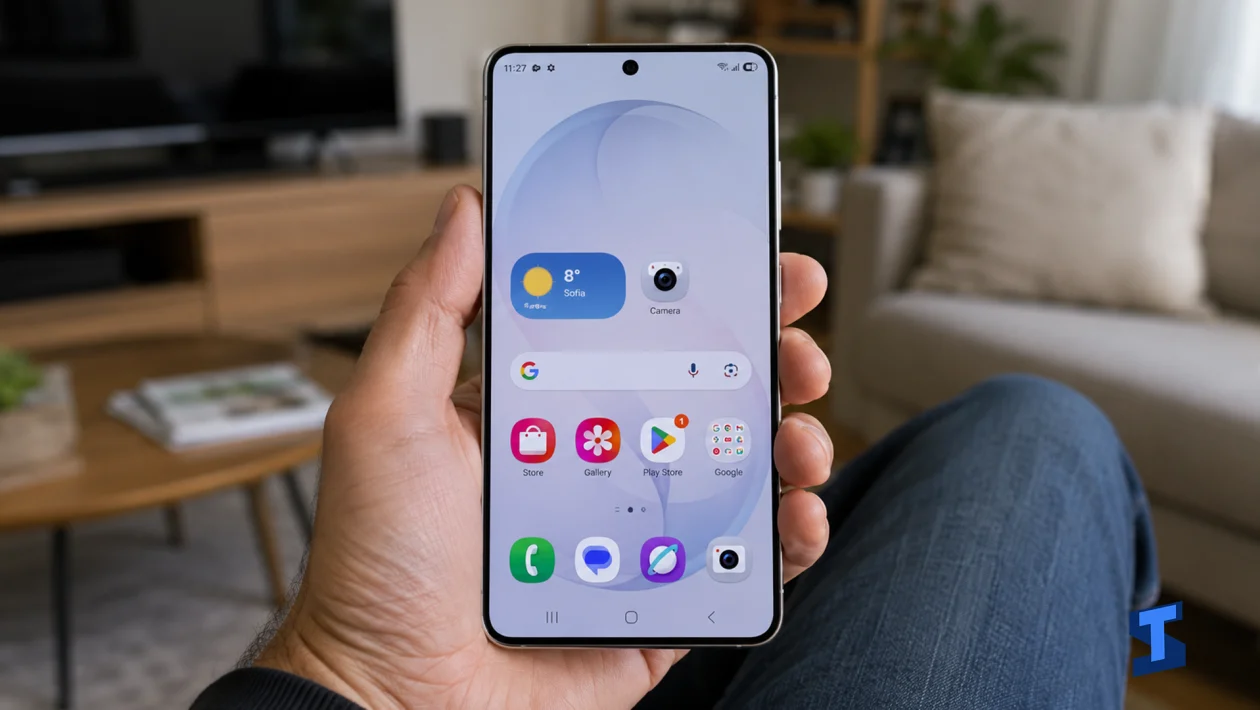
If your Samsung Galaxy S26 Ultra shows faint icons, keyboard marks, navigation bars, or ghost images that stay on the screen, you’re not alone. Screen burn-in can happen when static elements remain on an OLED display for long periods, especially at high brightness. The good news is, some image retention can fade with the right settings before it becomes permanent.
For more related guides, check our Samsung Galaxy S26 Ultra Problems and Fixes Hub where we keep common display, battery, software, and system fixes in one place.
Lower the Screen Brightness
I’d start by lowering the brightness because high brightness makes OLED wear more noticeable over time. If the same icons, status bar, keyboard, or app layout stay on the screen for hours, strong brightness can make image retention worse.
Go to Settings > Display and lower the brightness manually. You can also turn on Adaptive brightness so the phone adjusts the screen based on your surroundings.
If brightness keeps changing incorrectly or stays too bright indoors, use our guide on Galaxy S26 Ultra display brightness problems or this one for adaptive brightness not adjusting.
Shorten the Screen Timeout
A long screen timeout increases the chance of static images staying on the display too long. This is common if you leave messaging apps, maps, video players, games, or social media screens open without touching the phone.
Go to Settings > Display > Screen timeout and choose a shorter time, such as 30 seconds or 1 minute. This helps the display turn off before static elements can sit too long on the same pixels.
If the screen does not turn off when it should, check this related fix for Galaxy S26 Ultra screen timeout not working.
Change Your Wallpaper and Home Screen Layout
If the ghost image appears around your home screen icons, widgets, or navigation area, refresh the layout. Static home screen elements can leave faint marks when they stay in the same place for long periods.
Change your wallpaper, move your widgets, rearrange app icons, and use dark mode if you prefer a lower-brightness look. You can also remove large widgets that stay bright or colorful all day.
If your wallpaper does not apply properly, this guide on Galaxy S26 Ultra wallpaper not changing may help. And if your layout keeps resetting after you change it, check the fix for home screen layout resetting.
Turn Off Always On Display Temporarily
Always On Display is useful, but it can keep clock, notification, and battery elements visible for long periods. Samsung usually shifts these elements to reduce burn-in risk, but turning it off temporarily is still a good test if you notice faint marks in the same area.
Go to Settings > Lock screen and AOD, then turn off Always On Display. Leave it off for a few days and see if the faint image becomes less visible.
If AOD is not behaving normally, opening at the wrong time, or failing to show correctly, you can also check our guide on Always On Display not working.
Use a White Screen or Screen Refresh Video Carefully
If the mark is only temporary image retention, displaying a plain white screen or a pixel-refresh style video may help even out the display. This is not a guaranteed repair, but it can sometimes reduce faint ghosting from keyboards, icons, or static app elements.
Open a plain white image or a trusted screen refresh video and let it run for a short time at moderate brightness. Do not leave it running for hours at maximum brightness because that can add more wear instead of helping.
If the screen also flickers, shows strange colors, or has uneven tint, the issue may not be simple burn-in. These guides on screen flickering and display color calibration issues may be more relevant.
Check for Permanent Display Damage
If the ghost image remains visible on different backgrounds, after restarting the phone, and after changing brightness and wallpaper settings, it may already be permanent burn-in. This is more likely if the same static app, game HUD, navigation bar, or status icons stayed on the screen for long periods.
Test the screen using solid colors like white, gray, red, blue, and green. If the same shape appears across different colors, the OLED panel may have uneven pixel wear.
Also watch for other display symptoms. If you see green lines, heavy flickering, dead areas, or touch issues, check our guides on green lines on display and screen touch not responding.
If your Galaxy S26 Ultra still shows burn-in after these fixes, contact Samsung Support or visit a service center. Temporary image retention can fade, but true OLED burn-in usually needs a screen inspection or display replacement. Start with brightness, timeout, wallpaper, and AOD changes first, then treat persistent ghost images as a possible hardware issue.
