
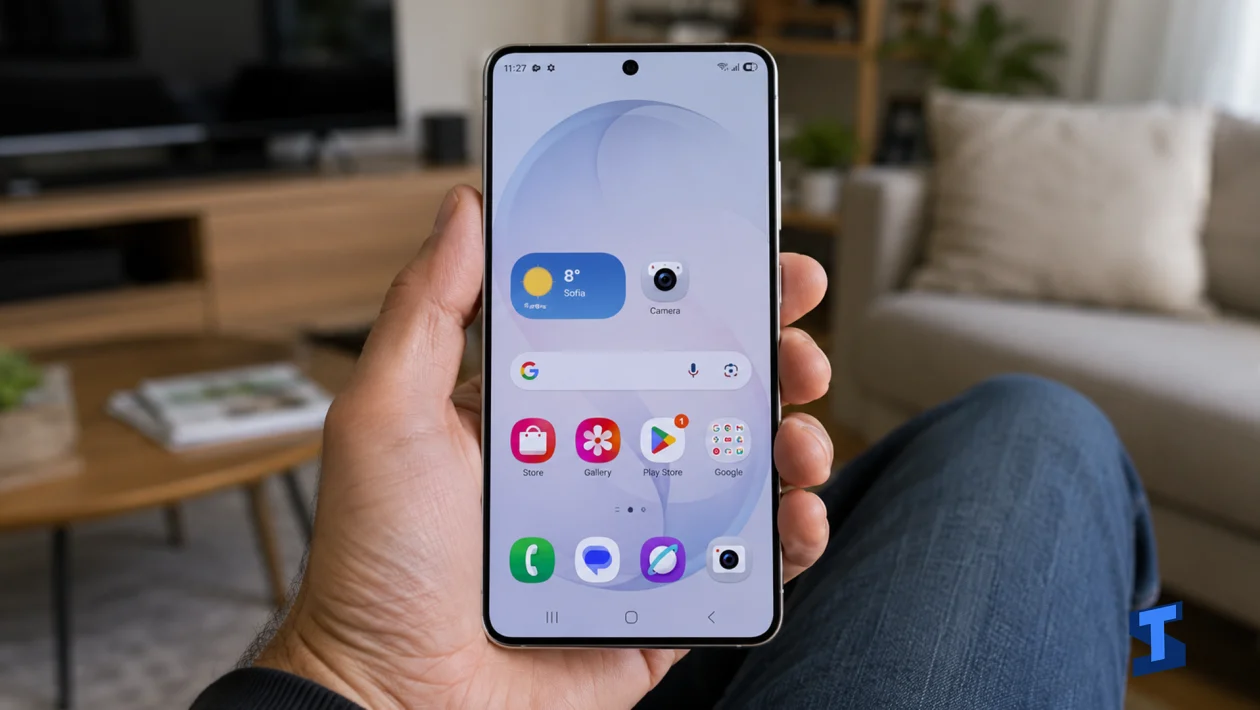
If your Samsung Galaxy S26 Ultra keeps resetting app permissions, you’re not alone. This can happen when unused app protection kicks in, after a software update, when an app is restricted in the background, or when system privacy settings automatically remove permissions for apps you have not opened in a while. The good news is, a few quick settings changes can usually stop permissions from changing on their own.
For more related fixes, check our Samsung Galaxy S26 Ultra Problems and Fixes Hub, where we keep common device issues organized in one place.
Check the App’s Permission Settings
I’d start by checking the affected app directly. Sometimes the permission is not actually broken, but the app has been set to ask every time, deny access, or use limited access only.
Go to Settings > Apps, then choose the app with the problem. Tap Permissions and review the permissions it needs, such as Camera, Microphone, Location, Photos and videos, Contacts, or Notifications.
Set each permission to the option the app needs to work properly. For apps like maps, delivery apps, ride-hailing apps, messaging apps, or camera apps, make sure the right permissions are allowed before testing again.
Turn Off Permission Removal for Unused Apps
Samsung and Android can automatically remove permissions from apps you have not used for a while. This is good for privacy, but it can be annoying if an app you still need keeps losing access to location, camera, microphone, or notifications.
Open Settings > Apps, then select the affected app. Tap Permissions, then look for the option that removes permissions when the app is unused. Turn that option off if you want the app to keep its access.
This is especially helpful for apps you do not open daily but still rely on, such as banking apps, security apps, delivery apps, smart home apps, or backup tools.
Update the App
An outdated app can behave badly with newer One UI privacy controls. If permissions started resetting after a system update, the app may need its own update to stay compatible.
Open the Google Play Store or Galaxy Store, then search for the affected app. If an update is available, install it and restart your phone.
If your Galaxy S26 Ultra is also having trouble updating apps, fix that first using this guide on apps that won’t update. A broken or outdated app can keep triggering permission errors until it is properly updated.
Update Your Galaxy S26 Ultra
System updates can fix privacy, permission, app compatibility, and background behavior issues. If several apps are losing permissions at once, the problem may be with One UI rather than one specific app.
Go to Settings > Software update > Download and install. If an update is available, install it, restart your phone, then check the affected app permissions again.
If the update will not complete, use these related fixes for software update stuck on download or software update failing to install.
Check Background Usage Limits
Some apps need to keep running in the background to maintain permissions, notifications, syncing, or location access. If your Galaxy S26 Ultra puts the app to sleep, it may stop working properly and act like its permissions have been reset.
Go to Settings > Battery and device care > Battery > Background usage limits. Check if the affected app is under sleeping apps or deep sleeping apps, then remove it from that list if needed.
This matters most for messaging apps, email apps, security apps, fitness trackers, navigation apps, and smart home apps. If the main issue is missed alerts, this related guide on missing background app notifications may also help.
Clear the App Cache
A damaged app cache can make an app forget settings, request permissions repeatedly, or fail to detect that a permission has already been allowed. Clearing the cache is safe because it removes temporary files without deleting the app itself.
Go to Settings > Apps, then select the affected app. Tap Storage, then choose Clear cache.
After that, reopen the app and allow the required permissions again. If the same permission resets after a short time, the app may need to be updated, reinstalled, or removed from battery restrictions.
Reset App Preferences
Resetting app preferences can fix permission behavior caused by disabled apps, restricted background settings, broken defaults, or app-level permission conflicts. This does not delete your personal files, but it can reset disabled apps, default app choices, and permission prompts.
Go to Settings > Apps, then tap the three-dot menu. Select Reset app preferences, then confirm.
After the reset, open the affected apps one by one and grant the permissions they need. If system apps are also acting strangely, check this guide on One UI system apps crashing because system instability can affect permissions too.
Check Secure Folder or App Lock Settings
If the permission problem happens only inside Secure Folder or with locked apps, the issue may be related to Samsung’s security layer rather than the app itself. Apps inside Secure Folder can have separate permissions from the same apps outside it.
Open Secure Folder, then check the affected app’s permissions from inside that space. If you use App Lock or other privacy features, make sure they are not blocking camera, microphone, files, contacts, or location access.
For related issues, you can check these guides on Secure Folder not opening and App Lock not working.
If your Galaxy S26 Ultra still keeps resetting app permissions after these fixes, uninstall and reinstall the affected app, then set the permissions again. If multiple apps continue losing access after updates, cache clearing, and app preference reset, contact Samsung Support because the issue may be tied to a deeper One UI privacy or system configuration problem.
