
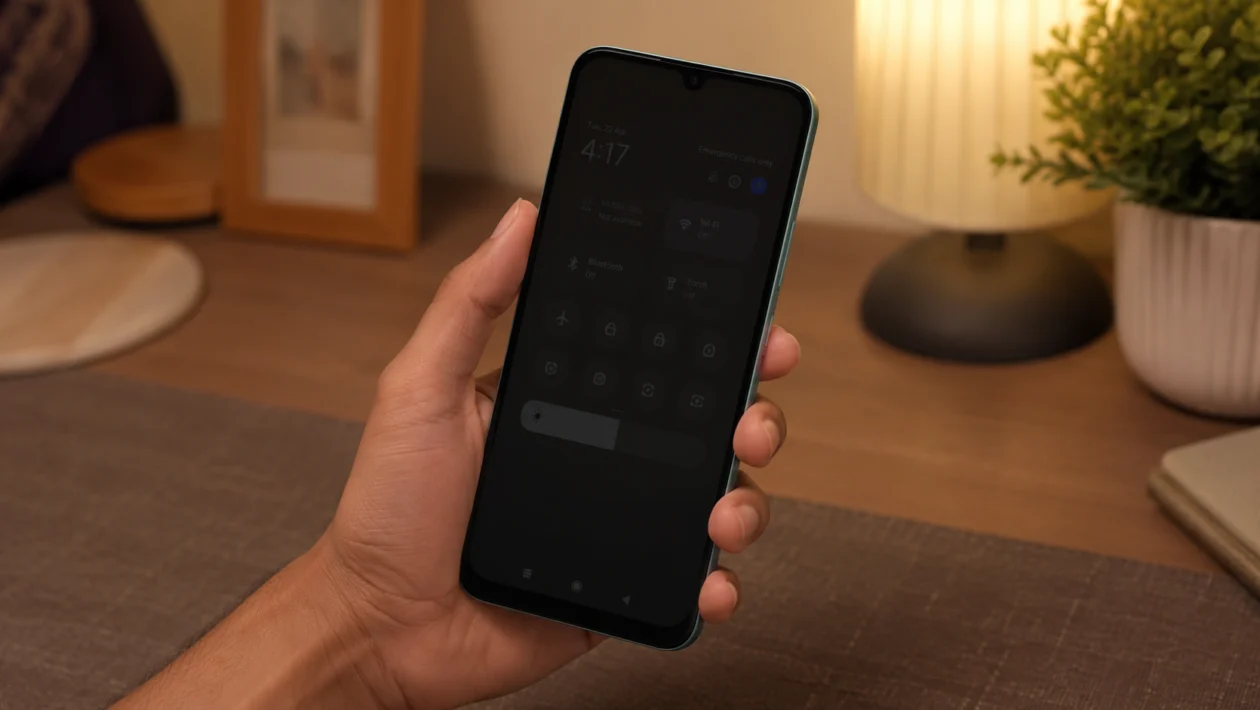
If your Xiaomi Poco C81 Pro adaptive brightness is not adjusting, the screen may stay too dim indoors, become too bright at night, or fail to increase brightness when you step outside.
This does not always mean the display is faulty. Auto brightness can stop working properly because of a disabled setting, a blocked front sensor area, a temporary HyperOS issue, display mode conflicts, outdated software, or brightness learning that needs to be reset.
Start with the simple checks first. Turn Adaptive brightness off and on, clean the top front area of the phone, restart the device, then check Display & brightness settings.
Quick answer
To fix Xiaomi Poco C81 Pro adaptive brightness not adjusting, go to Settings > Display & brightness and turn Automatic brightness off, then turn it back on. Clean the front camera and sensor area, restart the phone, and test the brightness under bright light and in a darker room.
If the brightness still does not change, update HyperOS, check Reading mode and Battery saver, reset app preferences, or reset all settings before contacting Xiaomi or Poco support.
Poco C81 Pro adaptive brightness diagnostic table
| Symptom | Likely cause | What to check first |
|---|---|---|
| Brightness stays too low outdoors | Auto brightness glitch or Outdoor mode issue | Display & brightness settings |
| Screen stays too bright at night | Brightness learning or display mode conflict | Automatic brightness toggle |
| Brightness changes slowly | Normal adaptive brightness delay | Test in bright and dark areas |
| Brightness does not change at all | Sensor area blocked or software issue | Clean front camera area and restart |
| Brightness works after restart, then fails again | HyperOS bug or third-party app conflict | Update software and check apps |
| Screen dims while watching videos | Battery saver or app-level brightness control | Battery and app settings |
| Brightness slider moves by itself | Automatic brightness is enabled | Turn Automatic brightness off |
| Brightness is poor in sunlight | Outdoor brightness mode or display limit | Manual brightness and Outdoor mode |
Why is adaptive brightness not working on the Xiaomi Poco C81 Pro?
Your Xiaomi Poco C81 Pro adaptive brightness may not adjust properly because the phone is not reading surrounding light correctly, or HyperOS is applying display settings that override the brightness behavior.
Common causes include:
Automatic brightness is turned off
The sensor or front camera area is dirty
A screen protector is blocking the sensor area
The phone needs a restart
HyperOS has a temporary brightness bug
Reading mode is changing the screen tone
Battery saver is limiting display behavior
A third-party app is controlling brightness
The phone needs a software update
Display settings need to be reset
The Poco C81 Pro has a large 6.9-inch LCD display with up to 120Hz refresh rate and support for Outdoor mode. That means brightness behavior can depend on display settings, lighting conditions, and HyperOS control, not just the brightness slider.
1. Turn Automatic brightness off and on again
Start here because this is the quickest fix.
- Open Settings.
- Tap Display & brightness.
- Find Automatic brightness.
- Turn it off.
- Wait 10 seconds.
- Turn it back on.
- Move from a bright area to a darker area and check if the screen changes.
This refreshes the brightness control without deleting anything.
If the brightness starts working again, leave Automatic brightness enabled and use the phone normally for a few hours. HyperOS may need a little time to adjust to your brightness habits.
2. Clean the front camera and sensor area
Adaptive brightness depends on how the phone detects light around you. If the top front area is covered by dust, oil, a thick screen protector, or a case edge, the phone may think the room is darker or brighter than it really is.
- Turn off the screen.
- Remove the case if it covers the top edge.
- Wipe the front camera area with a clean microfiber cloth.
- Check if your screen protector is covering any sensor area.
- Turn the screen back on.
- Test Automatic brightness again.
Do not use sharp tools, alcohol-heavy liquid, or anything abrasive on the screen.
This fix is especially worth trying if the issue started after installing a new case or screen protector.
3. Restart your Poco C81 Pro
A restart can clear temporary display or sensor glitches.
- Press and hold the Power button.
- Tap Restart.
- Wait for the phone to turn back on.
- Unlock the phone.
- Go to Settings > Display & brightness.
- Check that Automatic brightness is still enabled.
After restarting, test the phone in two places: near a window or bright light, then inside a darker room.
If the brightness changes after the restart, the problem was likely a temporary HyperOS process issue.
4. Manually adjust brightness once while Automatic brightness is on
Adaptive brightness may learn from your manual adjustments. If the phone keeps choosing a brightness level you do not like, correct it manually while Automatic brightness is still enabled.
- Keep Automatic brightness turned on.
- Swipe down to open Control Center.
- Adjust the brightness slider to a comfortable level.
- Use the phone normally.
- Repeat this in bright and dim environments.
Do not turn Automatic brightness off while doing this. The goal is to teach the phone your preferred brightness level.
This helps when the Poco C81 Pro adjusts brightness, but the level always feels slightly wrong.
5. Turn off Reading mode and color filters
Reading mode can make the screen look dimmer or warmer, even when brightness is technically working. It can make users think adaptive brightness is broken.
- Open Settings.
- Tap Display & brightness.
- Tap Reading mode.
- Turn it off temporarily.
- Go back and check other display color settings.
- Test brightness again.
If the screen looks normal after turning Reading mode off, the issue was not adaptive brightness. It was the display tone.
You can turn Reading mode back on later, but adjust its schedule or intensity so it does not make the screen look too dim.
6. Check Battery saver settings
Battery saver can reduce background activity and may affect how aggressively the phone manages the screen.
- Open Settings.
- Tap Battery.
- Turn off Battery saver temporarily.
- Turn off Ultra battery saver if it is enabled.
- Go back to Display & brightness.
- Test Automatic brightness again.
This is worth checking if adaptive brightness only fails when your battery is low.
If brightness works normally with Battery saver off, the phone is likely prioritizing battery life over display comfort.
7. Update HyperOS and system apps
Software updates can fix display, sensor, and brightness bugs.
- Open Settings.
- Tap About phone.
- Tap the HyperOS version card.
- Tap Check for updates.
- Install any available update.
- Restart the phone after updating.
Also update system apps:
- Open Settings.
- Tap System apps updater, if available.
- Install pending updates.
- Open the Google Play Store.
- Tap your profile icon.
- Tap Manage apps and device.
- Update your apps.
If the adaptive brightness issue started after a recent update, still check for newer patches. Early software bugs are often fixed in later updates.
8. Test brightness in Safe mode
A third-party app can interfere with brightness. This is common with screen dimmer apps, blue light filter apps, battery saver apps, gaming tools, and automation apps.
- Press and hold the Power button.
- Touch and hold Power off if the Safe mode option appears.
- Tap Safe mode.
- Wait for the phone to restart.
- Test Automatic brightness.
In Safe mode, downloaded apps are temporarily disabled.
If adaptive brightness works in Safe mode, one of your installed apps is likely causing the problem. Remove recently installed display, battery, launcher, cleaner, or automation apps first.
To exit Safe mode, restart the phone normally.
9. Reset app preferences
Resetting app preferences can fix brightness-related permissions or default behavior without deleting your personal files.
- Open Settings.
- Tap Apps.
- Tap Manage apps.
- Tap the three-dot menu.
- Tap Reset app preferences.
- Confirm the reset.
- Restart your phone.
This may reset disabled apps, default app choices, notification restrictions, and background limits. It will not delete photos, videos, messages, or documents.
Try this before doing a full settings reset.
10. Reset all settings
Use this only after the easier fixes fail.
- Open Settings.
- Tap Additional settings.
- Tap Backup and reset or Reset options.
- Choose Reset settings or Reset Wi-Fi, mobile networks, and Bluetooth, depending on what your software version shows.
- Confirm the reset.
- Restart the phone.
- Turn Automatic brightness back on.
The exact wording can vary by HyperOS version and region.
This can fix broken display behavior caused by conflicting settings. It may reset Wi-Fi, Bluetooth, display, notification, and system preferences, so check your important settings afterward.
When to contact Xiaomi or Poco support
Contact support if:
The brightness never changes in any lighting condition
The screen stays extremely dim even at maximum brightness
The problem continues after a settings reset
The issue started after the phone was dropped
The display was repaired recently
The screen flickers or shows color problems
The phone overheats while the display is on
Other sensors also stop working
At that point, the problem may be hardware-related or tied to the display assembly.
FAQ
Why is my Poco C81 Pro brightness not changing automatically?
It may be caused by Automatic brightness being disabled, a dirty front sensor area, Reading mode, Battery saver, a third-party display app, or a temporary HyperOS bug.
Where is adaptive brightness on the Poco C81 Pro?
Go to Settings > Display & brightness and look for Automatic brightness. You can also open Control Center and check the brightness slider area.
Why does my Poco C81 Pro screen stay dim outside?
The phone may not be detecting bright light properly, or Automatic brightness may be stuck. Turn Automatic brightness off and on, clean the front camera area, then test the screen outdoors again.
