
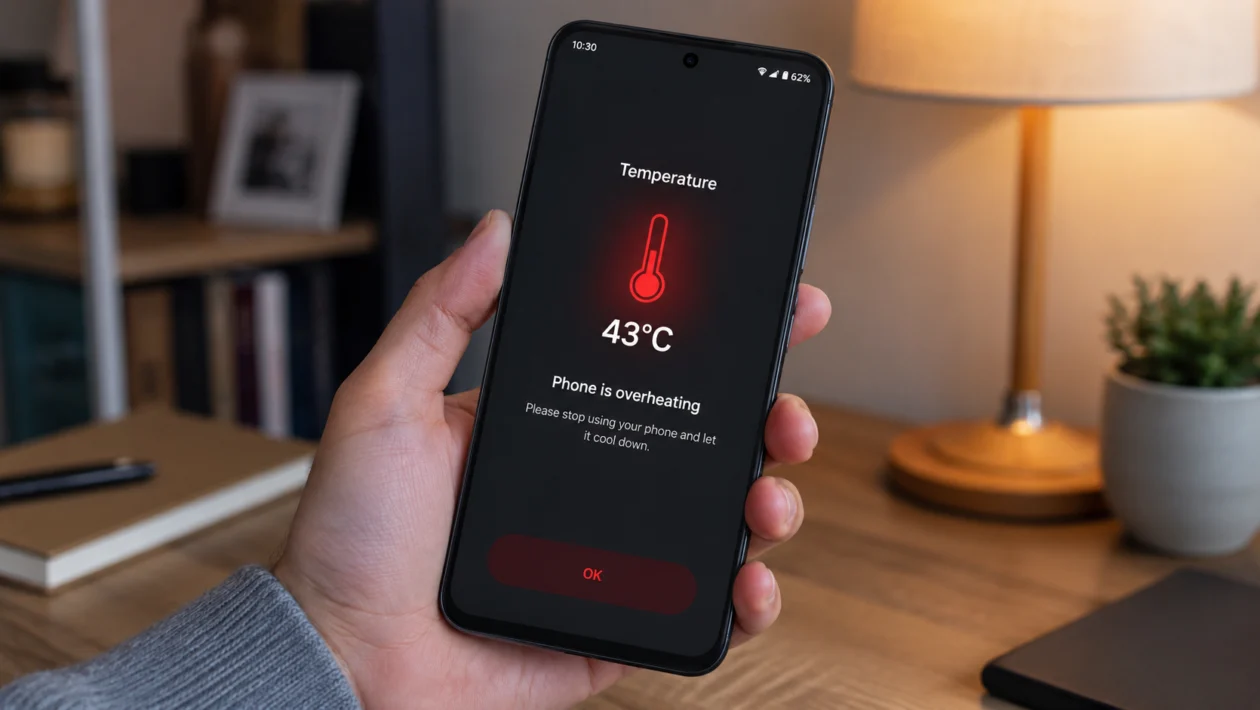
If your vivo Y60 gets hot after long gaming sessions, video calls, mobile data use, navigation, or continuous scrolling, the phone may be working harder than normal. Some warmth is expected during heavy use, but the phone should not become uncomfortable to hold, slow down badly, stop charging, or show a high-temperature warning.
The vivo Y60 has a large battery, a 120Hz display, and 5G support, so heat can build up when the screen, processor, network, and battery are all active for a long time. The problem can also come from apps running in the background, weak signal, direct sunlight, charging while using the phone, or a recent software update.
Start with the simple fixes first. Most overheating problems improve after reducing screen load, closing heavy apps, checking network conditions, and avoiding heat while charging.
Quick answer
To fix a vivo Y60 overheating during prolonged use, close heavy apps, remove the case, lower screen brightness, stop gaming or streaming while charging, switch to Wi-Fi when possible, update the phone, and check battery usage under Settings. If the phone keeps getting too hot, shows repeated temperature warnings, or shuts down, contact vivo support.
vivo Y60 overheating diagnostic table
| Symptom | Likely cause | What to check first |
|---|---|---|
| Gets hot while gaming | Processor, GPU, display, and network load | Graphics settings and background apps |
| Gets hot during video calls | Camera, microphone, display, network, and charging | Brightness, signal, and charging status |
| Gets hot on mobile data | Weak signal or 5G searching | Signal strength and network mode |
| Gets hot while charging | Charging heat plus screen or app load | Stop using the phone while charging |
| Gets hot in your pocket or bag | Poor heat dissipation | Remove case and avoid covered surfaces |
| Gets hot after an update | Apps and system re-optimising | Restart and update apps |
| Gets hot outdoors | Direct sunlight or high ambient temperature | Move to shade and cool the phone slowly |
| Gets hot overnight | Background apps, syncing, hotspot, or location | Battery usage and permissions |
| Shows temperature warning | Battery or internal temperature is too high | Stop use and let it cool |
| Shuts down or slows heavily | Thermal protection or possible hardware issue | Back up data and contact support |
Why does the vivo Y60 overheat during prolonged use?
Your vivo Y60 may overheat during prolonged use because several power-hungry parts are active at the same time. Long gaming sessions, 5G mobile data, navigation, video calls, high brightness, background apps, and charging can all increase heat.
Common causes include:
Apps running in the background
Long gaming or video streaming sessions
Using the phone while charging
High screen brightness
120Hz refresh rate
Weak mobile signal
5G network searching
Hot weather or direct sunlight
Thick phone case blocking heat release
Recent system or app updates
Location, Bluetooth, hotspot, or syncing left on
Possible battery or hardware issue
A warm phone is not always a defect. Phones are designed to manage heat by slowing performance, pausing charging, dimming the display, or showing a temperature warning when needed. The goal is to reduce heat before it reaches that point.
1. Stop heavy use and let the phone cool first
Start here if the vivo Y60 feels hot to the touch.
- Stop gaming, streaming, video calling, or navigation.
- Lock the screen.
- Remove the phone from direct sunlight.
- Place it on a cool, dry surface.
- Wait 10 to 15 minutes before using it again.
Do not put the phone in a refrigerator or freezer. Sudden temperature changes can create moisture inside the device.
This is the safest first step because it gives the phone time to reduce internal temperature without adding more load.
2. Remove the case during long sessions
A thick case can trap heat, especially during gaming, video calls, charging, or 5G use. The vivo Y60 can release heat better when the back and sides are exposed.
Try this:
- Remove the phone case.
- Use the phone without the case for 20 to 30 minutes.
- Check if the temperature improves.
- Avoid using the phone under a pillow, blanket, bag, or car dashboard.
This fix is simple, but it matters. Heat needs somewhere to go. If the phone is covered, heat stays around the body of the device longer.
3. Lower brightness and reduce screen load
The screen is one of the biggest sources of battery and heat during prolonged use. If your vivo Y60 gets hot while scrolling, watching videos, or gaming, reduce display load first.
- Open Settings.
- Tap Display and brightness.
- Lower the brightness slider.
- Turn on auto brightness if available.
- Reduce screen timeout to 30 seconds or 1 minute.
If your vivo Y60 is using a high refresh rate, lower it when battery life and temperature matter more than smooth scrolling.
- Open Settings.
- Tap Display and brightness.
- Look for Screen refresh rate.
- Choose a lower or standard refresh rate option.
This can help during long video sessions, browsing, or social media use.
4. Close background apps before gaming or video calls
Overheating often happens when one main app is running while several other apps are still active in the background. Social apps, delivery apps, shopping apps, maps, camera apps, and cloud backup tools can keep using data, location, storage, and processor resources.
Before prolonged use:
- Open the recent apps screen.
- Close apps you are not using.
- Restart the phone if it still feels unusually warm.
- Open only the app you need.
Then check which apps are using the most power:
- Open Settings.
- Tap Battery.
- Check battery usage or power consumption ranking.
- Look for apps using more power than expected.
If one app appears high even though you barely used it, update it, restrict background activity, or uninstall it temporarily.
5. Avoid using the phone while charging
Charging already creates heat. Gaming, video calls, hotspot, camera use, or streaming while charging can make the vivo Y60 heat up faster.
Do this instead:
- Plug in the charger.
- Leave the phone on a table.
- Turn off the screen.
- Avoid gaming, video calls, hotspot, and navigation while charging.
- Remove the case if the phone feels warm.
Also check the charger and cable. Use a compatible charger and cable from a reliable source. A damaged cable or poor-quality charger can cause unstable charging and extra heat.
If the phone pauses charging because of temperature, let it cool before trying again.
6. Switch from mobile data to Wi-Fi when possible
The vivo Y60 can heat up more on mobile data, especially if signal is weak or the phone keeps switching between network bands. This is common in elevators, basements, crowded areas, moving vehicles, and locations with patchy 5G.
Try this:
- Connect to a stable Wi-Fi network.
- Use Wi-Fi for long downloads, video calls, streaming, and app updates.
- Avoid hotspot during long sessions.
- Check if the phone stays cooler on Wi-Fi.
If overheating mainly happens on mobile data, weak signal may be the real cause. The phone uses more power when it has to search harder for a stable connection.
7. Turn off hotspot, GPS, Bluetooth, and syncing when not needed
Hotspot, GPS, Bluetooth, and background syncing can add heat during prolonged use. The problem gets worse if you are also using 5G, high brightness, or charging.
Turn off what you do not need:
- Swipe down to open Quick Settings.
- Turn off Hotspot if it is enabled.
- Turn off Bluetooth if no device is connected.
- Turn off Location when not needed.
- Pause large cloud backups or file syncing.
For apps that use location too often:
- Open Settings.
- Tap Apps.
- Select the app.
- Tap Permissions.
- Set Location to Allow only while using the app, if available.
Maps, ride-hailing apps, weather widgets, camera apps, and social media apps can keep requesting location access. Limiting them can reduce heat and battery drain.
8. Update the phone and problem apps
If the vivo Y60 started overheating after installing an app or after a system update, software may be part of the problem. Updates can fix bugs, improve battery behaviour, and reduce background activity.
To update the phone:
- Open Settings.
- Tap System update.
- Check for updates.
- Install any available update.
- Restart the phone.
To update apps:
- Open Google Play Store.
- Tap your profile icon.
- Tap Manage apps and device.
- Tap Update all.
Also update vivo system apps if your phone has a vivo app store or system app updater.
After a major update, some heat and battery drain can happen while the phone re-optimises apps and services. Use the phone normally for 24 to 48 hours before judging battery and heat performance.
9. Reduce gaming, camera, and video settings during long use
Gaming, camera recording, and video calls can heat up the vivo Y60 because they use the processor, graphics, screen, camera, microphone, storage, and network at the same time.
For gaming:
- Lower graphics quality.
- Lower frame rate if the game allows it.
- Turn off screen recording.
- Avoid gaming while charging.
- Take breaks every 20 to 30 minutes.
For camera use:
- Avoid long video recording in direct sunlight.
- Lower video resolution if possible.
- Close the camera app after use.
- Let the phone cool between long recording sessions.
For video calls:
- Lower brightness.
- Use Wi-Fi instead of weak mobile data.
- Avoid charging during the call.
- Use audio-only mode if the phone gets too hot.
This is especially useful if the overheating only happens during one specific activity.
10. Reset settings or contact vivo support if overheating continues
If none of the fixes work, reset system settings before assuming the battery is faulty. This can clear incorrect network, app, or power settings without deleting your personal files.
Try resetting settings:
- Open Settings.
- Search for Reset.
- Choose Reset all settings, if available.
- Read the warning carefully.
- Confirm the reset.
- Restart the phone.
Do not choose factory reset unless you have backed up your data and already tried safer fixes.
Contact vivo support if:
The phone becomes too hot to hold
The phone shuts down from heat
Charging keeps pausing because of temperature
The battery drains unusually fast with light use
The phone heats up even when idle
You see repeated high-temperature warnings
The back cover looks swollen or lifted
The phone was dropped, wet, or repaired before
Stop using the phone and get professional help if you suspect battery swelling. A swollen battery is a safety issue.
Should you factory reset the vivo Y60 for overheating?
A factory reset should be a last resort, not the first fix. It may help if overheating comes from software conflicts, corrupted settings, or a bad app you cannot identify. But it will erase your personal data, so back up photos, contacts, files, and chats first.
Try these before factory reset:
Restart the phone
Update apps
Update system software
Check battery usage
Remove problem apps
Reset settings
Test the phone without the case
Use Wi-Fi instead of mobile data
Avoid charging while using the phone
If the phone still overheats after those checks, support inspection is safer than guessing.
How to prevent vivo Y60 overheating again
Use Wi-Fi for long sessions when possible.
Keep the phone out of direct sunlight.
Avoid gaming while charging.
Remove thick cases during heavy use.
Close unused apps before gaming or video calls.
Lower brightness indoors.
Turn off hotspot when not needed.
Update apps regularly.
Avoid leaving the phone in a hot car.
Let the phone cool when it shows a temperature warning.
FAQ
Why does my vivo Y60 heat up after 30 minutes of use?
Your vivo Y60 may heat up after 30 minutes because the screen, processor, network, and battery are working continuously. This is common during gaming, video calls, navigation, camera use, hotspot, or 5G mobile data.
Is it normal for the vivo Y60 to get warm?
Yes, mild warmth is normal during heavy use or charging. It is not normal if the phone becomes uncomfortable to hold, slows down badly, stops charging repeatedly, shuts down, or shows frequent temperature warnings.
Can 5G cause overheating on the vivo Y60?
Yes. 5G can increase power use, especially in weak signal areas. If the phone gets hotter on mobile data than Wi-Fi, test the phone on Wi-Fi or use a lower network mode when 5G is not needed.
