
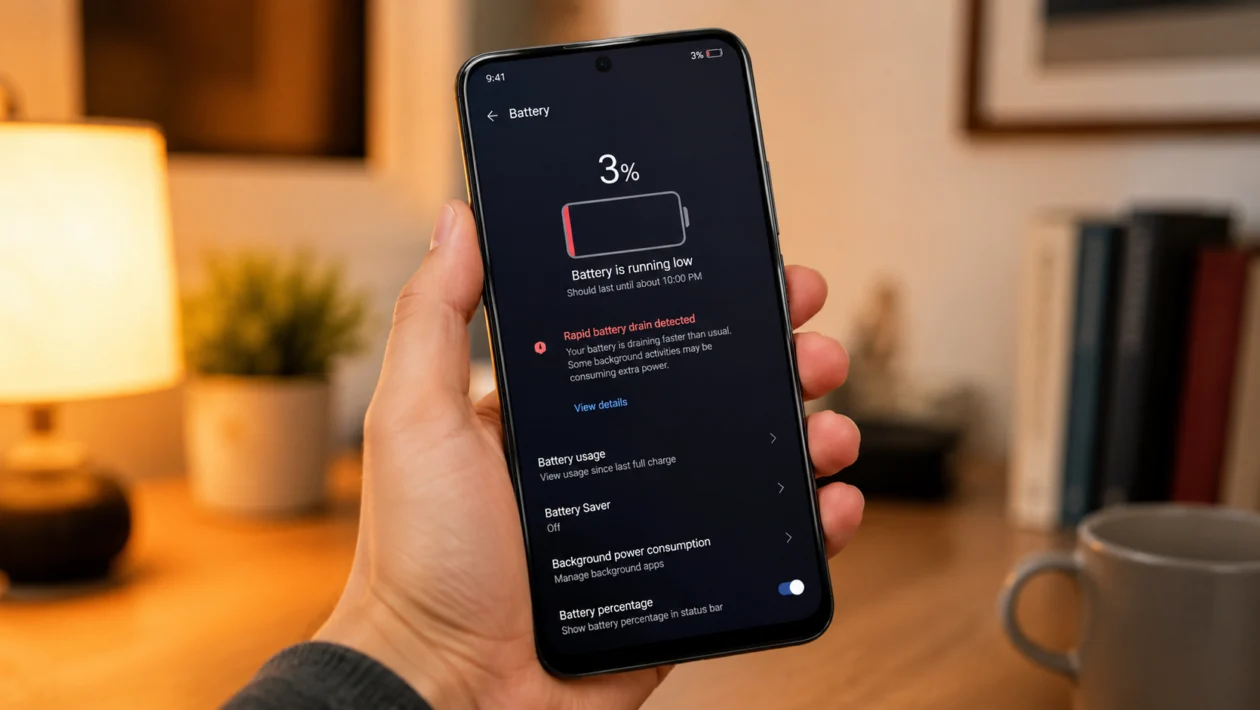
If your vivo Y60 battery is draining faster than normal, the phone can feel unreliable even when you are not doing anything heavy. You charge it, use it for a while, then the battery percentage drops much sooner than expected.
Rapid battery drain does not always mean the battery is damaged. It can happen because of background apps, high brightness, mobile data, weak signal, location access, gaming, video calls, hotspot use, software updates, or battery wear.
Start with the simple checks first. Look at battery usage, restart the phone, update your apps, then adjust the settings most likely to waste power.
Quick answer
To fix a vivo Y60 with rapid battery drain, go to Settings > Battery and check which apps are using the most power. If one app stands out, update it, restrict its background activity, or uninstall it temporarily.
Then reduce screen brightness, turn off unused location access, disable hotspot and Bluetooth when not needed, use Battery Saver, update the phone, and check whether the drain is worse on mobile data or weak signal.
If the battery drops quickly even when the phone is idle, gets hot often, shuts down early, or drains heavily after every full charge, the battery may need inspection by vivo support.
vivo Y60 battery drain diagnostic table
| Symptom | Likely cause | What to check first |
|---|---|---|
| Battery drains overnight | Background apps, sync, location, notifications | Settings > Battery |
| Battery drains faster on mobile data | Weak signal, 4G/5G switching, network search | Signal strength and network settings |
| Battery drops while screen is on | Brightness, timeout, refresh rate, video use | Display settings |
| Battery drains during calls | Video calls, poor signal, mobile data | Call app and network signal |
| Phone gets warm and drains fast | Gaming, camera, hotspot, charging while using | Battery usage and temperature |
| Battery drain started after update | Apps re-optimising or software bug | Restart, update apps, wait 24 to 48 hours |
| Battery drops even when unused | Sync, location, background app activity | Battery usage and permissions |
| Battery percentage falls suddenly | Battery health or calibration issue | Monitor for repeated sudden drops |
| Phone shuts down before 0% | Possible battery or hardware issue | vivo service center |
| Battery drains only with one app | App bug or high background usage | Update or restrict the app |
Why is my vivo Y60 battery draining so fast?
Your vivo Y60 battery may be draining fast because something is using more power than normal.
Common causes include:
Apps running in the background
High screen brightness
Long screen timeout
Location services
Mobile hotspot
Weak mobile signal
Heavy gaming
Video calls
Navigation apps
Camera use
Outdated apps
Recent software updates
Battery wear
vivo’s own battery guidance mentions several common power drain causes, including notifications from apps, location services, wallpapers, mobile network usage, hotspot use, video calls, games, maps, and camera activity. Google’s Android battery advice also points to battery saver, updates, GPS, tethering, streaming, camera use, and games as common areas to check.
1. Check Battery usage first
Start here before changing random settings.
- Open Settings.
- Tap Battery.
- Open Battery usage or Power consumption ranking.
- Check which apps used the most battery.
- Look for apps that used power even when you barely opened them.
Some apps naturally use more battery. Games, camera apps, navigation apps, shopping apps, social media apps, and video apps can use more power than basic apps.
Look for:
An app you barely used but appears high on the list
A recently installed app
An app using battery in the background
A social media app draining more than expected
A delivery, map, or tracking app using location often
If one app stands out, update it first. If it still drains the battery, restrict background activity or uninstall it for one day to test the difference.
2. Restart your vivo Y60
A restart is simple, but it can fix temporary battery drain caused by stuck apps or background processes.
- Press and hold the Power button.
- Tap Restart.
- Wait for the phone to turn back on.
- Use the phone normally for a few hours.
- Check Battery usage again.
This will not delete your photos, apps, messages, or personal files.
Restarting is also useful after installing a software update, app update, or new system patch. Android’s own battery guidance recommends restarting when battery-related problems appear.
3. Update your apps and phone software
Battery drain can happen when an app has a bug or when the phone needs a software patch.
To update the phone:
- Open Settings.
- Tap System update or Software update.
- Check for updates.
- Install any available update.
- Restart the phone after updating.
To update apps:
- Open the Google Play Store.
- Tap your profile icon.
- Tap Manage apps and device.
- Tap Update all.
Also check vivo App Store if you use vivo system apps.
If the battery drain started right after a software update, do not panic immediately. The phone may spend extra power updating apps, rebuilding app data, syncing files, or re-optimising background behavior. Use it normally for 24 to 48 hours, then check again.
4. Reduce screen brightness and screen timeout
The display is one of the biggest battery users on any smartphone. If your vivo Y60 loses battery quickly while you are using it, start with the screen.
- Open Settings.
- Tap Display & brightness.
- Lower the brightness slider.
- Turn on Auto brightness if it works well for you.
- Tap Auto-lock or Screen timeout.
- Choose a shorter time, such as 30 seconds or 1 minute.
Also avoid keeping the screen on at full brightness outdoors unless needed.
This fix helps most when the battery drains fast while scrolling, watching videos, browsing, or using social media.
5. Turn on Battery Saver
Battery Saver helps reduce background activity and limit power-hungry features.
- Open Settings.
- Tap Battery.
- Turn on Battery Saver or Low power mode.
- Use it when the battery is low or when you need the phone to last longer.
You can also use Battery Saver during travel, school, work, commuting, or long days away from a charger.
Do not leave Battery Saver on all the time if you need instant notifications from messaging, banking, delivery, or work apps. It may delay some background activity depending on your settings.
6. Limit background activity for battery-heavy apps
Some apps keep running even after you stop using them. This can drain the battery while the phone is in your pocket.
- Open Settings.
- Tap Battery.
- Open Battery usage.
- Tap the app using too much power.
- Choose a restricted or optimized background setting if available.
You can also check app permissions:
- Open Settings.
- Tap Apps.
- Choose the app.
- Tap Battery or Permissions.
- Remove background access you do not need.
Be careful with messaging apps. If you restrict apps like WhatsApp, Messenger, Gmail, or work chat apps too aggressively, notifications may arrive late.
7. Turn off location when you do not need it
Location services can drain battery, especially when used by maps, delivery apps, weather apps, fitness apps, ride-hailing apps, and social media apps.
- Swipe down from the top of the screen.
- Turn off Location when not needed.
To check app location access:
- Open Settings.
- Tap Location.
- Tap App location permissions.
- Change unnecessary apps from Allow all the time to Allow only while using the app.
- Remove location access from apps that do not need it.
vivo’s support guidance recommends turning off location services when they are not needed to help save battery.
8. Check mobile data, weak signal, and hotspot
If your vivo Y60 battery drains faster on mobile data than Wi-Fi, the network may be part of the problem.
Weak signal can make the phone work harder to stay connected. Battery drain may also increase when using hotspot, video calls, maps, or mobile data for long periods. vivo’s support pages specifically list mobile network use, personal hotspot, video calls, maps, and games as power consumption topics.
Try this:
- Use Wi-Fi when available.
- Turn off Personal Hotspot when not in use.
- Turn off mobile data when you do not need it.
- Avoid long video calls in weak signal areas.
- Move near a window or open area if signal is poor.
- Restart mobile data if the phone keeps searching for signal.
To turn off hotspot:
- Open Settings.
- Tap Network & internet or Connections.
- Tap Hotspot & tethering.
- Turn off Personal Hotspot.
This fix is especially useful if the battery drains quickly while commuting, traveling, or staying in places with poor signal.
9. Reduce gaming, video calls, camera use, and navigation
Heavy tasks can drain the battery quickly. This does not always mean something is wrong with the vivo Y60.
Battery drain is expected when you use:
Mobile games
Video calls
Navigation apps
Camera and video recording
Hotspot
Long video streaming
High brightness outdoors
Google’s Android battery advice recommends avoiding long GPS use, tethering, long streaming sessions, heavy games, and frequent camera use when trying to save battery.
Try these changes:
- Lower game graphics settings.
- Close games when finished.
- Use Wi-Fi for video calls when possible.
- Turn off hotspot after sharing internet.
- Avoid using the camera for long periods in hot weather.
- Use offline maps when possible.
- Lower brightness while streaming.
If the phone gets warm while doing these tasks, let it cool down before charging or gaming again.
10. Check battery health and get support if the drain continues
If none of the fixes work, the battery may be worn, damaged, or affected by a hardware issue.
Get the phone checked if you notice:
Battery drops suddenly from high percentage to low percentage
Phone shuts down before reaching 0%
Phone gets hot during light use
Battery drains fast even after a factory reset
Battery swelling
Charging becomes unstable
Battery drain continues even when no app stands out
Do not keep using the phone if the battery is swollen, leaking, or causing the back cover to lift. Stop charging it and contact vivo support or an authorized service center.
vivo’s battery support guidance notes that mobile phone battery capacity declines after repeated charging and discharging, and reduced maximum capacity can seriously affect battery life.
Should you factory reset your vivo Y60?
A factory reset should not be your first fix.
Only consider it after you have tried the 10 fixes above and the battery still drains quickly. Back up your photos, contacts, messages, and files before resetting the phone.
To factory reset:
- Open Settings.
- Tap System management.
- Tap Backup & reset.
- Tap Erase all data or Reset phone.
- Follow the on-screen instructions.
The exact menu names may vary depending on the Funtouch OS version.
FAQ
Why is my vivo Y60 battery draining overnight?
Your vivo Y60 battery may drain overnight because of background apps, location access, notifications, syncing, weak signal, or an app that is stuck running. Check Settings > Battery first and look for apps using power while the phone is idle.
Why does my vivo Y60 battery drain faster on mobile data?
Mobile data can use more battery when the signal is weak or unstable. The phone may use extra power searching for a stronger connection. Hotspot, video calls, navigation, and streaming on mobile data can also drain the battery faster.
Does Battery Saver fix vivo Y60 battery drain?
Battery Saver can help reduce battery drain by limiting background activity and power-hungry features. It is useful when the battery is low or when you need the phone to last longer, but it may delay some notifications.
