
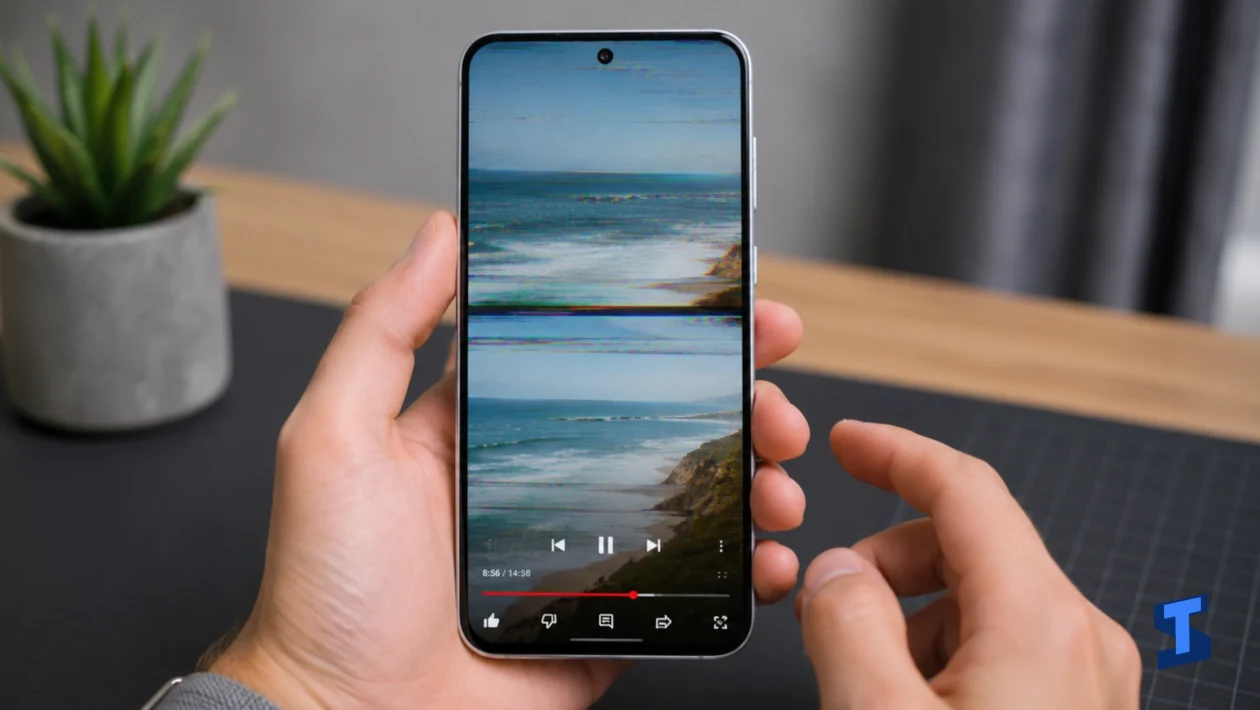
Galaxy A57 screen flickering can happen because of adaptive brightness, display settings, a software glitch, a bad app, overheating, or physical screen damage. The flicker may show up as quick flashes, brightness pulsing, black lines, a green tint, or random screen blinking while using apps.
A flickering display does not always mean the panel is broken. Start with simple software checks first, especially when the problem started after changing settings, installing an app, updating One UI, or using the phone while it was hot.
For wider display symptoms, you can also check our guide on display and touchscreen problems. For other device-wide issues, visit our main page for Galaxy A57 problems.
Quick Checks Before You Reset Anything
Restart the phone first. A restart clears temporary display glitches and closes apps that may be misbehaving in the background.
Next, remove the case and screen protector for a quick test. A poorly fitted protector can sometimes cause touch issues, ghost touches, or unusual screen behavior that looks like display flickering. This is more likely when the flicker happens with touch input, swiping, or typing.
Check whether the phone is hot. Heat can affect screen brightness, performance, and app stability. Gaming, video calls, navigation, camera use, and direct sunlight can make the display act strangely until the phone cools down.
Also check whether the flicker happens everywhere or only inside one app. A Galaxy A57 display flickering issue across the whole system is different from one app flashing while scrolling.
Turn Off Adaptive Brightness Temporarily
Adaptive brightness changes the screen based on surrounding light. It is useful, but it can look like flickering when the sensor keeps adjusting brightness too often.
Go to Settings, tap Display, then turn off Adaptive brightness. Use the brightness slider manually for a while and see if the screen flashing stops.
This is one of the easiest fixes when the Galaxy A57 screen flickers randomly in rooms with changing light, near windows, inside vehicles, or under fluorescent lighting. The screen may not be broken. It may just be reacting aggressively to light changes.
When the flicker only happens at very low brightness, raise the brightness slightly and test again. Some display issues are more noticeable when brightness is near the lowest setting.
Check Refresh Rate and Display Settings
Screen smoothness settings can sometimes affect display behavior. When the flicker started after changing motion smoothness, display mode, dark mode, eye comfort shield, or extra dim settings, reverse those changes one at a time.
Go to Settings, tap Display, then review the options you recently changed. Turn off Extra dim, test without Eye comfort shield, and switch motion smoothness to a standard setting if that option is available.
Do not change everything at once. Change one setting, use the phone for a few minutes, then check the screen again. That makes it easier to find what caused the Galaxy A57 flickering screen problem.
Check for App-Related Flickering
A bad app can cause flashing, stuttering, or black screen behavior, especially in browsers, games, camera apps, video apps, and social media apps.
When the flicker happens only in one app, update that app first. Then clear its cache or reinstall it if the problem continues. This is often better than changing system settings for a problem caused by one app.
When the screen flickers while gaming, watching videos, or switching between apps, the problem may also be tied to performance. In that case, check our guide on phone lagging because stutters and display flashes can happen together when the phone is overloaded.
Camera use can also trigger heat and display glitches. When the screen flickers mainly while recording video, switching lenses, or using the viewfinder, our guide on camera not working may help.
Test the Phone in Safe Mode
Safe Mode helps you check whether a downloaded app is causing the flicker. It temporarily disables third-party apps while keeping core Samsung apps active.
Hold the power menu, touch and hold Power off, then choose Safe Mode when it appears. After the phone restarts, use it for a few minutes and watch the screen.
When the Samsung Galaxy A57 screen flickering stops in Safe Mode, a downloaded app is likely involved. Start with apps installed or updated recently, especially launchers, screen filters, battery savers, cleaning apps, games, camera tools, and apps that draw over other apps.
Restart the phone normally to exit Safe Mode.
Update One UI and Your Apps
A software bug can cause display flickering after an update, but updates can also fix the same problem. Check for a new One UI or security patch, then update your apps through the Play Store and Galaxy Store.
This matters when Galaxy A57 screen flashing started after a system update. Some apps may not behave properly with the new software until they receive their own updates.
Restart the phone after installing updates. Then test the screen again before trying more aggressive fixes.
Check Battery, Charging, and Heat
Screen flickering while charging may point to heat, a weak charger, a damaged cable, or unstable power delivery. Try another cable and adapter, then test the phone while unplugged.
When the screen flickers more while battery is low or while the phone is hot, battery and thermal behavior may be involved. For battery-related symptoms, check our guide on battery problems. When the issue happens mostly while plugged in, use our guide on charging problems.
Battery drain and flickering can also appear together when a bad app is overworking the phone. Our guide on battery draining fast can help with that side of the problem.
Reset Settings Before Factory Reset
A full factory reset should not be your first move. Resetting settings is less disruptive and may fix display behavior caused by system configuration changes.
Use Reset all settings only after trying brightness, display options, updates, app checks, and Safe Mode. This will reset system settings but should not delete your personal files.
A factory reset should be saved for stubborn cases where the screen flickers after every software fix and you have already backed up your data.
When Screen Flickering May Be Hardware Damage
Hardware damage becomes more likely when the phone was dropped, exposed to liquid, pressed too hard, or recently repaired. Flickering can also be a panel or connector issue when it appears even on the Samsung logo screen, recovery screen, or Safe Mode.
Watch for warning signs like green lines, black patches, touch dead zones, screen burn-like marks, or flickering that gets worse when you press the display. When those appear, software fixes probably will not solve it.
Contact Samsung support or an authorized repair center if the display keeps flickering after Safe Mode, updates, and settings resets.
FAQs
Why is my Galaxy A57 screen flickering?
The most common causes are adaptive brightness, display settings, app glitches, overheating, software bugs, charging problems, or physical screen damage.
Why does my screen flicker only in one app?
That usually points to an app issue. Update the app, clear its cache, or reinstall it. When other apps work normally, the display hardware is probably fine.
Can a software update cause screen flickering?
Yes, display glitches can appear after an update because of app compatibility or system bugs. Update your apps, restart the phone, and check for another software patch.
Should I factory reset the phone?
A factory reset should be a last resort. Try restarting, adjusting display settings, updating apps, testing Safe Mode, and resetting settings first.
