
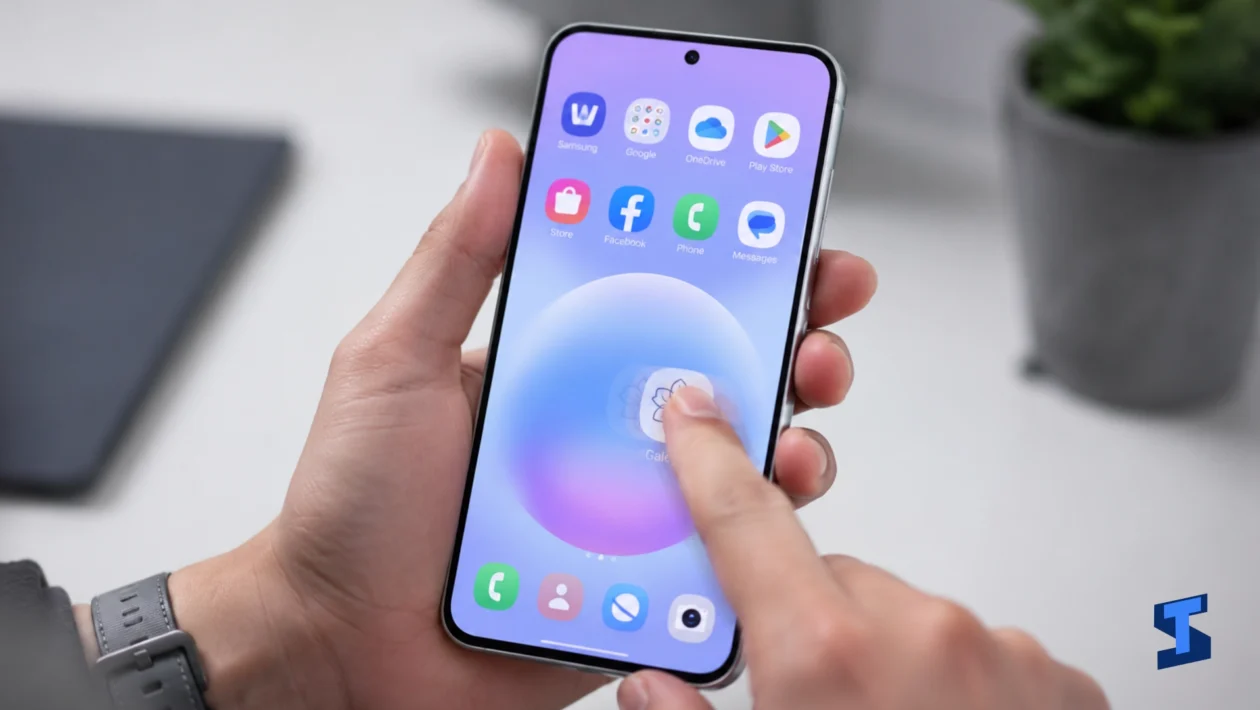
Galaxy A57 lagging usually happens when the phone is overloaded by background apps, low storage, heat, software bugs, or apps that are not behaving well after an update. It can feel like slow scrolling, delayed taps, freezing, app crashes, keyboard lag, or stutter when switching between apps.
The fix is not always a factory reset. Most slow performance issues can be narrowed down by checking what changed recently, what apps are running, how much storage is left, and whether the phone gets warm during normal use.
For a broader list of issues, you can check our main guide on Galaxy A57 problems. For performance-specific symptoms, our page on performance problems is also worth checking.
Quick Checks Before You Change Settings
Restart the phone first. A simple restart clears temporary memory, closes stuck processes, and gives One UI a clean start.
Next, check whether the lag happens everywhere or only in one app. A phone that lags only in one game, camera app, browser, or social media app may not have a system-wide problem. The app itself may need an update, cache clearing, or reinstalling.
Also check the phone temperature. Lag and heat often happen together. Gaming, camera recording, video calls, navigation, mobile hotspot, and direct sunlight can make the phone slow down to protect itself.
When lag comes with fast battery drain, check our guide on battery draining fast because both problems can come from the same background app.
Check Storage Space First
Low storage is one of the most common reasons a Galaxy A57 running slow becomes annoying. Apps need free space for cache, updates, downloads, photos, and temporary files. When storage is nearly full, the phone may freeze, delay taps, or take longer to open apps.
Check storage from Settings, then Battery and device care, then Storage. Delete large videos, old downloads, duplicate photos, unused apps, and offline media you no longer need.
Do not just delete random files. Start with obvious space hogs: screen recordings, downloaded movies, messaging app media, and duplicate camera shots.
A good rule is to keep enough free space so the phone can breathe. When storage is almost full all the time, Galaxy A57 slow performance will keep coming back.
Find Apps Using Too Much Memory or Battery
A poorly behaving app can make the whole phone lag. Social media apps, games, launchers, VPNs, cleaning apps, live wallpaper apps, and apps that run constantly in the background are common suspects.
Check Battery and device care to see whether any apps are using too many resources. You can also review battery usage to spot apps that keep running when you are not using them.
When the Galaxy A57 keeps freezing after installing a new app, remove that app first. Do not reset the phone before testing the most obvious suspect.
Apps transferred from an older device can also cause trouble. After moving data, old app settings or outdated versions may not work smoothly on the new phone. When the lag started after migration, our guide on transferring data may help you review what was copied over.
Clear App Cache for Problem Apps
Cache helps apps load faster, but corrupted cache can cause lag, freezing, or crashing. This is especially common with browsers, camera apps, social media apps, shopping apps, and games.
Go to Settings, tap Apps, choose the app that lags, then use Storage to clear its cache. This does not delete your account or personal files inside the app. It only removes temporary files.
Clear cache for the app causing the problem, not every app on the phone. Randomly clearing everything may only create more work for the phone because apps will rebuild their cache afterward.
When the camera is the app that freezes or opens slowly, check our guide on camera not working for camera-specific fixes.
Update Apps and One UI
Galaxy A57 lag after update can happen when the system has changed but some apps have not caught up yet. This can create stutter, crashes, delayed notifications, or battery drain.
Update apps from both the Play Store and Galaxy Store. Then check for a system update from Settings, then Software update. Restart the phone after installing updates.
A short period of slowness after a major update can be normal. The phone may be optimizing apps, syncing data, and rebuilding background processes. But lag that continues for several days needs troubleshooting.
Turn Off Features That Add Visual Load
Animations, widgets, live wallpapers, edge panels, and heavy launchers can make the phone feel slower, especially when many apps are running.
Use a static wallpaper instead of a live wallpaper. Remove widgets you do not use. Switch back to the default launcher if a third-party launcher causes stutter. You can also reduce animations from accessibility or developer options, but avoid changing advanced settings you do not understand.
Display problems can also feel like lag. Delayed touch response, ghost touches, or screen stutter may not be a performance issue at all. For those cases, check our guide on display and touchscreen problems.
Check Network-Related Lag
Some lag is not really phone performance. Apps can feel slow when Wi-Fi, mobile data, or 5G is unstable.
Social media feeds, cloud apps, browsers, email, streaming apps, and maps may freeze or load slowly when the connection is weak. Before blaming the phone, test the same app on Wi-Fi and mobile data.
For connection-related slowdowns, check our guide on Wi-Fi not working or mobile data and 5G problems.
Use Safe Mode to Check for App Conflicts
Safe Mode temporarily disables downloaded apps. This helps you find out whether a third-party app is making the phone lag.
Hold the power menu, touch and hold Power off, then choose Safe Mode when it appears. Test the phone for a few minutes. Open Settings, scroll around, use the keyboard, and switch between built-in apps.
When the phone feels smooth in Safe Mode, a downloaded app is likely the cause. Restart normally, then uninstall recently added apps one by one until the lag stops.
Should You Factory Reset the Phone?
A factory reset should be the last step. Try restarting, clearing storage, updating apps, clearing problem app cache, removing suspicious apps, checking for overheating, and testing Safe Mode first.
Reset only when Samsung Galaxy A57 lagging continues after every normal fix. Back up your files, photos, messages, and accounts before doing it.
FAQs
Why is my Galaxy A57 lagging?
Common causes include low storage, too many background apps, overheating, outdated apps, software bugs, heavy widgets, weak connection, or a third-party app conflict.
Why does my Galaxy A57 keep freezing?
Freezing often comes from a bad app, low storage, corrupted cache, overheating, or software problems after an update.
Why is my Galaxy A57 slow after an update?
The phone may still be optimizing apps and system files. Update your apps, restart the phone, and give it time. Persistent lag may point to an incompatible app.
Can low storage make the phone lag?
Yes. Low storage can slow app loading, camera use, updates, downloads, and general system performance.
Should I reset my phone to fix lag?
Not right away. A reset should come after checking storage, app updates, app cache, overheating, Safe Mode, and suspicious third-party apps.
