
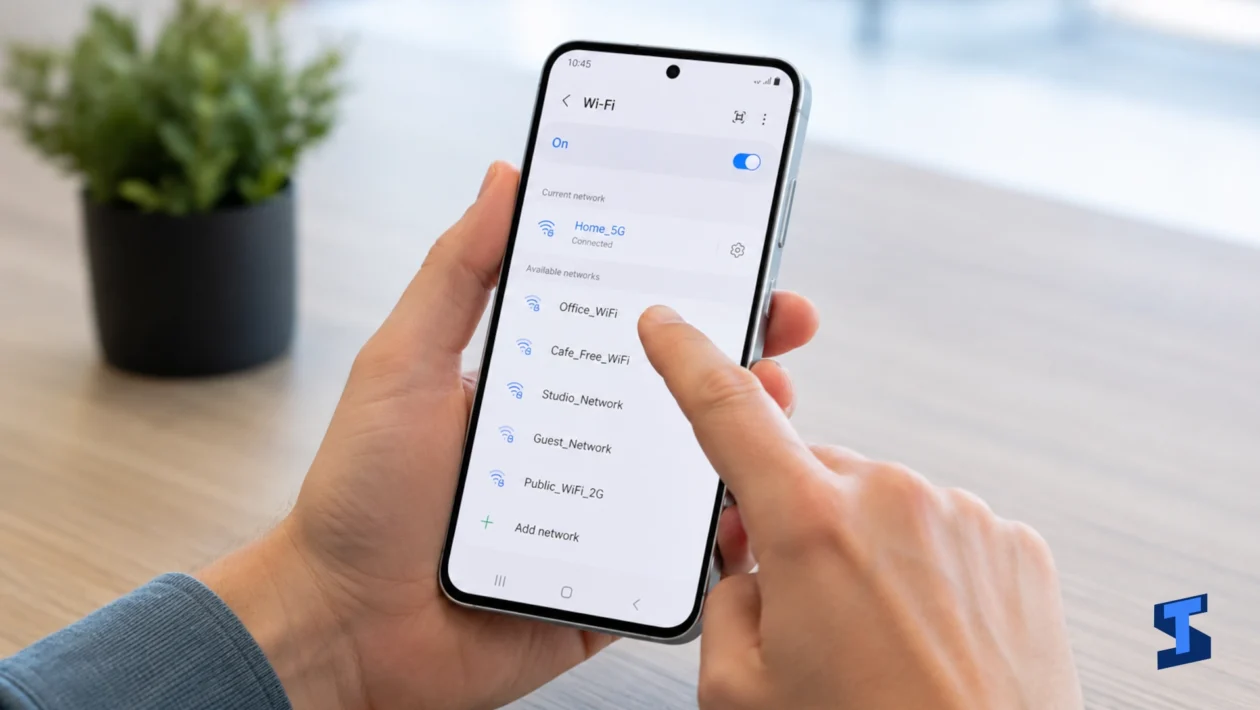
Galaxy A57 Wi-Fi not working can happen because of a weak router signal, a saved network glitch, wrong network settings, software bugs, VPN conflicts, or a problem with the router itself. The phone may refuse to connect, keep dropping Wi-Fi, show connected without internet, or work on mobile data but not on Wi-Fi.
Do not reset the phone right away. Most Wi-Fi issues can be fixed with simpler steps first.
For broader wireless issues, you can also check our guide on Wi-Fi and Bluetooth problems. But for Wi-Fi specifically, start with the checks below.
Quick Checks Before Changing Settings
Restart the phone first. This clears temporary network glitches and refreshes Wi-Fi services.
Then restart your router. Unplug it from power, wait about 30 seconds, then plug it back in. Wait until the connection lights are stable before testing the phone again.
Check another device on the same Wi-Fi network. When your laptop, tablet, or another phone also has no internet, the problem is likely the router or internet provider, not the Galaxy A57.
Turn Airplane mode on for a few seconds, then turn it off. This forces the phone to reconnect to nearby networks.
Also check whether mobile data works. When Wi-Fi fails but mobile data works normally, the issue is likely tied to Wi-Fi settings, the router, or the saved network. When both fail, check our guide on mobile data and 5G problems.
Forget the Wi-Fi Network and Reconnect
A saved Wi-Fi profile can become corrupted. This may cause Galaxy A57 Wi-Fi not connecting even when the password is correct.
Go to Wi-Fi settings, tap the network name or settings icon, then choose Forget. After that, reconnect to the network and enter the password again.
This helps when the phone keeps saying saved, secured, authentication error, or cannot obtain IP address. It also helps after changing your router password or router security settings.
Be careful when retyping the password. Wi-Fi passwords are case-sensitive, so one wrong letter is enough to block the connection.
Check Whether the Wi-Fi Problem Happens on One Network Only
A useful test is to connect the phone to another Wi-Fi network. Try a different home network, office network, or trusted hotspot.
When the phone connects elsewhere, your Galaxy A57 is probably fine. The issue is likely with the original router, network password, signal strength, blocked device list, or internet provider.
When Wi-Fi not working on Samsung Galaxy A57 happens on every network, focus on the phone’s Wi-Fi settings, recent updates, VPN apps, security apps, or network reset options.
This simple test prevents wasted time. It tells you whether to troubleshoot the phone or the router.
Fix Connected Without Internet
Galaxy A57 connected without internet means the phone joined the Wi-Fi network, but it cannot reach the internet properly. This is usually a router, DNS, IP address, or provider issue.
Restart the router first. Then check whether other devices can browse the web on the same network.
You can also forget the network and reconnect. When the issue continues, try moving closer to the router. Weak signal can connect just enough to show Wi-Fi, but not enough for stable browsing.
Disable VPN temporarily if you use one. Some VPN or private DNS settings can make Wi-Fi appear connected while apps fail to load.
Stop Wi-Fi From Disconnecting Repeatedly
Galaxy A57 keeps dropping Wi-Fi often points to weak signal, router instability, switching between Wi-Fi and mobile data, or software bugs.
Move closer to the router and test again. Thick walls, distance, appliances, and crowded networks can weaken signal quality.
Check whether the phone disconnects only in one area of your home. When it works near the router but drops in your room, the problem may be signal coverage rather than the phone.
Also turn off VPN temporarily and test the connection. Some VPN apps reconnect aggressively and make it look like the Wi-Fi itself is unstable.
When Wi-Fi drops happen together with lag, freezing, or slow menus, check our guide on performance problems. A sluggish system can make network problems feel worse.
Fix Slow or Unstable Wi-Fi
Galaxy A57 Wi-Fi slow or unstable can be caused by poor signal, router congestion, background downloads, VPN, or too many devices on the same network.
Start by testing speed near the router. Then test again farther away. When speed drops sharply in another room, the issue is signal range.
Pause large downloads, cloud backups, game updates, and streaming on other devices. Wi-Fi can feel broken when the network is simply overloaded.
Also check if the phone is downloading updates or restoring data in the background. This can happen after setup or after transferring files. When you recently moved data to the phone, our guide on transferring data may help you identify post-transfer issues.
Fix Wi-Fi Problems After a Software Update
Galaxy A57 Wi-Fi problem after update can happen when network settings, cached data, or app behavior changes after a One UI update.
Restart the phone first. Then restart the router. After that, forget the Wi-Fi network and reconnect.
Update your apps from the Play Store and Galaxy Store. VPN apps, security apps, browsers, and smart home apps may need updates after a software change.
Avoid factory resetting the phone right away. Network-related problems after an update often improve after a restart, router refresh, app updates, or network settings reset.
For general post-update issues, our main Galaxy A57 problems guide can help you check whether other symptoms are happening too.
Reset Network Settings Only When Needed
Resetting network settings can fix stubborn Wi-Fi problems, but it also removes saved Wi-Fi networks, Bluetooth pairings, and mobile network preferences.
Use this step only after restarting the phone, restarting the router, forgetting the network, testing another Wi-Fi network, and disabling VPN.
Go to Settings, tap General management, choose Reset, then select Reset Wi-Fi and Bluetooth settings or Reset network settings, depending on the available option on your software version.
After the reset, reconnect to Wi-Fi and pair Bluetooth devices again.
When Wi-Fi May Need Service
Software fixes should solve most Galaxy A57 Wi-Fi problems. But service may be needed when Wi-Fi will not turn on at all, the Wi-Fi switch is grayed out, the phone cannot detect any networks, or the same issue continues after a network settings reset.
Wi-Fi issues can also appear with other hardware symptoms. When the phone has display glitches, random restarts, charging trouble, sound problems, or lock screen issues at the same time, use the related guides for display issues, charging trouble, sound and calls, or security and lock screen problems.
Galaxy A57 Wi-Fi Fix Checklist
- Restart the phone
- Restart the router
- Toggle Airplane mode
- Test another device on the same Wi-Fi
- Forget the network and reconnect
- Test another Wi-Fi network
- Move closer to the router
- Disable VPN temporarily
- Update apps
- Check for a software update
- Reset network settings only when needed
- Contact support if Wi-Fi will not turn on
FAQs
Why is my Galaxy A57 Wi-Fi not working?
The most common causes are router issues, weak signal, saved network errors, VPN conflicts, software bugs, or incorrect network settings.
Why won’t my Galaxy A57 connect to Wi-Fi?
The saved network may be corrupted, the password may be wrong, the router may be blocking the device, or the phone may need a network settings reset.
Why is my Galaxy A57 connected without internet?
This usually means the phone joined the router, but the router or internet connection is not working properly. Restart the router and test another device on the same network.
Why does my Galaxy A57 keep dropping Wi-Fi?
Weak signal, router instability, VPN conflicts, or network switching can cause repeated disconnections.
