
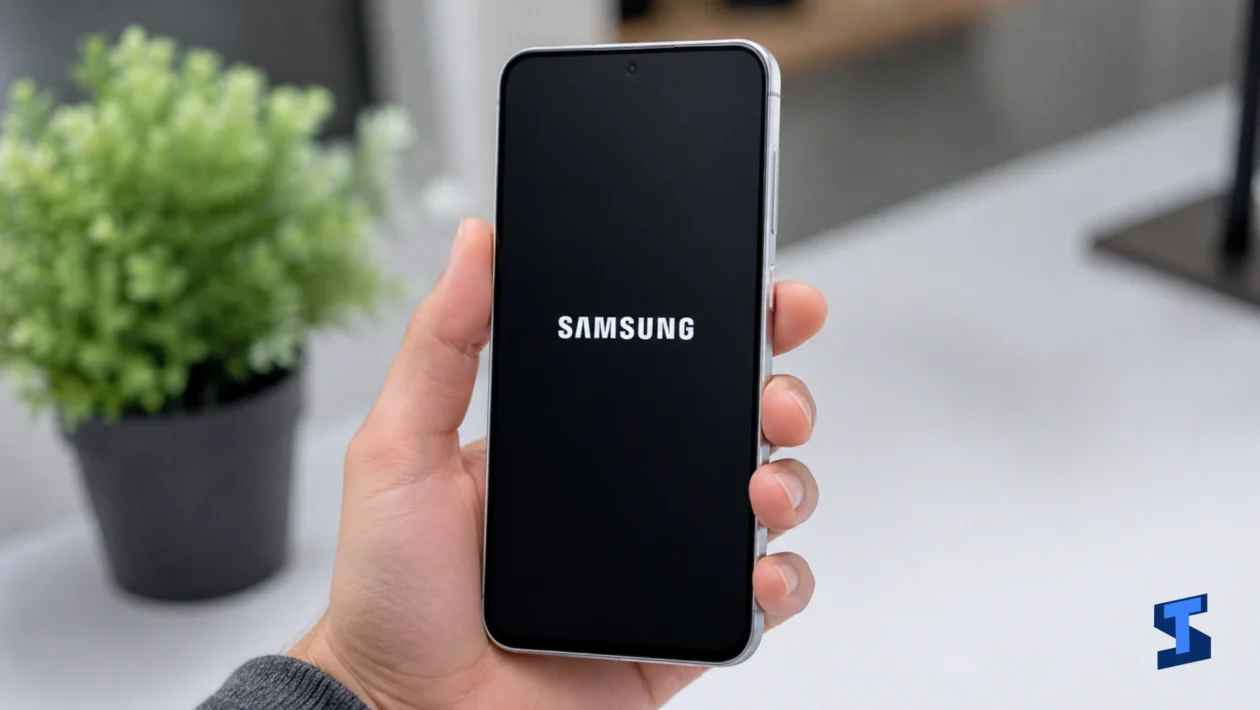
Galaxy A57 stuck on Samsung logo usually means the phone started the boot process but failed to load Android properly. This can happen after a software update, a drained battery, a corrupted system cache, a bad app, storage problems, or a failed restart.
The good news is that a frozen Samsung logo does not always mean the phone is dead. Start with the safest fixes first, then move toward recovery options only when the phone refuses to boot normally.
For other device-wide issues, you can also check our main guide on Galaxy A57 problems. But for this boot problem, follow the steps below in order.
Force Restart the Phone
A force restart is the first thing to try when the Galaxy A57 is frozen on Samsung screen. It does not erase your files. It simply forces the phone to shut down and start again.
Press and hold the Power button and Volume Down button together for about 10 to 15 seconds. Release them when the screen turns off or when the phone restarts.
This helps when the system is stuck during startup because of a temporary glitch. It is also safer than waiting for the battery to drain completely.
When the Galaxy A57 stuck on startup screen problem happens only once, a force restart may be all you need.
Charge the Phone for at Least 30 Minutes
A weak battery can cause boot problems. The phone may show the Samsung logo, restart, then freeze again because it does not have enough stable power to finish loading.
Plug the phone into a working charger and leave it for at least 30 minutes. Use a reliable cable and adapter. Avoid charging from a weak USB port on a laptop while troubleshooting.
After charging, force restart the phone again.
This step matters when the phone was very low on battery before the issue started. It also helps rule out charging-related problems. When the phone does not charge properly, check our guide on charging problems.
Remove Accessories and Let the Phone Cool Down
Heat can interrupt startup. A phone that overheats during an update, gaming session, charging, or long camera use may freeze during boot.
Remove the case, unplug the charger, and let the phone cool for a few minutes. Also remove any USB-C accessories, memory adapters, or connected devices.
A Samsung Galaxy A57 stuck on Samsung logo after getting hot may restart normally once the temperature drops. Heat-related freezes can also show up with lag, freezing, and slow response. For those symptoms, check our guide on performance problems.
Try Booting Into Safe Mode
Safe Mode helps you check whether a downloaded app is causing the boot issue. This is useful when the Galaxy A57 boot loop problem started after installing an app, launcher, theme, cleaner app, battery saver, or security tool.
Turn the phone off first if possible. Then power it on and, when the Samsung logo appears, press and hold Volume Down until the phone finishes restarting. Safe Mode should appear on the screen if it worked.
When the phone boots in Safe Mode, a third-party app is likely the problem. Uninstall recently added apps first. Pay attention to apps that control performance, display, security, battery, lock screen, or system cleanup.
Restart the phone normally after removing suspicious apps.
Security or lock screen apps can also interfere with startup behavior. When the issue started after changing lock screen settings, check our guide on security and lock screen problems.
Wipe the Cache Partition
A corrupted system cache can make the Galaxy A57 won’t boot past Samsung logo after an update. Wiping the cache partition clears temporary system files without deleting your photos, apps, messages, or accounts.
Turn off the phone. Connect it to a computer with a USB cable if needed, then press and hold Power and Volume Up together until the recovery menu appears. Use the volume buttons to highlight Wipe cache partition, then press Power to select it. Confirm the action, then choose Reboot system now.
This is one of the best fixes for a phone stuck on the logo after a One UI update because it clears old temporary files that may conflict with the new system.
Do not choose factory reset by mistake. Wipe cache partition and factory reset are different options.
Check for Storage-Related Boot Problems
Low storage can cause boot issues because Android needs free space to load, update apps, and rebuild system files. This is more likely when the phone was already lagging before it froze on the Samsung logo.
When the phone successfully boots in Safe Mode, delete large files, unused apps, duplicate videos, downloads, and old offline media. Then restart normally.
Storage pressure can also cause app crashes, camera problems, and slow performance. When those symptoms appeared before the boot issue, our guide on Galaxy A57 lagging may help after the phone starts working again.
Factory Reset Only as a Last Resort
A factory reset can fix serious software problems, but it erases your data. Use it only when the phone still cannot boot after force restart, charging, cooling down, Safe Mode, and wiping the cache partition.
From Recovery Mode, choose Factory data reset only when you are ready to erase the phone. After the reset, choose Reboot system now.
This may fix a Samsung Galaxy A57 stuck on Samsung logo after failed update, corrupted settings, or serious app conflict. But it should not be the first solution.
When the phone starts again, set it up carefully. Install apps slowly instead of restoring everything at once. This helps you spot the app or setting that caused the problem. You can use our guide on setting up the Galaxy A57 if you need help after the reset. When moving files back, our guide on transferring data may also help.
When the Phone Needs Repair
Software fixes will not solve every boot problem. Hardware service may be needed when the phone was dropped, exposed to water, overheats while charging, refuses to enter Recovery Mode, or keeps restarting even after a factory reset.
Battery and power issues can also cause boot loops. When the problem started with sudden shutdowns, fast drain, or charging instability, check battery problems and battery draining fast before assuming it is only a software issue.
Contact Samsung support or an authorized repair center if the phone remains stuck after all recovery steps.
FAQs
Why is my Galaxy A57 stuck on the Samsung logo?
The most common causes are a temporary system glitch, low battery, failed update, corrupted cache, bad app, low storage, overheating, or hardware trouble.
Will wiping the cache partition delete my files?
No. Wiping the cache partition clears temporary system files only. It does not delete your photos, videos, apps, or accounts.
Why does my Galaxy A57 keep restarting on the Samsung logo?
A boot loop can happen when Android cannot finish loading. It may be caused by corrupted cache, a failed update, low battery, a bad app, or system damage.
Should I factory reset the phone right away?
No. Try force restart, charging, cooling, Safe Mode, and wiping the cache partition first. Factory reset should be the last software fix because it erases your data.
What should I do if Recovery Mode does not open?
Charge the phone first, try the button combination again, and use a reliable USB cable if required. When Recovery Mode still does not appear, the phone may need service.
