
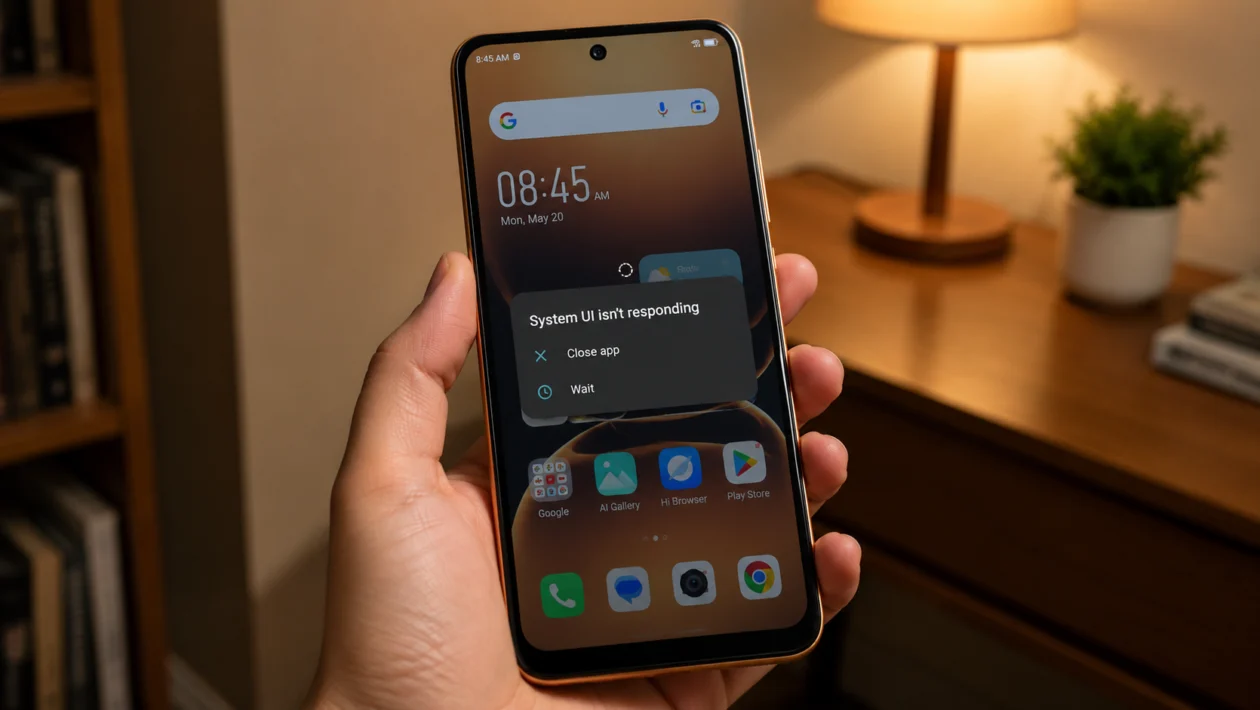
If your Infinix Smart 20 keeps freezing, stops responding, or gets stuck while opening apps, the problem is usually caused by overloaded memory, low storage, buggy apps, outdated software, background processes, or a recent update that did not settle properly.
Start with the simple checks first. Restart the phone, close heavy apps, check storage, update your apps, then move to deeper fixes if the freezing continues.
Quick answer
To fix an Infinix Smart 20 with system freezing, press and hold the Power button until the phone restarts. Then go to Settings > Storage and free up space if the phone is almost full.
Next, update your apps from the Play Store, remove recently installed apps, clear the cache of apps that freeze often, and check for a system update under Settings > System > System update or Settings > System > Software update.
If the phone still freezes after all fixes, back up your files and consider a factory reset.
Infinix Smart 20 freezing diagnostic table
| Symptom | Likely cause | What to check first |
|---|---|---|
| Phone freezes randomly | Too many background apps | Recent apps and storage |
| Phone freezes when opening apps | App bug or low RAM | Update or uninstall the app |
| Screen freezes and will not respond | System process stuck | Force restart |
| Phone freezes after update | Apps re-optimising or software bug | Restart and update apps |
| Phone freezes when storage is full | Low internal storage | Settings > Storage |
| Phone freezes while gaming | Heat, RAM pressure, or graphics load | Close apps and reduce game settings |
| Phone freezes on startup | Faulty app or system issue | Safe Mode |
| Phone freezes often even after reset | Possible hardware or firmware issue | Infinix support |
Why your Infinix Smart 20 keeps freezing
Your Infinix Smart 20 may freeze because the system does not have enough free memory, storage, or processing room to keep running smoothly.
Common causes include:
Too many apps running in the background
Low internal storage
Outdated apps
A buggy app
A recent system update
Overheating
Heavy games or apps
Corrupted app cache
Too many widgets or live wallpapers
A deeper software or hardware issue
This is common on budget Android phones because the system has less room to handle multiple heavy tasks at the same time. That does not mean the phone is broken. In many cases, changing a few settings can make it stable again.
1. Force restart your Infinix Smart 20
Start here if the phone is frozen right now.
A force restart can stop a stuck system process without deleting your personal files.
- Press and hold the Power button.
- Keep holding it for about 20 to 30 seconds.
- Wait until the phone turns off or restarts.
- Release the button when the Infinix logo appears.
- Use the phone normally and check if it freezes again.
If the screen is completely stuck, do not keep tapping the display. Wait for the restart to finish.
2. Close apps running in the background
If your Infinix Smart 20 freezes when switching between apps, too many apps may be open at once.
- Tap the Recent apps button.
- Swipe away apps you are not using.
- Tap Clear all if the option appears.
- Reopen only the app you need.
This helps the phone free up memory. It is especially useful before opening games, TikTok, Facebook, Chrome, YouTube, camera, or editing apps.
If the freezing stops after closing apps, the phone was likely under memory pressure.
3. Free up internal storage
Low storage can make an Android phone freeze, lag, and respond slowly. Your phone needs free space for app updates, cache, downloads, photos, and system processes.
- Open Settings.
- Tap Storage.
- Check how much space is available.
- Delete files you no longer need.
- Remove duplicate videos, old downloads, large WhatsApp files, and unused APK files.
- Move photos and videos to a memory card or cloud backup if needed.
Try to keep at least a few gigabytes free. If the storage is almost full, the phone may keep freezing even after a restart.
4. Update your apps from the Play Store
Outdated apps can cause freezing, crashing, slow loading, and background errors.
- Open the Google Play Store.
- Tap your profile icon.
- Tap Manage apps and device.
- Tap Updates available.
- Update all apps, or update the apps you use most.
Pay special attention to apps that freeze often. Social media apps, browsers, shopping apps, banking apps, games, launchers, and keyboard apps can affect system performance if they are outdated or buggy.
5. Clear the cache of apps that freeze often
If one app keeps freezing, clear its cache first. This removes temporary files without deleting your account or personal data inside the app.
- Open Settings.
- Tap Apps.
- Tap App management or See all apps.
- Select the app that freezes.
- Tap Storage and cache.
- Tap Clear cache.
- Open the app again.
Do not tap Clear storage unless you are ready to reset that app. Clear storage can remove saved settings, logins, downloads, or app data.
Good apps to check include Chrome, Facebook, Messenger, TikTok, YouTube, Instagram, WhatsApp, Shopee, Lazada, and games.
6. Remove recently installed apps
If your Infinix Smart 20 started freezing after installing a new app, that app may be causing the problem.
- Think about the apps you installed before the freezing started.
- Open Settings.
- Tap Apps.
- Select the suspicious app.
- Tap Uninstall.
- Restart the phone.
- Use the phone for a few hours and check if the freezing stops.
Be careful with cleaner apps, battery saver apps, free VPNs, unknown launchers, APK apps, and apps downloaded outside the Play Store. Some of them run constantly in the background and can make the phone unstable.
7. Check for a system update
A system update can fix bugs, security issues, and performance problems. If the freezing started after an update, another patch may also fix it.
- Open Settings.
- Scroll to System.
- Tap System update or Software update.
- Tap Check for update.
- Install any available update.
- Restart the phone after updating.
Make sure the battery is charged before updating. Use Wi-Fi if the update file is large.
If the freezing started right after a system update, give the phone a little time to settle after restarting. Apps may still be adjusting in the background.
8. Turn off unnecessary animations and effects
If the phone feels slow before it freezes, reducing visual effects can make the system feel lighter.
Try these first:
- Open Settings.
- Tap Display.
- Turn off live wallpaper if you use one.
- Remove heavy widgets from the home screen.
- Use a simple wallpaper.
- Restart the phone.
If Developer options are already enabled, you can also reduce animations:
- Open Settings.
- Tap System.
- Tap Developer options.
- Set Window animation scale to 0.5x or Off.
- Set Transition animation scale to 0.5x or Off.
- Set Animator duration scale to 0.5x or Off.
Do not change other Developer options unless you know what they do.
9. Boot into Safe Mode
Safe Mode helps you check if a downloaded app is causing the freezing. In Safe Mode, most third-party apps are temporarily disabled.
- Press and hold the Power button.
- When the power menu appears, press and hold Power off.
- Tap Safe Mode if it appears.
- Wait for the phone to restart.
- Use the phone for a few minutes.
If the Infinix Smart 20 does not freeze in Safe Mode, a downloaded app is likely the cause. Restart normally, then uninstall recently installed or suspicious apps one by one.
If it still freezes in Safe Mode, the issue may be deeper, such as system software, storage, overheating, or hardware.
10. Back up your files and factory reset the phone
Use this only after trying the other fixes. A factory reset erases your apps, settings, photos, videos, files, and accounts from the phone.
Back up important files first.
Before resetting:
Back up photos and videos
Save contacts to your Google account
Back up WhatsApp chats
Remove files from internal storage
Make sure you know your Google account password
Charge the phone
To factory reset:
- Open Settings.
- Tap System.
- Tap Reset options.
- Tap Erase all data or Factory data reset.
- Read the warning.
- Confirm the reset.
After the reset, set up the phone again and install apps slowly. Do not reinstall every old app at once. If the freezing returns after installing a specific app, that app may be the cause.
When to contact Infinix support
Contact Infinix support or visit a service center if your Infinix Smart 20 still freezes after a factory reset.
Also get help if:
The phone freezes on the Infinix logo
The screen becomes unresponsive every day
The phone freezes even with no extra apps installed
The phone gets very hot during normal use
The phone restarts by itself
The touchscreen stops responding
The freezing started after a drop or liquid exposure
At that point, the issue may not be a normal app or storage problem.
FAQs
Why does my Infinix Smart 20 freeze when I open apps?
It may freeze because the app is outdated, the phone has low free storage, or too many apps are running in the background. Update the app, clear its cache, close background apps, and restart the phone.
Will restarting my Infinix Smart 20 delete my files?
No. Restarting or force restarting the phone does not delete your photos, videos, apps, or messages.
Does clearing cache delete my data?
Clearing cache usually removes temporary files only. It should not delete your account, photos, chats, or saved data. Clearing storage is different and can reset the app.
