
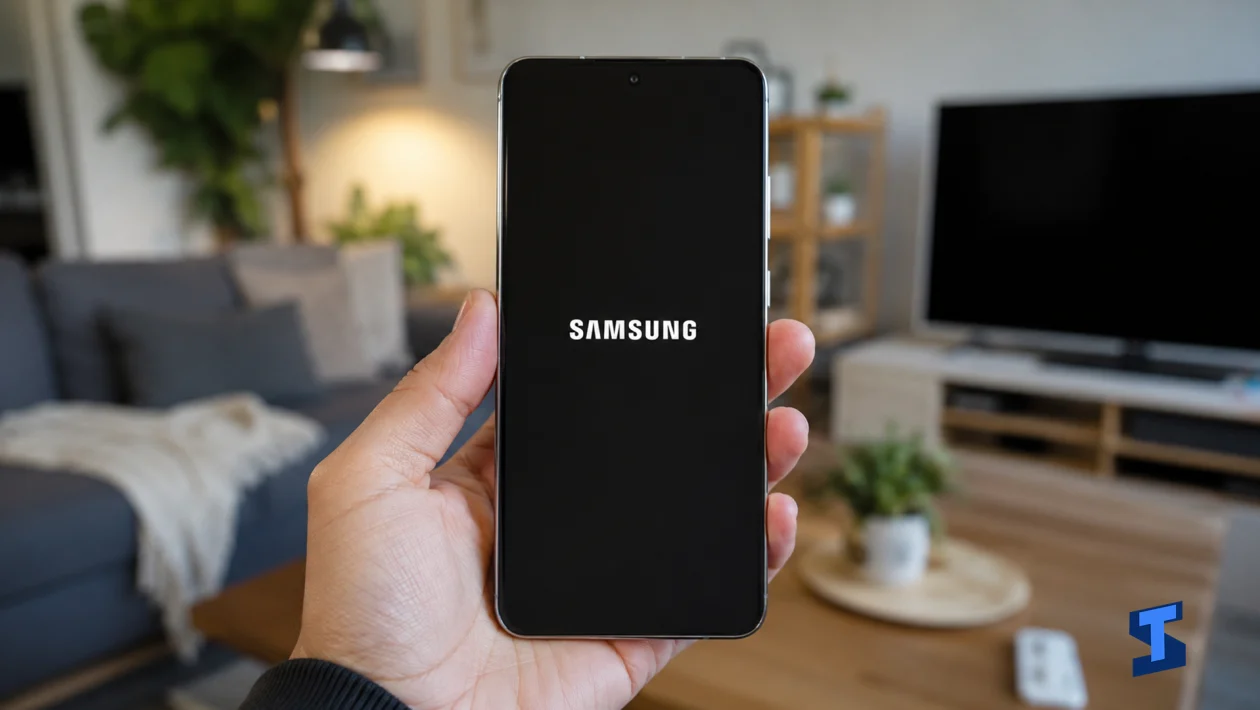
If your Samsung Galaxy S26 Ultra is stuck on the Samsung logo, you’re not alone. This usually happens after a failed update, corrupted system cache, app conflict, low battery, or a software glitch during startup. The good news is, you still have several safe fixes to try before assuming the phone needs repair.
For more device-specific help, you can also visit our Samsung Galaxy S26 Ultra Problems and Fixes Hub where related troubleshooting guides are organized in one place.
Force Restart the Phone
I’d start with a force restart because it is the safest and fastest fix for a Galaxy S26 Ultra stuck on the Samsung logo. This can clear a temporary startup glitch without deleting your files.
Press and hold the Volume Down button and the Side button at the same time for about 10 to 15 seconds. Release both buttons when the screen turns off and the Samsung logo appears again.
If the phone boots normally after this, the issue was likely a temporary system freeze. If it gets stuck again, continue with the next fix.
Charge the Phone for a Few Minutes
A low or unstable battery can interrupt the boot process. Even if the Samsung logo appears, the phone may not have enough stable power to complete startup.
Plug your Galaxy S26 Ultra into a Samsung-approved charger and cable. Let it charge for at least 15 to 20 minutes, then force restart it again while it is still connected to the charger.
If the phone also gets unusually warm while charging, check this related guide on Galaxy S26 Ultra overheating during charging before leaving it plugged in for too long.
Boot Into Recovery Mode
Recovery Mode lets you access system repair options even when the phone cannot boot normally. This is useful when the startup problem is caused by a corrupted cache or failed system process.
Turn the phone off if possible. Then connect it to a computer or USB-C headset if needed. Press and hold the Volume Up button and the Side button together until the Samsung logo appears, then release them when the Recovery screen loads.
If Recovery Mode opens, do not factory reset right away. Start with wiping the cache partition first.
Wipe the Cache Partition
The system cache helps your phone load apps and services faster, but it can become corrupted after updates or crashes. Wiping the cache partition removes temporary system files without deleting your photos, apps, or personal data.
In Recovery Mode, use the Volume buttons to highlight Wipe cache partition. Press the Side button to select it, then choose Yes to confirm.
After the process finishes, select Reboot system now. If the phone restarts normally, the problem was likely caused by damaged temporary system files.
Check If a Recent Update Caused It
If your Galaxy S26 Ultra got stuck on the Samsung logo after an update, the installation may not have completed properly. This can happen when the phone loses power, runs out of storage, or encounters a corrupted update package.
After wiping the cache, try restarting the phone again. If it boots, go to Settings > Software update > Download and install and check if another update is available.
If your phone keeps having update-related issues, you may also need these guides on software update stuck on download or software update failing to install.
Try Safe Mode
Safe Mode can help you check if a third-party app is preventing the phone from starting properly. If the phone boots in Safe Mode, one of your downloaded apps may be causing the startup loop.
Force restart the phone. When the Samsung logo appears, press and hold the Volume Down button until the lock screen appears. You should see Safe mode at the bottom of the screen if it worked.
Once inside Safe Mode, uninstall recently installed apps, launchers, cleaners, antivirus apps, or tools that modify system behavior. If your phone also has problems with system apps crashing, this guide on One UI system apps crashing may help after the phone boots.
Reset All Settings If the Phone Boots
If your Galaxy S26 Ultra finally boots but feels unstable, reset the system settings before the problem returns. This does not delete your photos, videos, or apps, but it can fix bad settings that affect startup behavior.
Go to Settings > General management > Reset > Reset all settings. Confirm the reset, then restart the phone.
This is especially useful if the issue started after changing display, battery, accessibility, security, or developer settings. If the phone also restarts on its own after updates, check this related guide on accidental restarts after update.
Factory Reset as a Last Resort
A factory reset should only be used if the phone still cannot get past the Samsung logo after the safer fixes. This will erase your data, so use it only when you have no other option or you already have a backup.
Boot into Recovery Mode again. Use the Volume buttons to highlight Wipe data/factory reset, then press the Side button to select it. Confirm the reset, then choose Reboot system now when it finishes.
If your Galaxy S26 Ultra is still stuck on the Samsung logo after a factory reset, the issue may be firmware-related or hardware-related. At that point, contact Samsung Support or visit a service center so they can inspect the phone, reinstall the software, or check for internal damage.
Most boot problems start with a failed update, corrupted cache, or app conflict. Start with a force restart, charge the phone, wipe the cache partition, and only use factory reset when the safer fixes do not work.
