
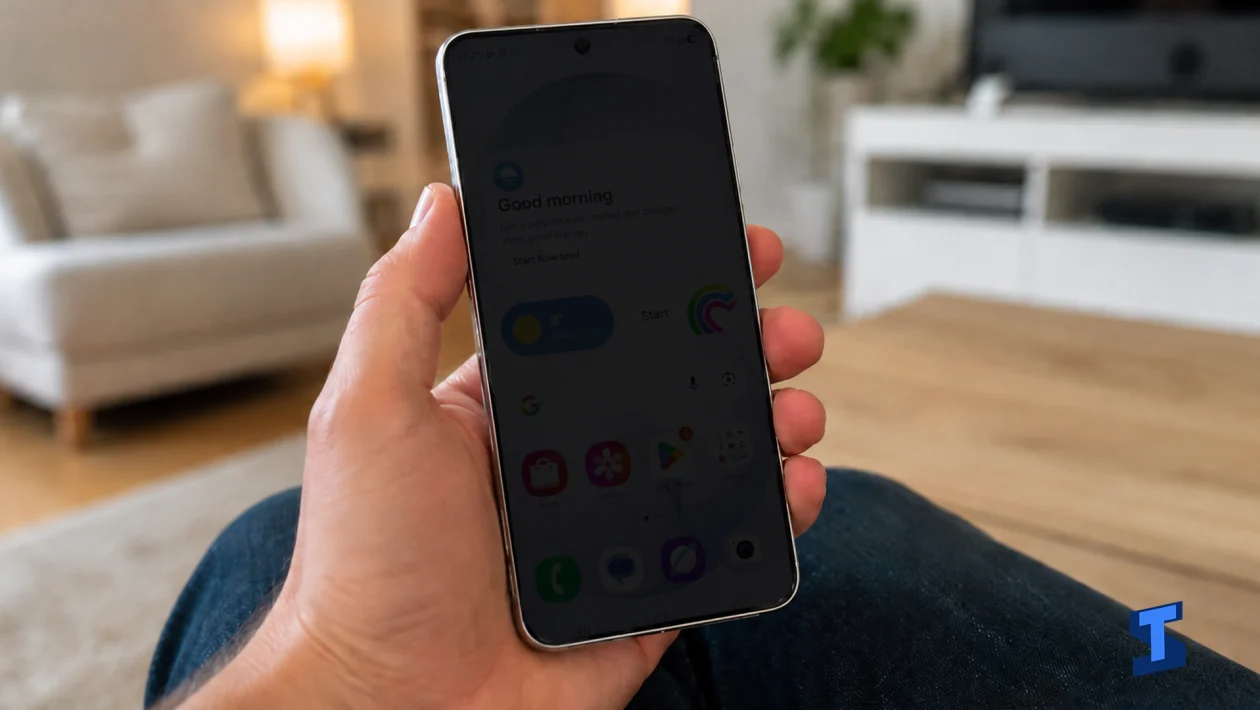
If your Samsung Galaxy S26 Ultra keeps dimming the screen on its own, you’re not alone. Random screen dimming can happen because of adaptive brightness, overheating protection, power saving settings, display modes, app behavior, or a software glitch. The good news is, a few quick adjustments can usually stop the screen from getting darker when you do not want it to.
For more related fixes, visit our Samsung Galaxy S26 Ultra Problems and Fixes Hub where we keep common device issues organized in one place.
Turn Off Adaptive Brightness
I’d start with Adaptive brightness because it is the most common reason the screen changes brightness by itself. Your Galaxy S26 Ultra uses sensors to adjust the display based on surrounding light, but it can sometimes react too aggressively.
Go to Settings > Display, then turn off Adaptive brightness. After that, manually set the brightness to a comfortable level and use the phone for a while.
If the screen stops dimming, the sensor or brightness learning behavior was likely the cause. If the feature still behaves strangely when you turn it back on, this related guide on Adaptive Brightness not adjusting may help.
Check Power Saving Mode
Power Saving mode can lower brightness, reduce performance, and limit background activity to stretch battery life. That is helpful when your battery is low, but it can make the display look dimmer than expected.
Go to Settings > Battery and device care > Battery and check if Power saving is enabled. Turn it off temporarily and see if the screen brightness stays stable.
If Power Saving mode keeps turning on or does not behave properly, you can check this guide on Power Saving Mode not working because battery settings can directly affect display behavior.
Let the Phone Cool Down
Samsung phones can dim the screen automatically when the device gets too warm. This helps protect the battery, processor, and display, especially during gaming, charging, camera use, navigation, or outdoor use under direct sunlight.
If your phone feels warm, stop heavy apps for a few minutes. Remove the case, lock the screen, and place the phone on a cool, dry surface. Do not put it in a refrigerator or freezer.
If the dimming happens mostly while charging, check this guide on Galaxy S26 Ultra overheating during charging. If it happens while playing games, this guide on overheating while gaming is more relevant.
Adjust Display Settings
Some display settings can make the screen look darker, warmer, or less vibrant even when brightness is technically high. This can make it feel like the phone is dimming randomly.
Go to Settings > Display and check Eye comfort shield, Extra dim, Screen mode, and Motion smoothness. Turn off Extra dim if it is enabled, then disable Eye comfort shield temporarily to see if the display looks normal again.
If colors, brightness, or display tone still look wrong, you may want to check these related guides on display brightness problems and display color calibration issues.
Restart and Update the Phone
A restart can clear temporary system glitches that affect brightness control, sensors, and display services. This is worth doing if the dimming started suddenly or only happens after using the phone for a long time.
Press and hold the Side button and Volume Down button, then tap Restart. After the phone reboots, go to Settings > Software update > Download and install and install any available update.
If the update will not complete, fix that first. You can use this guide on software update stuck on download or this one for software update failing to install.
Reset All Settings
If the screen still dims randomly after checking the main display and battery options, reset all settings. This can fix bad system settings without deleting your photos, videos, apps, or personal files.
Go to Settings > General management > Reset > Reset all settings. Confirm the reset, then restart your Galaxy S26 Ultra.
After the reset, test the phone before changing too many display options again. If the screen also flickers, shows lines, or becomes unresponsive, the issue may be deeper than normal brightness control. In that case, check these related guides on screen flickering or green lines on display.
Most random screen dimming issues come from Adaptive brightness, Power Saving mode, heat, or display settings. Start with those first, then update the phone and reset settings only if the problem continues.
