
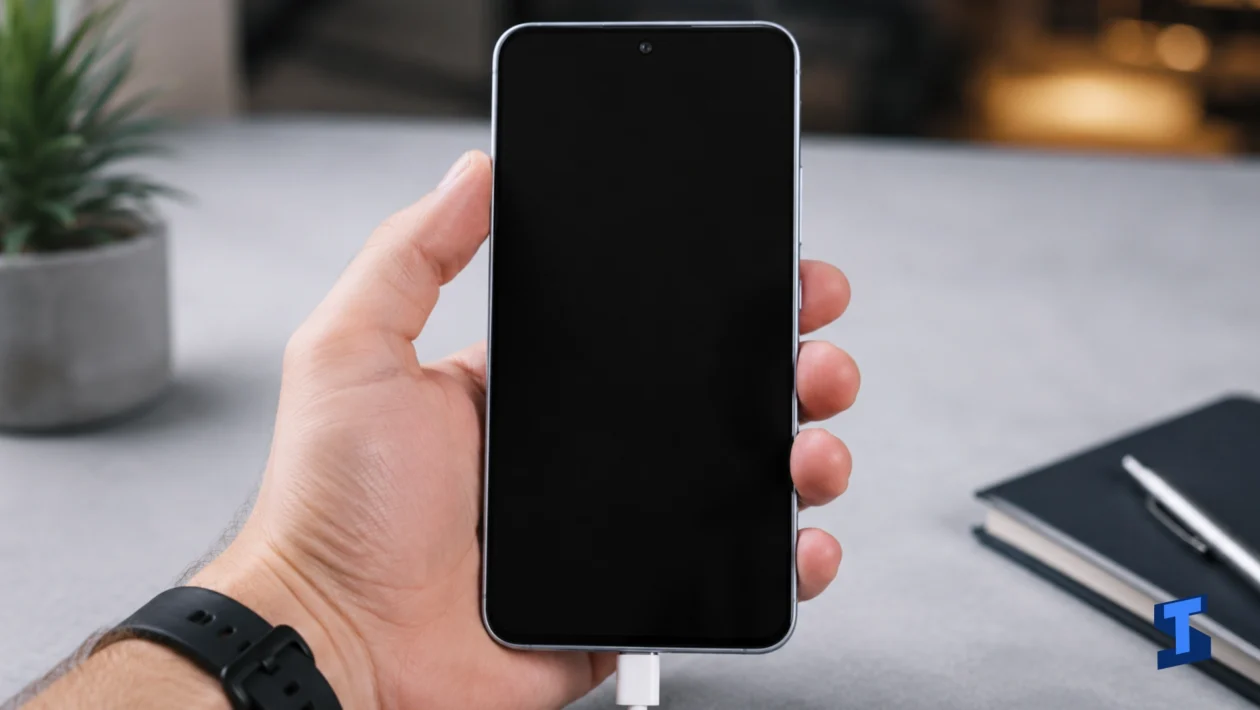
Galaxy A57 not charging can happen because of a bad cable, weak adapter, dirty charging port, moisture warning, overheating, software glitch, or battery-related issue. It can also look different depending on the case. Some phones will not charge at all, some charge slowly, and others only charge when the cable is held at a certain angle.
Before assuming the port or battery is damaged, work through the simple checks first. For a wider charging guide, you can also visit our page on charging problems.
1. Check the Cable and Charger First
A Galaxy A57 charging problem often starts with the charger, not the phone. Try another USB-C cable and power adapter before changing phone settings.
Use a charger that can provide enough power. A weak adapter, damaged cable, loose USB-C plug, or cheap accessory can make the phone charge slowly or fail to charge at all.
Also check whether the cable works with another device. When the cable fails on another phone too, the Galaxy A57 charger not working is likely an accessory issue.
2. Inspect the Charging Port
Dust, lint, or small debris inside the USB-C port can stop the cable from making solid contact. This can cause the Galaxy A57 won’t charge issue, intermittent charging, or slow charging.
Turn the phone off and look inside the port with a light. Do not use metal tools, pins, or anything sharp. A soft brush or gentle air can help remove loose debris.
When the cable only works at an angle, the port may be dirty, loose, or damaged. That is a stronger sign that the phone may need service.
3. Restart the Phone
A restart can fix temporary software glitches that stop charging indicators from appearing. It can also refresh system services that manage power and charging.
Restart the phone, connect the charger again, and wait a minute. Sometimes the battery icon or charging animation appears late, especially when the battery is very low.
When charging starts after a restart, the issue was likely software-related. But keep watching it. A repeated problem may point to an app, update, or charging accessory.
4. Let the Phone Cool Down
Samsung phones may slow or pause charging when the device gets too warm. Charging while gaming, recording video, using hotspot, or leaving the phone in direct sunlight can trigger this behavior.
Unplug the charger, remove the case, and let the phone cool for several minutes. Then reconnect the charger while the screen is off.
Heat can also show up with battery drain, so check our guide on battery draining fast when the phone gets warm and loses power quickly.
5. Check for Moisture or Liquid Warning
A moisture warning can stop charging through the USB-C port. This may happen after exposure to water, humidity, sweat, or even a damp cable.
Disconnect the charger and let the port dry naturally. Do not use heat, hair dryers, or sharp objects inside the port. Also check the cable end because moisture on the connector can trigger the warning again.
When the warning appears even though the phone is dry, restart the device and try a different cable. Persistent warnings may need inspection.
6. Try Charging While the Phone Is Off
Charging while powered off helps separate hardware issues from software or app-related problems.
Turn the phone off, plug it in, and wait for the charging icon. When the phone charges while off but not while on, an app, system process, or software bug may be interfering.
This can happen after updates or when the phone is under heavy load. When the issue comes with freezing, stuttering, or heat, our guide on performance problems may help.
7. Check Battery and Device Care
Battery settings can show whether the phone is charging, draining, or behaving abnormally. Review Battery information and look for unusual patterns.
A phone that drops power while plugged in may be using more energy than the charger provides. This can happen during gaming, navigation, hotspot use, video calls, or heavy downloads.
When the Samsung Galaxy A57 not charging issue appears together with sudden battery drops, check our guide on battery problems.
8. Update Software and Apps
Charging behavior can be affected by software bugs. Check for a One UI or security update, then update apps from the Play Store and Galaxy Store.
A recent update can also cause temporary battery or charging issues while the system settles. Restart the phone after installing updates and test charging again.
When charging trouble started after setting up the device or transferring files, review recent changes. Large data transfers, app restores, and cloud syncing can keep the phone busy for hours. Our guides on setting up the phone and transferring data may help narrow it down.
9. Test Safe Mode
Safe Mode disables downloaded apps temporarily. This helps you check whether an app is causing the charging issue.
Press and hold the power menu, touch and hold Power off, then choose Safe Mode when it appears. Once the phone restarts, plug in the charger and test again.
When charging works in Safe Mode, a downloaded app may be the cause. Start with battery saver apps, cleaner apps, launchers, recently installed apps, or apps that run constantly in the background.
10. Know When Repair Is Needed
Software fixes cannot repair physical damage. Service may be needed when the USB-C port feels loose, the cable only works at an angle, the phone does not detect any charger, charging stops randomly with different chargers, or the device gets hot while plugged in.
Stop using the phone and contact Samsung support or an authorized repair center if the phone swells, smells burnt, overheats, or shows charging behavior that feels unsafe.
For other related issues, visit our main page for Galaxy A57 problems. When the screen does not respond during charging, check display and touchscreen problems. When charging affects calls, alarms, or notifications, check sound and call problems.
FAQs
Why is my Galaxy A57 not charging?
The most common causes are a bad cable, weak charger, dirty charging port, moisture warning, overheating, software glitch, or battery issue.
Why is my Galaxy A57 charging slowly?
Slow charging can happen because of a weak adapter, damaged cable, heat, background activity, or an app using too much power while plugged in.
Why does my Galaxy A57 only charge at an angle?
This usually points to a loose cable connection, dirt in the USB-C port, a damaged cable, or possible port damage.
Should I reset the phone if it will not charge?
A reset should be a last resort. Try another charger, clean the port safely, restart the phone, check for heat or moisture, update software, and test Safe Mode first.
