
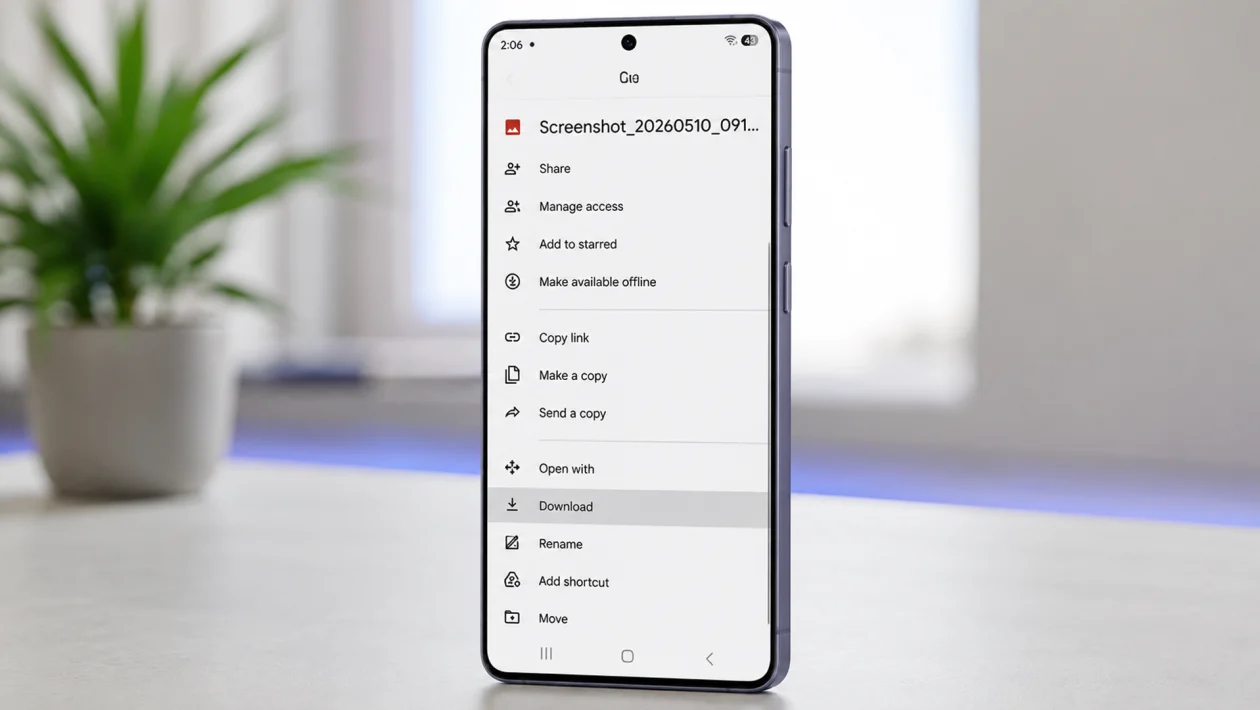
Downloads usually fail on the Samsung Galaxy S26 Ultra because the phone has weak internet, blocked app permissions, low storage, a stuck browser cache, Data Saver limits, VPN interference, or a broken Download Manager process.
Start with the fastest test: switch from Wi-Fi to mobile data, restart the phone, check available storage, then try downloading the same file using another app such as Samsung Internet, Chrome, Gmail, or Google Drive. If only one app fails, fix that app. If every app fails, troubleshoot the phone’s connection, storage, and system download services.
For more related S26 Ultra troubleshooting, you can also check the main Galaxy S26 Ultra guide hub.
Common Signs of Download Problems on the Galaxy S26 Ultra
Your Galaxy S26 Ultra may have a download issue if:
- Downloads stay stuck at 0 percent
- Files fail near the end of the download
- Chrome or Samsung Internet says “Download failed”
- Gmail or Messages cannot save attachments
- PDF, APK, ZIP, image, or video files will not save
- Downloads work on Wi-Fi but not mobile data
- Downloads work in one app but not another
- Files download but do not appear in My Files
- Play Store apps update normally, but browser downloads fail
- The phone says storage is full even when it looks like space is available
That last one is annoying. Sometimes the problem is not the file itself, but where the app is trying to save it.
1. Check Your Internet Connection First
A weak or unstable connection is the most common reason downloads fail.
Try this:
- Open Settings.
- Tap Connections.
- Turn Wi-Fi off.
- Turn Mobile data on.
- Try downloading the file again.
- Then switch back to Wi-Fi and test again.
If the file downloads on mobile data but not Wi-Fi, your Wi-Fi connection is likely the problem.
Do these next:
- Restart your router.
- Move closer to the router.
- Turn Airplane mode on for 10 seconds, then turn it off.
- Forget and reconnect to the Wi-Fi network.
- Try a different Wi-Fi network.
If your Galaxy S26 Ultra also forgets saved networks or behaves strangely with Wi-Fi, the issue may be related to saved connection settings. In that case, the guide on Wi-Fi and Bluetooth settings is worth checking after the basic fixes here.
2. Restart the Phone and Try the Download Again
A restart clears temporary glitches in the browser, file manager, network stack, and background download service.
- Press and hold the Side button and Volume Down button.
- Tap Restart.
- Wait for the phone to fully boot.
- Open the same app again.
- Try downloading a small file first.
Use a small file for testing, such as an image or PDF. If small files work but large files fail, the problem may be storage, network stability, VPN limits, or the website timing out.
If the phone freezes, crashes, or fails to start normally after repeated download attempts, that is no longer just a download problem. You may need to troubleshoot a phone that gets stuck on the Samsung logo or has system instability after an update.
3. Check Available Storage Space
Downloads can fail when storage is low, even if the file is not very large. Apps also need extra temporary space while downloading and unpacking files.
- Open Settings.
- Tap Device care.
- Tap Storage.
- Check how much free space is available.
- Delete files you no longer need.
- Try downloading again.
You can also check downloaded files here:
- Open the My Files app.
- Tap Downloads.
- Delete duplicate files, old APKs, ZIP files, videos, and large documents.
Good files to remove first:
- Old screen recordings
- Downloaded videos
- Duplicate photos
- Unused APK files
- Large ZIP files
- Offline maps you no longer need
- Old WhatsApp or Telegram media
Try to keep several gigabytes free. A phone that is almost full can behave badly even when the specific file seems small.
4. Clear Cache for the App That Cannot Download
When only one app fails to download files, clear that app’s cache first.
For Chrome, Samsung Internet, Gmail, Drive, Messages, or another app:
- Open Settings.
- Tap Apps.
- Select the app that cannot download.
- Tap Storage.
- Tap Clear cache.
- Restart the app.
- Try the download again.
Do not tap Clear data yet. Clearing data can remove app settings, signed-in sessions, saved pages, and local files.
Use Clear data only when:
- The app still fails after clearing cache
- Your files are backed up
- You know your login details
- You are okay setting up the app again
This fix is especially useful when downloads worked before, then suddenly stopped after an app update or browser session error.
5. Check App Permissions for Storage, Photos, and Notifications
Some downloads fail because the app does not have permission to save files, access photos, or manage downloaded content.
Check permissions for the app that fails:
- Open Settings.
- Tap Apps.
- Select the problem app.
- Tap Permissions.
- Allow permissions related to Photos and videos, Music and audio, Files, or Notifications, depending on what the app requests.
- Open the app and try again.
Also check this path:
- Open Settings.
- Tap Apps.
- Tap the three-dot menu.
- Tap Permission manager.
- Review file, media, and notification permissions.
This matters more after software updates because some app permissions may change or reset. If that keeps happening, this separate guide on app permissions resetting can help you troubleshoot the deeper permission issue.
6. Turn Off Data Saver, VPN, Private DNS, and Ad Blockers Temporarily
Data Saver, VPNs, Private DNS, antivirus apps, firewalls, and ad blockers can block or interrupt file downloads.
Test without them.
Turn off Data Saver
- Open Settings.
- Tap Connections.
- Tap Data usage.
- Tap Data Saver.
- Turn it off.
Turn off VPN
- Open Settings.
- Tap Connections.
- Tap More connection settings.
- Tap VPN.
- Disconnect the active VPN.
Turn off Private DNS
- Open Settings.
- Tap Connections.
- Tap More connection settings.
- Tap Private DNS.
- Choose Automatic.
- Tap Save.
Now try the download again.
If the file downloads after turning these off, one of those services was blocking the connection. This is common with file hosting sites, banking files, cloud links, APK downloads, and large attachments.
7. Try Another Browser or Download Source
Sometimes the website or browser is the problem, not the Galaxy S26 Ultra.
Try downloading the same file using another app:
- Samsung Internet
- Google Chrome
- Firefox
- Gmail
- Google Drive
- OneDrive
- Dropbox
- My Files network storage, if applicable
Also test another file from a different website.
Use this simple check:
| What happens | Likely cause |
|---|---|
| One file will not download | Broken link, expired link, blocked file, or website issue |
| One website fails | Website, DNS, ad blocker, VPN, or browser issue |
| One app fails | App cache, app permission, or app bug |
| Every app fails | Network, storage, Download Manager, or system issue |
If app downloads from the Play Store are also failing, the issue may be broader than browser downloads. In that case, it makes sense to also review the guide for a Galaxy S26 Ultra that can’t update apps.
8. Check the Downloads Folder in My Files
Sometimes the file actually downloads, but you cannot find it.
- Open My Files.
- Tap Internal storage.
- Open the Download folder.
- Check Recent files.
- Use the search bar to search the file name.
- Sort files by Date modified.
Also check app-specific folders, such as:
- Documents
- Pictures
- Movies
- Telegram
- Bluetooth
- Samsung Internet
- Chrome
- Download
- Android/media
Some apps do not save files directly to the main Downloads folder. They may save them inside their own media folder.
Also check whether the file extension is hidden or changed. For example, a partially downloaded file may appear as a temporary file until the download finishes.
9. Reset Download Manager and Related System Apps
Android uses background services to handle downloads. If those services get stuck, downloads may fail across multiple apps.
You can clear cache for Download Manager and related apps.
- Open Settings.
- Tap Apps.
- Tap the filter or three-dot menu.
- Enable Show system apps.
- Search for Download Manager.
- Tap Storage.
- Tap Clear cache.
- Tap Force stop.
- Restart the phone.
Also check these system apps if downloads still fail:
- Downloads
- My Files
- Google Play services
- Samsung Internet
- Chrome
- Android System WebView
Only clear cache first. Avoid clearing data for system apps unless you are comfortable resetting related app behavior.
If several Samsung system apps are crashing at the same time, the issue may overlap with broader One UI system app problems.
10. Update Your Apps and Phone Software
A download problem can come from an outdated browser, WebView bug, Play services issue, or One UI software problem.
Update apps first:
- Open the Google Play Store.
- Tap your profile icon.
- Tap Manage apps and device.
- Tap Update all.
Then check the Galaxy Store:
- Open Galaxy Store.
- Tap Menu.
- Tap Updates.
- Install available updates.
Now update the phone:
- Open Settings.
- Tap Software update.
- Tap Download and install.
- Install any available update.
- Restart the phone.
If the phone itself cannot download a software update, that is a different but related issue. You may need the steps for a software update stuck on download or an update that is failing to install.
Best Fixes by Download Problem
| Download problem | Best fix to try first |
|---|---|
| Downloads stuck at 0 percent | Switch Wi-Fi/mobile data and restart |
| Downloads fail only in Chrome | Clear Chrome cache or try Samsung Internet |
| Gmail attachments will not save | Check app permissions and storage |
| Large files keep failing | Check storage, Wi-Fi stability, VPN, and Data Saver |
| Files download but disappear | Check My Files and app-specific folders |
| All downloads fail | Reset Download Manager cache |
| Play Store downloads also fail | Update Play services, check storage, and review app update fixes |
| Software update download fails | Troubleshoot the update download separately |
When to Reset Network Settings
Reset network settings only after testing Wi-Fi, mobile data, VPN, and Private DNS.
Use it when:
- Downloads fail on Wi-Fi and mobile data
- Wi-Fi disconnects during downloads
- Mobile data works inconsistently
- DNS or VPN settings seem stuck
- Other apps also have connection problems
To reset:
- Open Settings.
- Tap General management.
- Tap Reset.
- Tap Reset Wi-Fi and Bluetooth settings or Reset network settings, depending on your One UI version.
- Confirm.
- Reconnect to Wi-Fi.
- Try the download again.
This will remove saved Wi-Fi networks and Bluetooth pairings, so use it after simpler fixes.
Final Advice
Do not factory reset your Galaxy S26 Ultra just because one file will not download. Most download problems come from one of four places: connection, storage, app cache, or permissions.
Start with this order:
- Switch between Wi-Fi and mobile data.
- Restart the phone.
- Check storage.
- Clear cache for the app that cannot download.
- Check app permissions.
- Turn off VPN, Data Saver, and Private DNS temporarily.
- Try another browser.
- Check My Files.
- Reset Download Manager cache.
- Update apps and phone software.
A factory reset should only be considered if downloads fail across every app, every network, and after system updates. For more Galaxy S26 Ultra fixes, the main S26 Ultra troubleshooting hub is the best place to continue.
FAQs
Why can’t my Samsung Galaxy S26 Ultra download files?
Your Galaxy S26 Ultra may fail to download files because of weak internet, low storage, blocked app permissions, browser cache problems, VPN or Data Saver interference, Private DNS issues, or a stuck Download Manager service. Start by switching networks, checking storage, and clearing the cache of the app that failed.
Why do downloads work on Wi-Fi but not mobile data?
Downloads may fail on mobile data if Data Saver is enabled, mobile signal is weak, the file is too large for the app’s data settings, or your carrier is limiting certain downloads. Turn off Data Saver, check mobile signal, disable VPN temporarily, and try downloading a smaller file.
Where do downloaded files go on the Galaxy S26 Ultra?
Most downloaded files appear in My Files > Downloads, but some apps save files in their own folders under Internal storage, Pictures, Documents, Android/media, or app-specific folders like WhatsApp, Telegram, Samsung Internet, or Chrome.
Sources
- Samsung Support, “Find downloaded files on your Galaxy phone or tablet.”
https://www.samsung.com/us/support/answer/ANS00076952/ - Samsung Support, “Manage app permissions on your Galaxy phone.”
https://www.samsung.com/us/support/answer/ANS00078952/ - Samsung Support, “Use My Files on your Galaxy phone.”
https://www.samsung.com/us/support/answer/ANS00084028/ - Samsung Support, “Update software, apps, and drivers on your Samsung device.”
https://www.samsung.com/us/support/answer/ANS00077582/ - Google Chrome Help, “Fix file download errors.”
https://support.google.com/chrome/answer/2898334/ - Google Android Help, “Manage files on your Android device.”
https://support.google.com/android/answer/9064445/
