
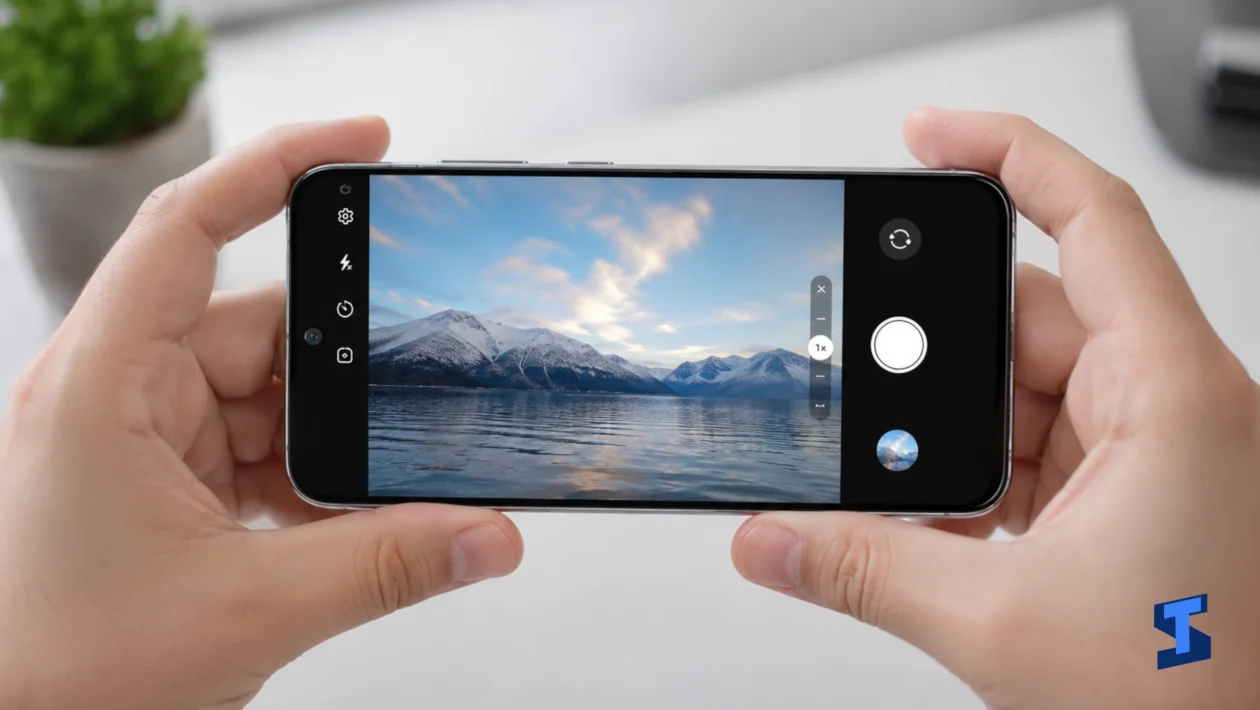
Galaxy A57 camera not working is usually caused by a stuck Camera app, blocked permissions, low storage, overheating, app conflicts, or a software glitch after an update. A broken camera sensor is possible, but it should not be your first assumption.
The problem can show up in different ways. The camera may open to a black screen, crash after a few seconds, show a camera failed error, refuse to switch lenses, or work in the Samsung Camera app but fail inside Instagram, Messenger, WhatsApp, or another third-party app.
For a wider device checklist, you can also check our main guide on Galaxy A57 problems. For more camera-related symptoms, our hub for camera problems may help too.
Quick Checks Before You Change Settings
Restart the phone first. This is boring advice, but it works when the camera process is frozen or another app is holding camera access in the background.
Close apps that may be using the camera. Video call apps, social media apps, QR scanners, banking apps, and messaging apps can sometimes keep camera access active longer than expected. After closing them, open the Camera app again.
Check the lens next. Fingerprints, dust, moisture, a thick case, or a misaligned camera protector can make the camera look broken when the hardware is only blocked. Clean the lens gently with a microfiber cloth.
Also check heat. Camera recording, gaming, navigation, video calls, and direct sunlight can make the phone warm. When the device is too hot, the camera may lag, crash, or stop recording to protect the system.
Identify the Exact Camera Problem
A Galaxy A57 camera app not opening needs a different fix from a camera that opens but takes blurry photos. Before trying everything, narrow down the symptom.
Common signs include:
- Camera app will not open
- Camera opens but shows a black screen
- Camera failed error appears
- Camera freezes when switching modes
- Front or rear camera does not work
- Photos look blurry
- Video recording stops by itself
- Flash does not work
- Camera works in one app but not another
This matters because a Galaxy A57 camera black screen may point to a software glitch or app conflict, while blurry photos may come from dirty glass, focus problems, lighting, movement, or a case blocking the lens.
Force Stop the Camera App
The Camera app can get stuck after switching between photo, video, portrait, QR scanning, and third-party apps. Force stopping it gives the app a fresh start without deleting your pictures.
Go to Settings, tap Apps, choose Camera, then tap Force stop. Open the Camera app again and test the rear camera, front camera, video mode, and flash.
This is one of the safest fixes when the Galaxy A57 camera keeps crashing. It only stops the current app process. It does not remove photos, videos, or saved files.
Clear the Camera Cache
A corrupted cache can make the camera slow, unstable, or unable to launch properly. Clearing the cache removes temporary app files, not your photos or videos.
Go to Settings, tap Apps, select Camera, choose Storage, then clear the cache. After that, open the Camera app again and test it in normal photo mode first.
This can help when the Samsung Galaxy A57 camera not working after a software update, after using several camera modes, or after the app suddenly starts freezing.
Avoid clearing app data unless the problem continues. Clearing data may reset camera preferences, saved shooting modes, and app settings. Cache is the safer first step.
Check Camera Permissions in Other Apps
Camera permissions matter when the problem only happens in third-party apps. For example, the Samsung Camera app may work, but Instagram, TikTok, Messenger, WhatsApp, Snapchat, or a banking app may show a black screen.
Go to Settings, tap Apps, select the affected app, then check Permissions. Make sure Camera access is allowed. Also check microphone permission if the issue happens during video recording or video calls.
When the camera works in Samsung’s Camera app but not in another app, the hardware is probably fine. The problem is more likely app permission, app cache, or an app update.
Camera access can also overlap with face unlock, secure apps, or lock screen behavior. For those cases, check the guide on security and lock screen problems.
Free Up Storage Space
Low storage can cause camera problems because photos and videos need space to save. Video recording is especially sensitive because the phone writes large files quickly.
Delete old downloads, duplicate photos, large videos, and apps you no longer use. Move important files to cloud storage, a computer, or an external backup.
This is worth checking when the camera opens but fails to capture, video recording stops, or the app freezes after taking a photo. Storage pressure can also make the whole phone feel slow, so our guide on performance problems may help if lag happens with the camera issue.
Test the Camera in Safe Mode
Safe Mode helps you find out whether a downloaded app is interfering with the camera. Third-party apps are temporarily disabled while Samsung’s built-in apps remain available.
Press and hold the power button, touch and hold Power off, then choose Safe Mode when it appears. After the phone restarts, open the Camera app and test it.
When the camera works in Safe Mode, a downloaded app is likely causing the issue. Start with recently installed camera apps, filter apps, QR scanners, social media apps, or apps that asked for camera permission.
Restart the phone normally to exit Safe Mode.
Fix Camera Black Screen or Camera Failed Error
A camera black screen usually means the app cannot properly access the camera sensor. A Galaxy A57 camera failed error can happen for similar reasons.
Try these in order:
- Restart the phone
- Close video call and social media apps
- Force stop the Camera app
- Clear the Camera cache
- Free up storage
- Update apps and system software
- Test the camera in Safe Mode
Do not factory reset the phone right away. Many camera failed errors are caused by software conflicts, permissions, cache problems, or app bugs.
Check for Software Updates
Software updates can fix camera bugs, but they can also cause temporary issues when apps are not yet optimized. Check for a One UI or security update, then update apps through the Play Store and Galaxy Store.
After updating, restart the phone and test the camera again. Try normal photo mode first before testing portrait, night mode, video, flash, and third-party camera apps.
When the issue started after setting up the phone or moving data from another device, the problem may be connected to transferred apps or settings. In that case, the guides on setting up the phone and transferring data may help you review what changed.
When the Camera Might Need Repair
Software fixes will not solve every case. The camera may need service when the lens glass is cracked, there is moisture inside the camera, the phone was dropped, the image shakes, or both front and rear cameras fail even in Safe Mode.
Contact Samsung support or an authorized repair center if the camera stays black, keeps showing errors, or fails after every software fix.
FAQs
Why is my Galaxy A57 camera not working?
The most common causes are a stuck Camera app, blocked permissions, low storage, overheating, app conflicts, software bugs, or physical camera damage.
Why does my camera show a black screen?
A black screen can happen when another app is using the camera, the Camera app has glitched, the cache is corrupted, or the sensor is not responding.
Why does the camera failed error appear?
The camera failed error may come from corrupted cache, low storage, app conflicts, software bugs, or hardware trouble.
Why is the camera blurry?
Blurry photos can come from fingerprints, poor lighting, motion, focus issues, moisture, a case blocking the lens, or a dirty camera glass.
Should I factory reset the phone?
A factory reset should be a last resort. Try restarting, force stopping the app, clearing cache, checking permissions, freeing storage, updating software, and testing Safe Mode first.
