
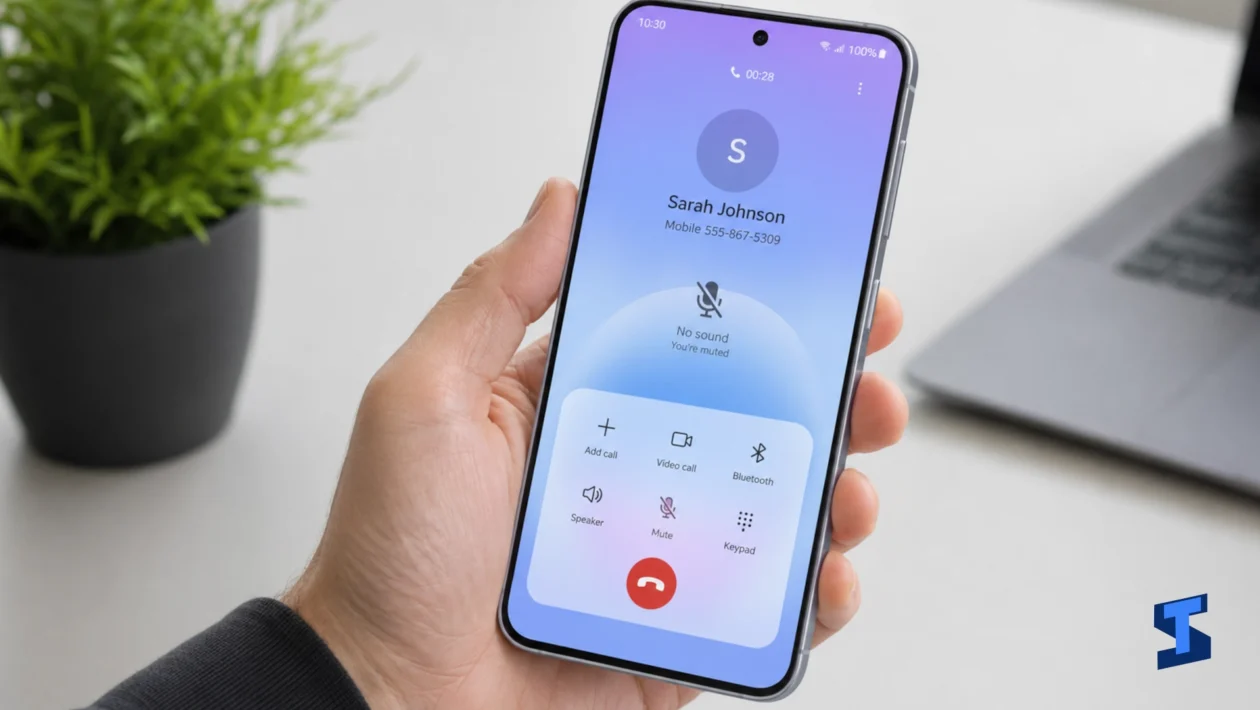
Galaxy A57 no sound usually happens because of muted volume, Bluetooth routing, Do Not Disturb, app sound settings, speaker blockage, software glitches, or call audio problems. The fix depends on where the sound is missing. A phone that has no ringtone has a different issue from one that plays media but has no sound during calls.
Start with the easiest checks first. Most sound problems do not require a reset, and many are caused by a setting that changed without you noticing.
For a broader list of device issues, check our main guide on Galaxy A57 problems. For speaker, microphone, ringtone, and call-related symptoms, you can also visit our guide on sound and call problems.
Quick Checks Before Changing Deeper Settings
Restart the phone first. A restart can clear temporary audio glitches, especially when the sound stopped after using Bluetooth, a video app, a game, or a call.
Next, press the volume button and tap the three-dot volume panel. Check Media, Ringtone, Notifications, and System volume separately. Samsung phones use different volume sliders, so media can be muted even when the ringtone volume is high.
Also check whether the phone is connected to Bluetooth earbuds, a speaker, a car stereo, or a smartwatch. The Galaxy A57 may be playing audio somewhere else while the phone speaker stays silent.
This is one of the most common causes of Galaxy A57 no audio, especially after leaving a car, removing earbuds, or switching between Bluetooth devices.
Check Whether the Problem Is Media, Calls, or Notifications
A Galaxy A57 sound not working issue becomes easier to fix when you know exactly what type of sound is missing.
Test these one by one:
- Play a video or song
- Make a test call
- Check ringtone volume
- Check notification sounds
- Try speakerphone during a call
- Test sound with and without Bluetooth
- Try a different app
When media works but calls do not, the issue may be call audio, speakerphone, microphone routing, or mobile network behavior. When calls work but media is silent, the issue is more likely media volume, app sound, Bluetooth, or speaker output.
When both calls and media are silent, check mute settings, Bluetooth, speaker blockage, Safe Mode, and software updates.
Turn Off Silent Mode and Do Not Disturb
Silent mode and Do Not Disturb can make it seem like the Samsung Galaxy A57 no sound problem is more serious than it really is.
Swipe down from the top of the screen and check the sound mode tile. Make sure the phone is not set to Mute or Vibrate. Then check Do Not Disturb. When it is enabled, calls, alerts, and notifications may stay silent depending on your rules.
Also check whether a schedule is turning Do Not Disturb on automatically at night, during work hours, or while driving. This can explain why the phone has sound sometimes but not always.
Lock screen and notification behavior can also overlap with security settings. When alerts do not appear or sound while locked, our guide on security and lock screen problems may help.
Disconnect Bluetooth Audio Devices
Bluetooth routing is a sneaky reason for Galaxy A57 media sound not working. The phone may still be connected to earbuds, a car system, or a speaker nearby.
Turn Bluetooth off for a few seconds, then play audio again. When sound returns through the phone speaker, the issue was audio routing, not the speaker.
You can also remove old Bluetooth devices you no longer use. Go to the Bluetooth menu, tap the settings icon beside the device, then unpair it. This helps when the phone keeps reconnecting to the wrong device.
For connection problems involving earbuds, speakers, cars, or wireless audio, check our guide on Wi-Fi and Bluetooth problems.
Check App Sound and Media Controls
Some apps have their own mute buttons. Video players, browsers, games, social media apps, and music apps may be muted inside the app even when the phone volume is turned up.
Open another app and test sound there. When YouTube has sound but one game does not, the phone speaker is probably fine. The problem is inside that app.
Also check Separate App Sound if you use it. This Samsung feature can route sound from one app to a Bluetooth device while other sounds play through the phone. It is useful, but it can also confuse you when audio seems missing.
When the problem appears with lagging, delayed audio, or apps freezing before sound cuts out, our guide on Galaxy A57 lagging may be relevant.
Clean the Speaker Area
A Galaxy A57 speaker not working issue can sometimes be physical. Dust, lint, moisture, or a case blocking the speaker grille can reduce or silence audio.
Remove the case first and test the sound again. Then check the speaker openings for dust or debris. Use a soft, dry brush to clean the area gently. Do not push metal objects into the speaker grille, and do not use liquid cleaners.
Also check whether the sound is muffled only after exposure to water, sweat, rain, or humidity. Let the phone dry naturally and avoid charging it while moisture is suspected.
Charging port moisture or accessory issues can sometimes appear alongside audio problems, especially after water exposure. For those cases, check our guide on charging problems.
Test the Phone in Safe Mode
Safe Mode helps you find out whether a downloaded app is causing the no sound problem. In Safe Mode, third-party apps are temporarily disabled.
Press and hold the power menu, touch and hold Power off, then select Safe Mode when it appears. After the phone restarts, test media sound, ringtone, and speakerphone.
When sound works in Safe Mode, a downloaded app is likely interfering with audio. Start with recently installed apps, equalizers, volume boosters, call recorders, screen recorders, launchers, or automation apps.
Restart the phone normally to exit Safe Mode.
Check for Software Updates
A software bug can affect sound output, Bluetooth routing, notifications, or call audio. Check for a One UI or security update, then restart the phone after installing it.
App updates matter too. Messaging apps, calling apps, games, and streaming apps may need updates before audio works properly again.
When the sound problem started after moving data from another phone, some app settings may have transferred incorrectly. Our guide on how to transfer data can help you review setup-related issues.
When No Sound May Need Repair
Software fixes cannot solve every audio problem. Hardware service may be needed when the speaker stays silent after Safe Mode, sound is distorted at all volume levels, the phone was dropped, or audio stopped after water exposure.
Contact Samsung support or an authorized repair center when the speaker, earpiece, or microphone does not work after normal troubleshooting.
You may also want to check camera problems if audio fails while recording videos, or mobile data and 5G problems if call audio drops only during phone calls.
FAQs
Why does my Galaxy A57 have no sound?
The most common causes are muted volume, Do Not Disturb, Bluetooth audio routing, app sound settings, speaker blockage, software bugs, or hardware speaker problems.
Why is media sound not working but calls are fine?
Media volume may be muted, an app may be silent, Bluetooth may be routing audio elsewhere, or Separate App Sound may be sending media audio to another device.
Why can’t I hear calls on my Galaxy A57?
Call audio issues may come from low call volume, Bluetooth devices, network problems, speakerphone settings, or an earpiece problem.
Why is my Galaxy A57 speaker muffled?
A muffled speaker can come from dust, lint, moisture, a blocked case, or damage after a drop or water exposure.
Should I factory reset the phone?
A factory reset should be a last resort. Try restarting, checking all volume sliders, disabling Bluetooth, turning off Do Not Disturb, testing Safe Mode, cleaning the speaker area, and updating software first.
