
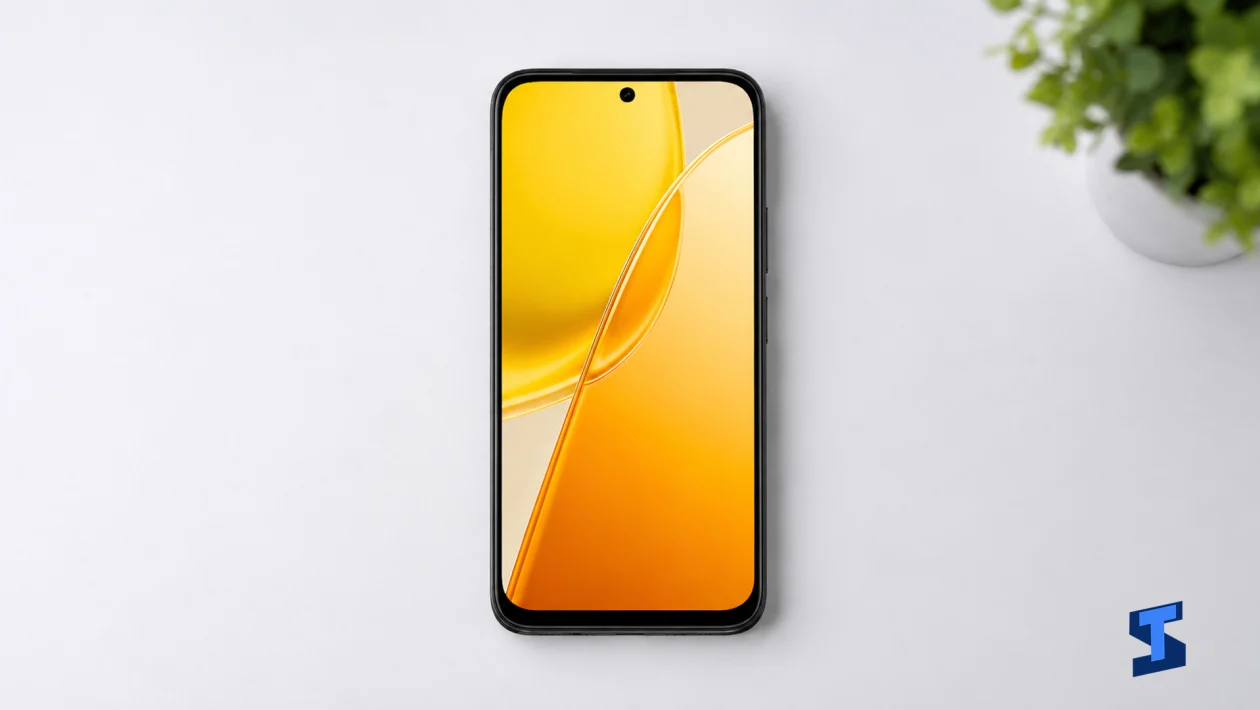
The vivo Y51 Pro is a large-screen 5G phone with a 7200mAh battery, 44W wired charging, Android 16, OriginOS 6, a 50MP main camera, dual SIM support, IP68/IP69 protection, and a side-mounted fingerprint sensor. This user guide will help you set up the phone, understand its buttons and features, manage basic settings, and find the right manual when you need step-by-step help.
If you just bought the phone, start here. This page covers the basics before you move on to tutorials or troubleshooting.
Download the vivo Y51 Pro User Guide Manual PDF
You can download the user guide manual here:
Download the vivo Y51 Pro User Guide Manual PDF
Save the PDF to your phone, computer, or cloud storage so you can open it even when you are offline. It is useful when you need help with setup, buttons, charging, safety information, basic settings, and phone care.
Quick Start Checklist
Before using the phone heavily, go through these first steps:
- Insert your SIM cards.
- Charge the phone using a compatible USB-C charger.
- Turn on the phone.
- Choose your language and region.
- Connect to Wi-Fi or mobile data.
- Sign in to your Google account.
- Set up your vivo account if needed.
- Add fingerprint or face unlock.
- Restore your apps, contacts, and photos.
- Check for software updates.
- Adjust display, sound, battery, and privacy settings.
Do not rush the first setup. The phone may feel warm, drain battery faster, or run slower during the first few hours because it is restoring data, updating apps, and syncing accounts.
Phone Layout and Buttons
The vivo Y51 Pro uses a simple button layout.
The power button is used to turn the screen on or off, restart the phone, power off the device, or activate certain shortcuts depending on your settings. It also works with the side-mounted fingerprint sensor.
The volume buttons adjust ringtone, media, call, alarm, and notification volume. When an app is playing audio, the buttons usually control media volume first.
The USB-C port is used for charging, wired file transfer, USB OTG accessories, and compatible USB-C audio devices.
The phone does not have a 3.5mm headphone jack, so you need Bluetooth earbuds, USB-C earphones, or a compatible USB-C audio adapter.
SIM Card Setup
The vivo Y51 Pro supports Nano-SIM + Nano-SIM. That means you can use two physical SIM cards at the same time.
Use dual SIM if you want to separate personal and work numbers, use two networks, or keep one SIM for calls and another for mobile data.
To manage SIM settings:
- Open Settings.
- Go to Mobile network or SIM card and mobile network.
- Choose your preferred SIM for calls, messages, and mobile data.
- Check whether 5G is enabled for the SIM that supports it.
If mobile data does not work after inserting a SIM, check your APN settings, restart the phone, and confirm that your carrier supports the phone’s network bands in your area.
For connection problems, use this guide: Fix Connection Drops and Weak Signal
How to Charge the Phone Properly
The phone has a 7200mAh battery and supports 44W wired charging. It also supports reverse wired charging and bypass charging.
Use a compatible charger and cable for the best result. If the phone charges slowly, gets warm, or does not show fast charging, the charger, cable, outlet, temperature, or battery settings may be involved.
Good charging habits:
- Use a reliable USB-C cable.
- Avoid charging under direct sunlight.
- Remove thick cases if the phone gets too warm.
- Do not use damaged cables or chargers.
- Keep the USB-C port dry and clean.
- Avoid playing heavy games while charging unless you are using bypass charging correctly.
- Restart the phone if charging behavior looks unusual.
Helpful charging guides:
- Fix Fast Charging That Is Not Working
- Fix Slow Charging
- Fix Overheating During Charging
- Fix Battery Percentage Not Showing
Battery Basics
A 7200mAh battery gives the phone a major endurance advantage, but battery life still depends on how you use it.
Battery drains faster when you use:
- 5G for long periods
- High screen brightness
- Games
- Camera and video recording
- GPS navigation
- Hotspot
- Background apps
- Poor signal areas
- Long video calls
- Always-on syncing
To improve battery life:
- Lower screen brightness.
- Turn off unused radios like Bluetooth and hotspot.
- Use Wi-Fi when available.
- Close apps you are not using.
- Check battery usage in Settings.
- Turn on power saving mode when needed.
- Update apps regularly.
- Restart the phone if battery drain appears suddenly.
Battery help:
- Fix Rapid Battery Drain
- Fix Battery Draining Fast
- Fix Adaptive Battery Draining Too Quickly
- Fix Power Saving Mode That Is Not Working
Display and Touchscreen Guide
The phone has a 6.75-inch IPS LCD display with a 120Hz refresh rate and up to 1250 nits high brightness mode. The large screen is good for videos, browsing, social media, maps, reading, and gaming.
Useful display settings to check:
- Brightness
- Adaptive brightness
- Refresh rate
- Screen timeout
- Eye protection
- Font size
- Display size
- Dark mode
- Gesture navigation
- Accidental touch prevention
If the screen feels too sensitive, too dim, slow to respond, or unstable, these guides may help:
- Fix a Screen That Is Not Responding
- Fix Display Brightness Problems
- Fix Random Screen Dimming
- Fix Adaptive Brightness That Is Not Adjusting
- Fix Touch Sensitivity That Feels Too High or Too Low
- Fix Screen Flickering
Fingerprint and Face Unlock
The vivo Y51 Pro uses a side-mounted fingerprint sensor. It is usually faster and easier to reach because it is built into the power button area.
To set up fingerprint unlock:
- Open Settings.
- Go to Security or Biometrics and password.
- Choose Fingerprint.
- Enter your lock screen password.
- Register your finger.
- Add more than one fingerprint if needed.
For better accuracy:
- Register the same finger twice.
- Keep your finger clean and dry.
- Avoid pressing too quickly.
- Clean the power button area.
- Update the phone if recognition becomes unreliable.
You can also set up face unlock, but fingerprint unlock is usually safer and more reliable in different lighting conditions.
Security guides:
- Fix Biometrics That Are Not Working
- Fix a Fingerprint Scanner That Does Not Recognize Your Finger
- Fix Face Unlock
- Fix App Lock
Camera Basics
The phone has a 50MP main camera with PDAF and an auxiliary lens. It also supports HDR, panorama, LED flash, 4K video at 30fps, and 1080p video at 30fps.
The front camera is an 8MP selfie camera with 1080p video recording.
Use the rear camera for:
- Everyday photos
- Documents
- Food photos
- Travel shots
- Social media posts
- 4K video clips
- Panorama shots
- QR code scanning
For better photos:
- Clean the lens before shooting.
- Use HDR in bright scenes.
- Tap to focus before taking the shot.
- Avoid digital zoom when possible.
- Use good lighting for selfies.
- Hold the phone steady in low light.
- Record in 4K only when you need extra detail.
Camera help:
Wi-Fi, Bluetooth, GPS, and 5G
The phone supports 5G, LTE, Wi-Fi ac, Bluetooth 5.4, GPS, GALILEO, GLONASS, BDS, QZSS, and USB OTG.
Use Wi-Fi for faster downloads, streaming, updates, and backups.
Use 5G when you need faster mobile data and your carrier supports it in your location.
Use Bluetooth for earbuds, speakers, watches, cars, keyboards, and other accessories.
Use GPS and location services for maps, delivery apps, weather apps, fitness apps, and ride-hailing services.
Connection guides:
- Reset Wi-Fi and Bluetooth Settings
- Fix Bluetooth Not Pairing With Devices
- Fix Bluetooth Audio Cutting Out
- Fix Wi-Fi Passwords That Will Not Save
- Fix GPS Accuracy Problems
- Fix Location Services
Infrared Remote Control
The vivo Y51 Pro includes an infrared port. This lets the phone work as a remote control for supported devices, such as TVs, air conditioners, projectors, and some home appliances.
To use it:
- Open the remote control app if available.
- Choose the type of appliance.
- Select the brand.
- Point the top of the phone at the device.
- Test the power, volume, temperature, or input controls.
- Save the remote profile.
If your appliance does not respond, try another remote profile for the same brand.
Storage and File Management
The phone comes with either 128GB or 256GB of storage. It does not have a card slot, so you cannot expand storage with a microSD card.
Choose the 256GB model if you record lots of videos, download movies, install games, or keep files offline.
To manage storage:
- Delete unused apps.
- Clear app cache.
- Remove duplicate photos.
- Move videos to a computer or cloud storage.
- Delete old downloads.
- Back up important files before resetting the phone.
- Review WhatsApp, Telegram, and social media storage.
- Use USB OTG if you need to transfer files to an external drive.
Storage and file guides:
- Fix Storage Full Warnings
- Fix Files That Will Not Download
- Fix Download Manager Problems
- Fix File Manager Crashing
- Fix Quick Share File Sharing
Sound, Calls, and Notifications
The phone has stereo speakers but no 3.5mm headphone jack. You can use Bluetooth earbuds, USB-C earphones, or speakers.
To manage sound:
- Open Settings.
- Go to Sound and vibration.
- Adjust media, ringtone, notification, alarm, and call volume.
- Choose a ringtone.
- Set vibration patterns.
- Check Do Not Disturb.
- Check app notification permissions.
Useful sound and call guides:
- Fix Low Call Volume
- Fix Speakerphone During Calls
- Fix Ringtone Volume That Is Too Low
- Fix Notification Sound Problems
- Fix Lock Screen Notifications Not Showing
- Fix Background App Notifications
Apps, Play Store, and Updates
The phone runs Android 16 with OriginOS 6, so you can install apps from the Google Play Store. After first setup, app updates may take a while, especially if you restored data from an older device.
Basic app maintenance:
- Keep apps updated.
- Remove apps you do not use.
- Check app permissions.
- Clear app cache if an app misbehaves.
- Restart the phone after major updates.
- Avoid installing unknown APKs unless you trust the source.
- Check storage if downloads or installs fail.
App and update guides:
- Fix Apps That Keep Crashing
- Fix Apps That Feel Laggy
- Fix Apps That Will Not Update
- Fix Play Store App Installation Problems
- Fix Google Play Store Crashing
- Fix App Permissions That Keep Resetting
Backup and Reset Basics
Before resetting the phone, back up your important data.
Back up:
- Contacts
- Photos
- Videos
- Messages
- WhatsApp chats
- Documents
- App data
- Passwords
- Calendar events
- Notes
You can use Google backup, cloud storage, a computer, or USB OTG storage depending on what you need to save.
Reset options may include:
- Reset network settings
- Reset app preferences
- Reset all settings
- Factory data reset
Use a factory reset only when basic troubleshooting fails or when you are preparing to sell or give away the phone.
Water and Dust Resistance
The vivo Y51 Pro has IP68/IP69 dust and water resistance. This gives it stronger protection than many phones in its price range.
IP68 means the phone is dust tight and can survive immersion in water up to 1.5 meters for 30 minutes.
IP69 means it also has protection against high-pressure water jets.
Still, water resistance is not the same as being waterproof forever. Protection can weaken over time because of drops, heat, repairs, pressure, or damage to seals.
Do not charge the phone if the USB-C port is wet. Let it dry properly first.
First Things to Change After Setup
After setup, check these settings:
- Enable fingerprint unlock.
- Set a strong lock screen password.
- Turn on Find My Device.
- Adjust refresh rate and brightness.
- Choose your default SIM for calls and data.
- Check battery usage.
- Turn off apps you do not need.
- Update system software.
- Update apps from Play Store.
- Set up backup.
- Customize quick settings.
- Review notification permissions.
- Choose your preferred navigation style.
- Set up call vibration and ringtone.
- Check storage space.
When to Use the PDF Manual
Use the downloadable manual if you need a more traditional guide you can save, print, or share.
The PDF is useful when:
- You are setting up the phone for someone else.
- You want offline access to basic instructions.
- You need a printable reference.
- You are troubleshooting without internet.
- You want to keep a copy before resetting the phone.
- You prefer reading a manual instead of searching multiple pages.
Download it here:
Download the vivo Y51 Pro User Guide Manual PDF
Related Pages
Use these pages next if you need more help:
- vivo Y51 Pro Main Page
- vivo Y51 Pro Tutorials
- vivo Y51 Pro Troubleshooting
- Battery and Charging Guide
- Camera and Video Guide
- Network, Wi-Fi, Bluetooth, and 5G Guide
- Storage, Backup, and File Transfer Guide
- Security, Privacy, and Fingerprint Guide
- FAQs
FAQs
You can download it here: vivo Y51 Pro User Guide Manual PDF. Save it to your phone or computer so you can access it offline.
Yes. The phone supports 5G, but actual 5G service depends on your carrier, SIM card, plan, network coverage, and location.
No. The phone does not have a memory card slot. You need to choose between the 128GB and 256GB storage versions.
No. The phone does not support NFC, so it is not suitable for NFC-based tap-to-pay features.
Use a compatible charger, avoid extreme heat, unplug the phone when it gets too warm, check battery usage regularly, and use power saving mode when needed. The 7200mAh battery is large, but heavy gaming, 5G, hotspot, and high brightness can still drain it faster.
It has IP68/IP69 protection, which means it is dust tight and water resistant under specific conditions. It is not completely waterproof, and water resistance can weaken over time.
That can happen when the phone is downloading updates, restoring apps, syncing accounts, indexing files, and charging at the same time. Give it time to finish setup, then restart it if heat or battery drain continues.