
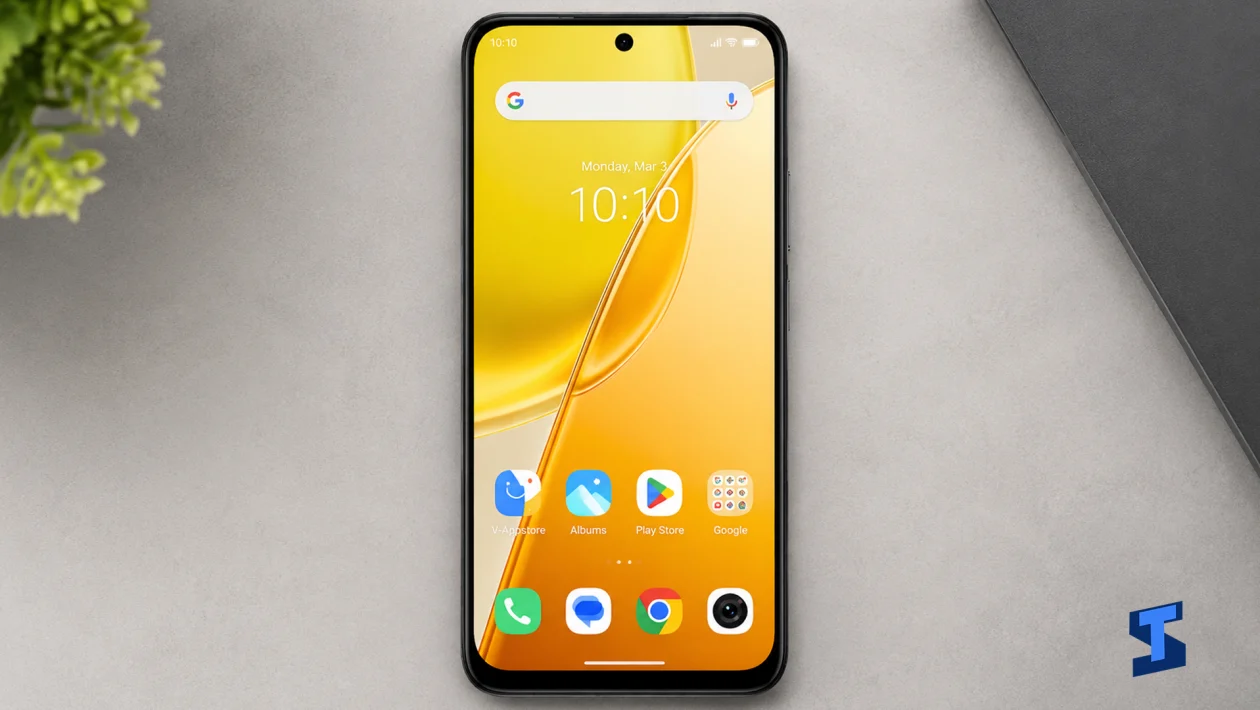
If your vivo Y51 Pro is draining battery too fast, charging slowly, overheating, losing signal, refusing to install apps, or acting strangely after an update, this troubleshooting hub will help you find the right fix faster.
This page groups all common vivo Y51 Pro problems by symptom, so you do not have to search through unrelated guides. Start with the section that matches what is happening on your phone, then open the full fix for step-by-step instructions.
Start With These Basic Checks
Before trying deeper fixes, do these first:
- Restart the phone.
- Check for a software update.
- Update your apps from the Play Store.
- Free up storage if the phone is almost full.
- Turn off the phone for a few minutes if it feels hot.
- Test the problem in Safe Mode if an app may be causing it.
- Reset network settings for Wi-Fi, Bluetooth, signal, or mobile data issues.
- Back up important files before doing a reset.
If the problem keeps coming back, use the troubleshooting sections below.
Need General Help First?
If you are still learning the phone or want a broader overview before fixing a specific issue, start with the vivo Y51 Pro main page. It covers the phone’s specs, battery, display, camera, performance, and key features.
For basic setup, controls, settings, and everyday usage, visit the User Guide and Manual.
Then continue below if you are trying to fix a specific problem.
Battery, Charging, and Power Problems
Battery and charging issues are some of the most common problems on any phone. The vivo Y51 Pro has a large 7200mAh battery and 44W charging, but battery drain, slow charging, overheating, or charging bugs can still happen because of apps, settings, cables, updates, heat, or background activity.
- Fix rapid battery drain
- Fix battery draining fast
- Fix Adaptive Battery draining too quickly
- Fix slow charging
- Fix fast charging not working
- Fix overheating during charging
- Fix overheating during gaming
- Fix overheating during prolonged use
- Fix Power Saving Mode not working
- Fix battery percentage not showing
Display, Touchscreen, and Screen Behavior
Use this section if the display flickers, dims randomly, shows odd colors, refuses touch input, wakes up incorrectly, or feels too sensitive. These issues can come from display settings, accidental touch protection, screen protectors, software bugs, accessibility settings, or hardware damage.
- Fix a touchscreen that is not responding
- Fix display brightness problems
- Fix a phone that will not wake up from sleep
- Fix screen flickering
- Fix screen burn-in
- Fix display color calibration issues
- Fix screen timeout not working
- Fix Adaptive Brightness not adjusting
- Fix random screen dimming
- Fix touch sensitivity that feels too high or too low
- Fix a monochrome screen
- Fix a green tint on the display
- Fix auto-rotate not working
- Fix ghost touches
- Fix accidental touch protection
- Fix Always On Display not working
Apps, Play Store, Keyboard, and System Performance
If apps crash, lag, refuse to install, disappear, or stop updating, the issue may be related to Play Store data, app permissions, storage, software bugs, system updates, or corrupted app cache.
- Fix apps that cannot be installed from the Play Store
- Fix Google Play Store crashing
- Fix apps that keep crashing
- Fix apps lagging
- Fix app icons disappearing
- Fix app permissions resetting
- Fix apps that cannot update
- Fix apps randomly deleting
- Fix Google Chrome crashing
- Fix the Clock app not working
- Fix keyboard lag or delay
- Fix the keyboard not appearing
- Fix voice typing not working
- Fix predictive text not working
Software Update and Boot Problems
A failed update, stuck download, boot loop, or frozen logo screen can make the phone feel unusable. Start here if the problem began after installing an update or restarting the phone.
- Fix a phone stuck on the boot screen
- Fix a phone stuck on the vivo logo
- Fix accidental restarts after an update
- Fix a software update that fails to install
- Fix a software update stuck on download
Wi-Fi, Bluetooth, Signal, and Connectivity
Connection problems can affect calls, downloads, streaming, gaming, nearby sharing, Bluetooth audio, car Bluetooth, and Wi-Fi passwords. Use this section when the issue involves wireless connections, weak signal, or paired devices.
- Reset Wi-Fi and Bluetooth settings
- Fix connection drops and weak signal
- Fix Wi-Fi passwords that will not save
- Fix Wi-Fi Calling not working
- Fix Airplane Mode turning on by itself
- Fix Bluetooth audio cutting out
- Fix Bluetooth not pairing with devices
- Fix car Bluetooth connection problems
- Fix Nearby Share not working
- Fix Quick Share file sharing problems
- Fix Link to Windows not working
- Fix screen mirroring not working
Calls, Sound, Ringtones, and Audio
Use this section if call audio is too low, speakerphone does not work, vibration feels too strong, headphones sound distorted, or notification and ringtone sounds behave strangely.
- Change the incoming call vibration pattern and fix vibration issues
- Fix speakerphone not working during calls
- Fix call volume that is too low
- Fix sound mode changing automatically
- Fix notification sound not working
- Fix ringtone volume that is too low
- Find out why call vibration feels too intense
- Fix audio distortion in headphones
Notifications, Lock Screen, and Home Screen
Notification and home screen problems can make it look like apps are not working, even when the real issue is battery restriction, permissions, launcher settings, Do Not Disturb, or lock screen behavior.
- Fix app icons not showing notification badges
- Fix background app notifications not working
- Fix Do Not Disturb turning on by itself
- Fix lock screen notifications not showing
- Fix lock screen shortcuts not working
- Fix the home screen layout resetting
- Fix wallpaper not changing
- Fix gesture navigation not working
Security, Biometrics, App Lock, and Private Features
Unlocking and privacy problems usually involve fingerprint recognition, Face Unlock, App Lock, Secure Folder, or biometric settings. Try cleaning the sensor, re-registering your fingerprint, checking screen lock settings, and updating the system before resetting the phone.
- Fix biometrics not working
- Fix App Lock not working
- Fix Secure Folder not opening
- Fix a fingerprint scanner that does not recognize your finger
- Fix Face Unlock not working
Storage, Downloads, File Manager, and File Sharing
The vivo Y51 Pro has no microSD card slot, so storage problems can appear faster if you save videos, downloads, photos, games, and offline media. Use these guides if downloads fail, the file manager crashes, or storage warnings keep appearing.
- Fix files that will not download
- Fix Download Manager not working
- Fix storage full warnings
- Fix File Manager crashing
- Fix Quick Share file sharing problems
- Fix Nearby Share not working
Camera, QR Scanner, Screen Recording, and Video Playback
Camera and media problems can involve app permissions, storage, microphone access, network speed, or corrupted app cache. Use these fixes if the camera crashes, QR scanning fails, screen recordings have no audio, or videos keep buffering.
- Fix videos stuck on buffering
- Fix screen recorder with no audio
- Fix the QR code scanner not working
- Fix the camera that keeps crashing
Location, GPS, Compass, Sensors, and Call Detection
If Maps shows the wrong location, the compass points the wrong way, auto-rotate fails, or the screen does not turn off properly during calls, the problem may involve sensors, permissions, calibration, or case/screen protector interference.
- Fix compass calibration issues
- Fix auto-rotate not working
- Fix the proximity sensor during calls
- Fix location services not working
- Fix GPS accuracy problems
Contacts, Messages, Calendar, and Everyday Apps
Use this section if contacts do not sync, duplicate names appear, calendar events are missing, messages crash, alarms fail, or text display behaves strangely.
- Fix contacts not syncing
- Fix duplicate contacts
- Fix messages app crashes
- Fix calendar events not syncing
- Fix the alarm not going off
- Find out why the status bar does not appear in screenshots
- Fix text messages that will not zoom in
When Should You Reset the Phone?
A reset should not be your first move. Try simpler fixes first, especially if the problem only affects one app, one connection, or one setting.
A reset may be worth considering if:
- Several apps keep crashing.
- The phone is very slow after an update.
- Battery drain continues after checking apps and settings.
- Network issues continue after resetting Wi-Fi and Bluetooth settings.
- The phone keeps restarting.
- The same problem returns after every restart.
Back up your photos, contacts, messages, and files before doing a factory reset.
When Should You Contact vivo Support?
Contact support or visit a service center if:
- The phone will not turn on.
- The battery swells or the back cover lifts.
- The screen has physical damage.
- The phone gets dangerously hot.
- Charging fails with multiple known-good chargers.
- The camera, speaker, microphone, or fingerprint sensor fails after basic fixes.
- Water damage is suspected.
- The phone is still under warranty and the issue looks hardware-related.
More vivo Y51 Pro Help
For broader help, visit these related pages:
- vivo Y51 Pro main page
- User guide and manual
- Tutorials
- Battery and charging guide
- Camera and video guide
- Network, Wi-Fi, Bluetooth, and 5G guide
- Security, privacy, and fingerprint guide
- Storage, backup, and file transfer guide
FAQs
Fast battery drain is usually caused by background apps, high screen brightness, weak signal, mobile data, gaming, location services, or a recent software update. Start by checking battery usage, updating apps, restarting the phone, and limiting apps that run in the background.
Slow charging can happen because of a weak charger, damaged cable, heat, dirty USB-C port, battery protection settings, or heavy use while charging. Use a compatible charger and cable, then let the phone cool down before charging again.
Update the app, clear its cache, restart the phone, check available storage, and update the system software. If several apps crash at once, the issue may be related to Google Play services, a system update, or corrupted cached data.
Wi-Fi and Bluetooth problems are often caused by saved network errors, outdated pairing data, router issues, app conflicts, or system bugs. Try restarting the phone, forgetting and reconnecting to the network or device, then resetting Wi-Fi and Bluetooth settings if needed.
Only factory reset the phone after basic fixes fail. A reset can help with serious software problems, but it also removes your personal data, apps, accounts, and settings. Back up everything important first.